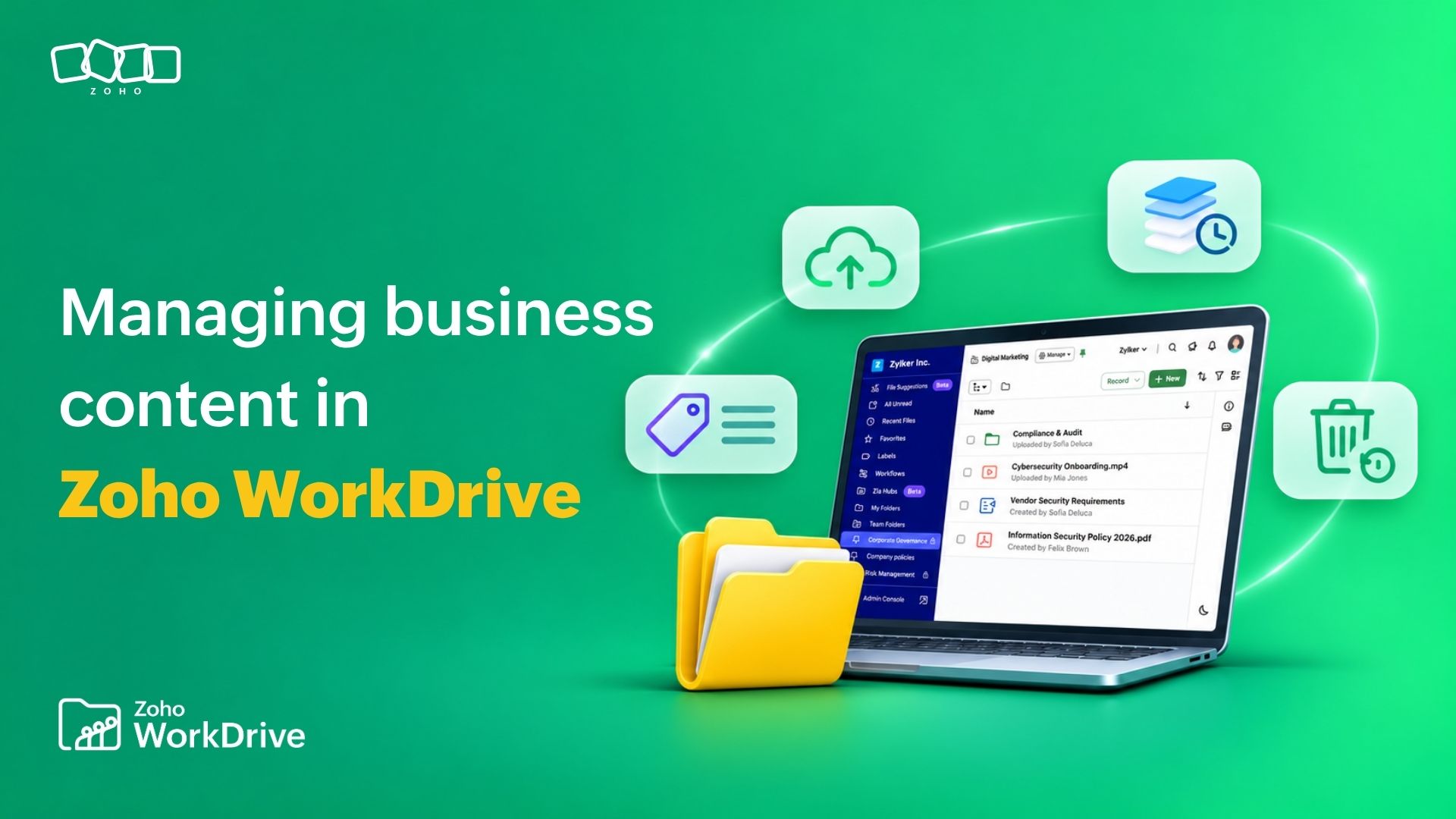
Managing business content in WorkDrive: Folders, uploads, versions, metadata, and recovery
- Last Updated : November 4, 2026
- 0 Views
- 10 Min Read

Here's the harsh truth right at the start: Most file-management problems do not begin with a missing or misused feature. They begin with a perfectly innocent decision when someone saves a file wherever it is most convenient at that moment.
A proposal goes into a personal folder. A project brief lands in a shared location. Three people download a spreadsheet, make their own changes, and upload three slightly different versions.
However, as business content grows and builds up, where a file lives is only one part of managing it. You also need to know who should have access to it, how it should be classified, how people will find it later, what happens when it changes, and how it can be recovered when something goes wrong.
The solution comes alongside the creation of the file in Zoho WorkDrive, with a combination of dedicated folders, Data Templates and custom fields, retention controls and desktop synchronization—among many other such features. You are not just storing more files, but giving content enough structure and context that teams can continue to work with it as the organization grows.
It helps to think in terms of a content lifecycle rather than a collection of directories: Create or upload → organize → classify → collaborate → find → revise → retain or recover.
Here's a deep dive into what this style of business content management entails.
Start with the right content model
Before worrying about metadata, version policies, or upload limits, decide where the content should live.
My Folders is your personal workspace in WorkDrive. Files and folders there are private until you share them, making the area useful for individual work, drafts, notes, and material that is not yet ready to become shared team content. You can create folders, upload files, use labels, manage versions, comment, and share content from here.
Team Folders, by contrast, are shared workspaces built for departments, projects, functions, or other collaborative work. WorkDrive supports private Team Folders, which are accessible only to added members, and public Team Folders, which can be discovered and joined by people in the WorkDrive team. Within a Team Folder, members work according to assigned roles based on access requirements.
Folders and subfolders still matter
Inside My Folders or a Team Folder, users with the appropriate permission can create a folder. In Team Folders, members need Editor access or higher to add files and folders.
The scalable approach is usually to let the top level folders represent stable business contexts—such as a department, project, client, region, or process—and use subfolders for more specific stages or categories.
Can access be limited to one folder?
Yes, WorkDrive supports customized folder permissions inside Team Folders. By default, Team Folder members inherit access according to their Team Folder role, but a folder can be customized so that only specific members or groups receive access. Custom permissions can also be used at subfolder levels.
There are a few important details. Team Folder Admins cannot be restricted through customized folder permissions. Subfolders beneath a customized folder inherit its customized permissions, and a user's higher access from another applicable path can take precedence. WorkDrive currently documents a maximum of 2,500 customized folders per Team Folder.
If almost every subfolder needs a different membership model, that can be a sign that the content should be separated into different Team Folders instead.
Move content without creating chaos
Once you know where content belongs, the next question is how to get it there.
WorkDrive allows users to create Zoho Writer, Sheet, and Show files directly, create folders, or upload existing content into My Folders and Team Folders. Team Folder uploads require Editor access or higher.
For large files, WorkDrive uses chunked uploading. This allows failed portions of an upload to be retried rather than forcing the entire transfer to begin again. For files larger than 1 GB, users can manually pause and resume uploads; a paused or interrupted upload must be resumed within seven days before it needs to be restarted.
For large numbers of files, it's better to utilize the WorkDrive desktop apps rather than attempting to push everything through a browser session.
Move when the location is wrong; copy when the content genuinely needs another instance
WorkDrive supports both copying and moving files and folders, but they are not interchangeable. Copying creates another instance in the destination while leaving the original where it is. The original sharing permissions are not retained on the copy. Moving changes the location of the existing item.
Permissions for moving and copying files vary depending on the source and destination. Within a Team Folder, an Editor or higher can copy content, while moving content within a Team Folder is restricted to Organizers and Admins. Moving content from My Folders into a Team Folder requires at least Editor access in the destination Team Folder.
Setting appropriate access levels helps make content easier to discover within teams and departments. Copies are useful when two independent files genuinely need to exist as it provides more leeway when it comes to editing certain things, such as working unofficially on a draft when you are unable to make concrete changes on the official or final version of that document.
Downloads have their own scale limits
A single file does not have a documented download-size limit, but bulk downloads and ZIP operations do. WorkDrive schedules a large download instead of processing it immediately when the selection contains at least 1,000 items or totals at least 500 MB. When the scheduled action is complete, WorkDrive sends an email containing a download link that remains valid for 48 hours.
For standard users, a selected browser download cannot exceed 20 GB overall, and a ZIP created in WorkDrive cannot exceed 5 GB. The overall selection also cannot exceed 65,536 items or 2,000 first-level files and folders. External users have an overall bulk-download limit of 10 GB.
Make content visible with search, labels, metadata, and templates
A well-designed folder structure helps people browse files, but it shouldn't be the only way they can find something.
WorkDrive Search can locate files and folders by file name, folder name, author, and keywords inside supported files. Full search can also find content inside documents, presentations, spreadsheets, PDFs, text files, and ZIP files.
That changes the answer to the classic question: “How do I find a file when I have absolutely no idea which folder somebody put it in?”
The simple start is "what do you know?"
A client name. An author's name. A distinctive phrase from the document. Text visible in an image. The type of content. Then narrow the result set rather than clicking through a decade of folders like a librarian in the dustiest area of the library. WorkDrive also lets users save searches with their applied filters so you have the same parameters to come back to later.
Data Templates turn classification into shared metadata
Data Templates let teams associate files and folders with predefined business information. Custom fields can capture structured properties, such as a contract being associated with a specific customer, renewal date, value, document type, region, or status. Those values then become metadata that can be used to filter and locate content.
Data Templates are available across paid WorkDrive plans; custom fields are documented as a Business-plan capability. Team Admins create and manage the templates and their custom fields.
Somebody looking for contracts renewing next quarter does not need to know the folder at all. WorkDrive can search by Data Template and apply custom-field criteria to narrow the results. Supported criteria depend on the field type and include conditions such as contains, before, after, above, below, equal to, and not equal to.
Data Templates can also be mandated for a Team Folder or folder. When a mandated template applies, users adding content through create, upload, move, or copy actions are prompted to supply the relevant custom properties. The mandate applies to first-level items in the configured location rather than automatically flowing through every nested subfolder.
Control change with version history and recovery
Organizing a file is only the beginning. Business content is always changing.
Someone replaces an image. A spreadsheet is updated. A customer requests another revision. A colleague uploads the wrong copy. This is why version history is such a valuable feature.
WorkDrive provides unlimited file version history across its plans, while allowing Team Admins to configure version-retention limits when retaining every version is unnecessary. File properties show both the latest file size and the total storage consumed by all versions.
From a file's version history, users can preview or download an earlier version, restore it as the top version, save it as a new file, delete it, or mark a version as Keep Forever. Restoring an earlier version as the top version does not require overwriting the current version.
For non-Zoho formats such as DOCX, XLSX, PPTX, JPG, and PNG, WorkDrive also supports uploading a new version manually. Version histories for native Writer, Sheet, and Show files are maintained in their respective Zoho applications.
There is a trade-off for administrators: Keeping every revision increases recoverability and traceability, but many versions of very large non-Zoho files can consume meaningful storage. WorkDrive therefore lets Team Admins retain all versions or place a numeric limit on version history.
Use a simple decision framework when something goes wrong
Most content-management problems become easier once you identify which layer has failed.
Instead of immediately re-uploading, copying, or recreating a file, work through the problem in this order:
Question | Check | Target Area |
"I don't know where the file is" | Global search, keywords, metadata | Searchability |
“I know the folder but can't see it.” | Team Folder and its access permissions | Permissions |
“I can see it but can't add or change content.” | Assigned role/folder permissions | Permissions, access levels |
“The latest changes are wrong.” | Version history | Version control |
“The whole file disappeared!” | Trash | Data recovery |
“It was removed from the trash.” | Admin Console → deleted items | Admin recovery |
“I see it on desktop but not the web.” | Sync status | Upload pipeline errors |
“A large upload keeps failing.” | Plan, storage limits, folder size restrictions | Upload pipeline errors |
Why does an upload fail?
WorkDrive documents per-file upload limits of 10 GB, 50 GB, and 250 GB for Starter, Team, and Business respectively. Uploads can also fail if the team's overall storage is exhausted, if an administrator has capped a user's My Folders storage, or if the destination exceeds WorkDrive's documented file-count limits.
For a large upload that's been interrupted, retrying can resend only failed chunks. For large numbers of files, the desktop application is generally the better path than repeatedly restarting a browser upload.
Let folder and Team Folder structure answer the broad question of where work belongs. Use roles and customized folders where access genuinely differs. Let individuals use private Labels for their own organization. Introduce Data Templates when the business needs shared metadata and repeatable classification. Use Org Templates when teams need standard starting documents. Configure retention and version limits according to recovery and storage requirements rather than keeping or deleting everything by habit.
Administrators on supported editions can also use Data Administration to locate content across Team Folders and members' My Folders, transfer ownership, manage deleted items, and review shared content. WorkDrive currently documents Data Administration for its Team and Business plans.
Good content management does not mean adding the maximum possible number of controls to every file. It means making the right behavior easy enough that people actually follow it.
FAQ
How are folders and subfolders created?
Open My Folders or a Team Folder, select + New, choose Folder, give it a name, and create it. In Team Folders, Editor access or higher is required to add files or folders. When creating a subfolder in a Team Folder, authorized users can also customize its access.
Can access be limited to one folder?
Yes. A folder or subfolder inside a Team Folder can have customized permissions so that only specified members or groups have the required access. Team Folder Admins cannot be restricted, and higher access granted through an applicable parent path can take precedence.
How are files moved or copied between locations?
Select the file or folder and use Move To when you want to change its location or Copy To when you genuinely need another instance. Permissions depend on the source and destination. Within a Team Folder, copying requires at least Editor access, while moving content within the Team Folder is limited to Organizers and Admins. Copies do not retain the original item's sharing permissions.
How long do deleted files remain in Trash?
The Admin Console allows administrators to configure automatic deletion after 7, 15, 30, 90, or 120 days according to the team's retention settings. Content removed from Trash may then remain temporarily recoverable through Deleted Items in the Admin Console before permanent deletion.
Can previous versions be restored?
Yes. WorkDrive lets users restore an earlier file version as the current top version, download it, or save it as a separate file. WorkDrive supports unlimited version history, although Team Admins can configure retention limits. Deleted versions may also be recoverable during the configured retention period.
Why are files visible on TrueSync but not on the web?
Check the desktop item's synchronization status first. A sync error means the item has not synchronized successfully. Also make sure the file was added inside My Folders, a Team Folder, or another valid cloud-backed location rather than directly into the desktop app's root folder, which has no equivalent on the WorkDrive web app. Permissions, connectivity, proxy/firewall configuration, insufficient local cache space, and unfinished uploads can also prevent content from reaching the web.
What is the maximum upload or download size?
For standalone WorkDrive plans, the current maximum single-file upload is 10 GB on Starter, 50 GB on Team, and 250 GB on Business. WorkDrive documents no size limit for downloading one individual file, but browser-based multi-item downloads have separate restrictions: Standard users cannot download a selection larger than 20 GB, while external users have a 10 GB overall limit for such downloads.
How can users find a file when they do not know its folder?
Use WorkDrive Search rather than browsing manually. Search can use file and folder names, authors, keywords within supported file contents, printed text detected in supported images, and recognized image objects. Data Templates and custom-field criteria can provide an additional structured way to narrow results when metadata has been applied.