- HOME
- Product updates
- Introducing Browser Auto-Save: Never let users lose their form progress again
Introducing Browser Auto-Save: Never let users lose their form progress again
- Last Updated : February 4, 2026
- 1.6K Views
- 7 Min Read
You have spent 20 minutes carefully filling out a detailed job application. You are on the final question when you accidentally click the wrong spot and close the browser tab. Your heart sinks. All that work, gone in an instant.
There's a glimmer of hope while you reload the page, followed by that gut-wrenching moment when you realize you have to start over. It is frustrating, time-consuming, and frankly, it should not happen in 2026.
That is exactly why we built Browser Auto-Save for your respondents in Zoho Forms - for times like these:
- A toddler slams the laptop shut
- The browser crashes mid-sentence
- Someone accidentally hits the back button
- The internet connection drops at the worst possible moment
- A phone call interrupts, and the tab gets closed
- The device battery dies
Each of these scenarios leads to the same outcome: data loss and respondent frustration.
Worse yet?
Many people won't come back to retry. You have lost not just their data, but their trust and engagement.
The old solution: Save & Resume
Zoho Forms has long offered the Save & Resume feature, which allows respondents to manually save their progress and return later from any device. It is powerful, reliable, and perfect for intentional breaks, like when someone needs to gather documents or consult with colleagues before continuing.
But it still requires action.
Respondents need to remember to click the Save button. And when you are in the flow of filling out a form, who thinks about saving until it's too late?
Browser Auto-Save: The new savior
It is the invisible assistant constantly hitting "save" every few seconds. Except it is faster, more reliable, and never takes a lunch break!
As respondents type, select options, or interact with your form, their progress is automatically saved to their browser's local storage, no buttons to click, no conscious effort required. There is no distracting "Saving..." indicator, no loading spinners, no confirmation messages. The form just works, and their data is protected.
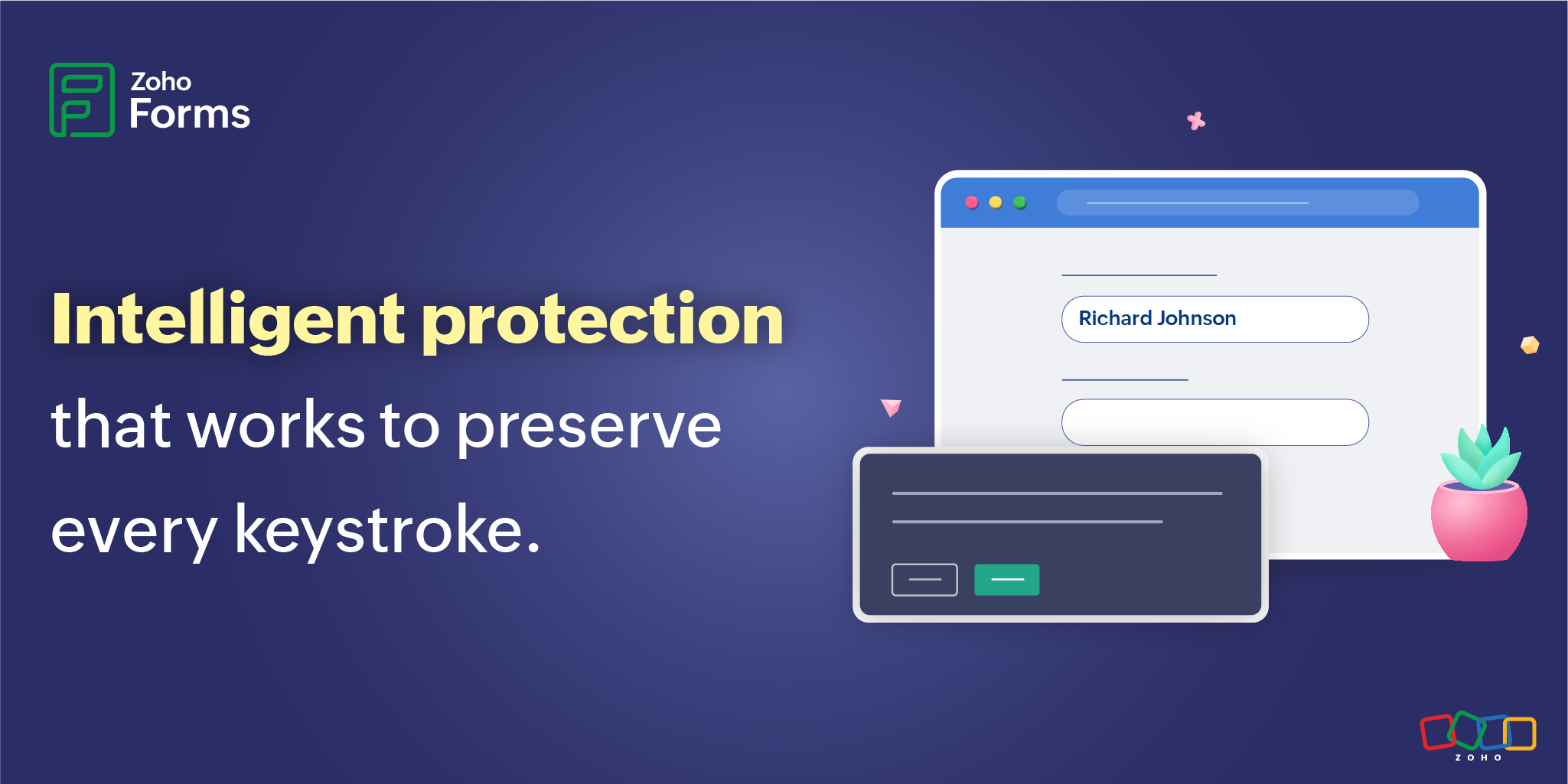
When life happens
Their browser crashes. They accidentally close the tab. Their internet drops. Their kid hits the power button.
No problem.
Seven-day window
The auto-saved data persists for up to 7 days. That is a full week of protection, plenty of time to handle unexpected interruptions, weekend breaks, or "I'll finish this later" moments.
When they return (Within 7 days)
If the user navigates back to the form using the same browser on the same device, the form will load with all their previously entered data already there. They can pick up exactly where they left off. No frustration, no re-entering, no lost time.
After form submission
They hit the submit button. Their response is recorded. And behind the scenes, all that auto-saved data in their browser? It's cleaned up automatically.
The consent question
This is where form administrators have a choice, and it's worth thinking through. Decide whether to ask respondents for permission first.
If you choose to ask for consent, respondents see a clear, simple popup the first time they access the form. They can choose to allow auto-save or decline.
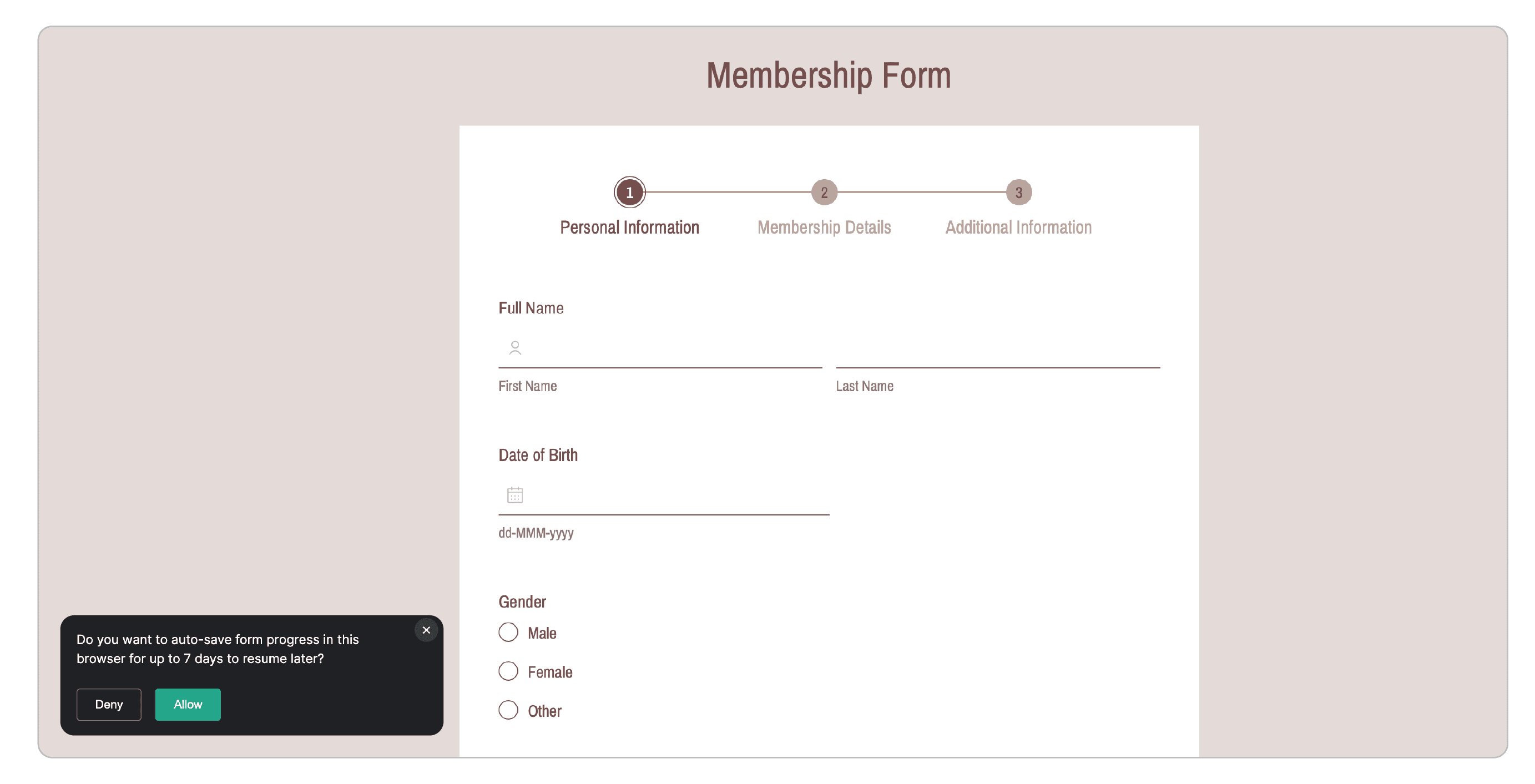
Our recommendation?
For most forms, skip the popup. Users expect modern web applications to auto-save. It has become the norm, not the exception. But if your industry requires it or your audience expects explicit consent, the option is there.
How does the Browser Auto-Save feature keep user data secure?
Data never leaves the respondent's device until form submission. All data is stored directly on the respondent's device in their browser's local storage. It never touches your servers until they hit submit. This means it's fast, private, and does not consume your storage quota for form data. Respondents can clear their browser's local storage anytime. Form administrators can choose to show a consent popup, giving respondents full transparency. Data self-destructs after 7 days or upon submission, whichever comes first.
How to set up Browser Auto-Save
Enabling this feature takes much less time than reading this section.
- Navigate to your form Settings > Submissions & Storage > Save for Later.
- Toggle the Enable option under Browser Auto-Save.
- Decide whether to ask respondents for permission before auto-saving.
- Customize the consent popup if you choose to enable it.
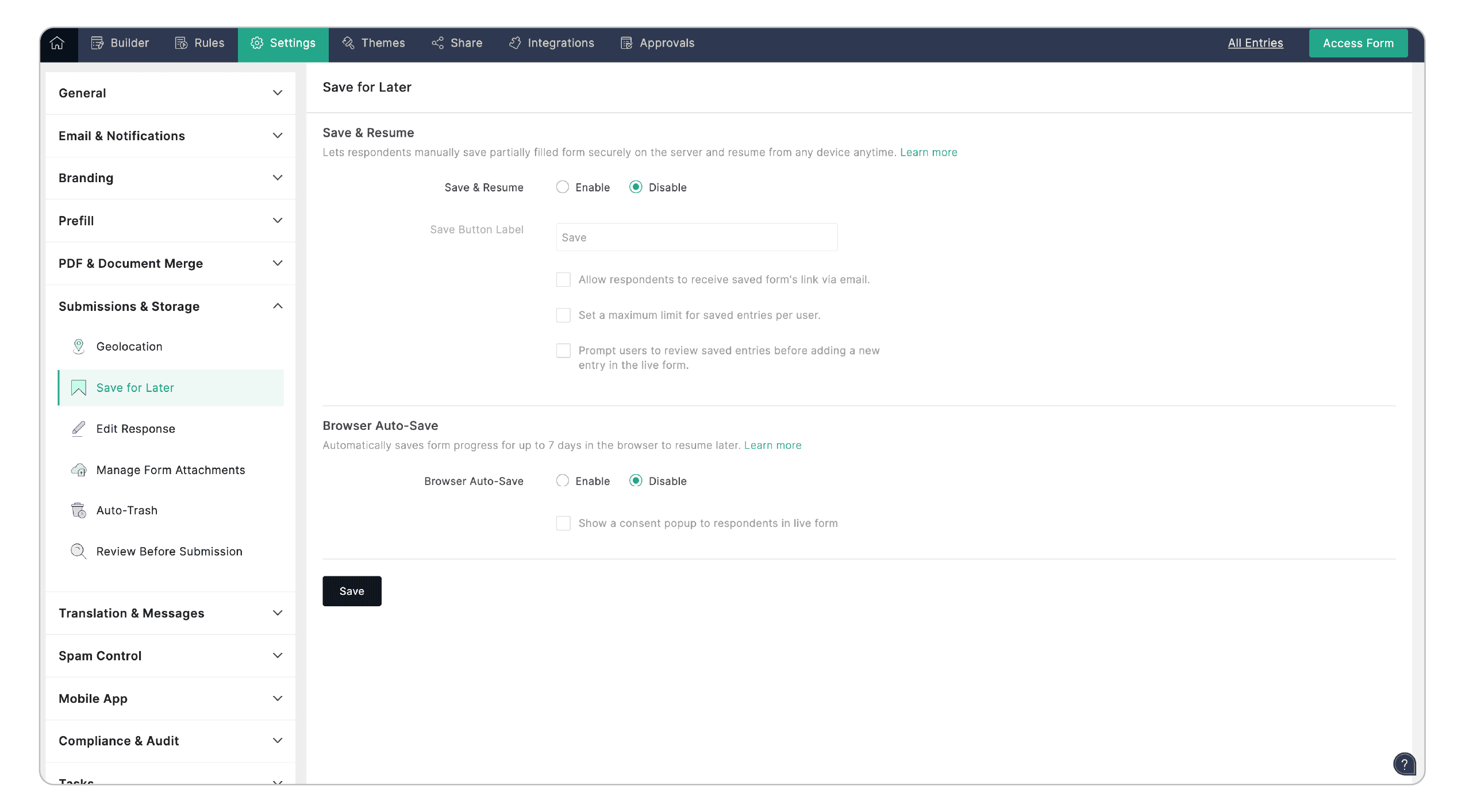
That's it. You're done. Really!
Check out more details about setting up browser auto-save.
Browser Auto-Save vs. Save & Resume
These two features might sound similar, but they serve very different purposes.
The automatic safety net
Browser Auto-Save anticipates problems before they happen. It is designed for those unplanned interruptions that catch everyone off guard. This is the feature for the "oh no" moments that no one sees coming.
There is no button to remember or no conscious decision to make. From the moment someone starts typing in your form, their progress is being protected.
Browser Auto-Save only works on the same device in the same browser where they started. If they begin filling out the form on their laptop in Chrome and then try to continue on their phone, the data won't be there. It's device-specific and browser-specific by design. The data also has a seven-day lifespan, plenty of time for most interruptions, but not meant for long-term storage. And because everything stays in the respondent's browser, you as the form owner will not see these partial saves in your dashboard. They are completely private until the moment of submission.
The deliberate pause button
Save & Resume, on the other hand, is for the planners. It is for situations where respondents know they will need to step away and come back later, not because something went wrong, but because the task requires it. Maybe they need to gather supporting documents, consult with a colleague, get approval from their manager, or simply sleep on a big decision before hitting submit.
When someone clicks that Save button, they are making a conscious choice to pause their progress. The system responds by storing their data securely on Zoho's servers and generating a unique URL to resume. That saved form isn't going anywhere until they submit it or you delete it. There's no seven-day countdown clock ticking away.
Someone can start filling out a form on their desktop at the office, save it, and then pick it up on their tablet at home that evening. The unique URL is their passport to access that saved form from anywhere, on any device, at any time.
Save & Resume also gives you, the form owner, visibility. You can see these partially completed entries in your dashboard under the All Entries section. This is incredibly valuable when you are following up with people who started but did not finish, or simply trying to understand where respondents are getting stuck.
Browser Auto-Save is available for public forms only, not private forms. Why?
Private forms have built-in security and authentication mechanisms that do not mesh well with browser-based auto-save. For private forms, rely on Save & Resume instead.
Read more about choosing the right save option
Using both features together
You can enable both features on the same form. And when you do, they don't compete with each other, they complement each other.
Life gives you so many "oops" moments!
You are planning to apply for a new job at a company. You find a job application form during lunch break and decide to start filling it out. You are making good progress with name, contact info, education history all entered. Then suddenly, you realize you have a meeting in five minutes.
Of course you panic and close what you're working on to get ready, but you were only halfway through the application, and don't want to lose what you have already entered.
Two hours later, back at your desk, you reopen the form and everything you typed is still there. Browser Auto-Save has been quietly capturing every keystroke since you started.
You continue filling it out: work experience, portfolio links, references. You are almost done when you reach the section asking for three professional references. And here's where you hit a wall. You need to email two of your former colleagues to confirm their current contact information.
Now, you make a deliberate decision. You click the Save button. Instantly, a unique URL appears on your screen to resume after getting reference information.
That evening, at home on your tablet, you check your email, find the link, and click it. Your partially completed application loads perfectly. You have gotten the reference information you needed, so you fill in those final fields and hits submit. Done.
What has happened behind the scenes in this scenario?
From the moment you started typing, Browser Auto-Save was your safety net. When you abruptly closed the form, nothing was lost. The data sat safely in your browser's local storage, waiting for your return. You didn't have to click anything, didn't have to remember anything, it just worked.
When you clicked Save, the system took all that locally-stored data and promoted it to the server, creating that unique permalink. At this exact moment, Browser Auto-Save stepped aside. Its job was done. The baton had been passed to Save & Resume.
What makes this combo so elegant is how could create a safety net for your respondents with no gaps.
You can create a form experience that adapts to your respondents' needs without them having to understand the technical details. They just experience a form that never loses their data, whether that is because of an accident, a quick break, or a multi-day deliberation process.
That's not just good UX design. That is anticipating human behavior and building systems that work with it.
Ready to enable Browser Auto-Save?
Head to your Zoho Forms dashboard and turn it on today. Your respondents will thank you.
Have questions about Browser Auto-Save or how it works with your specific use case? Leave a comment below.
 Samhita V
Samhita is a seasoned product expert at Zoho Forms who blends deep product expertise and user education to help businesses make sense of powerful features without the jargon. Known for her thoughtful storytelling and crisp communication, she adds a subtle creative flair to every piece she writes. With a knack for spotting real-world use cases and adding a touch of fun to her narratives, she’s on a mission to make even the most complex workflows feel approachable. Beyond the desk, she channels her creativity into dance and mural art, finding new ways to infuse her surroundings with color, rhythm, and meaning.