Automate your scheduling workflows with Zoho Calendar

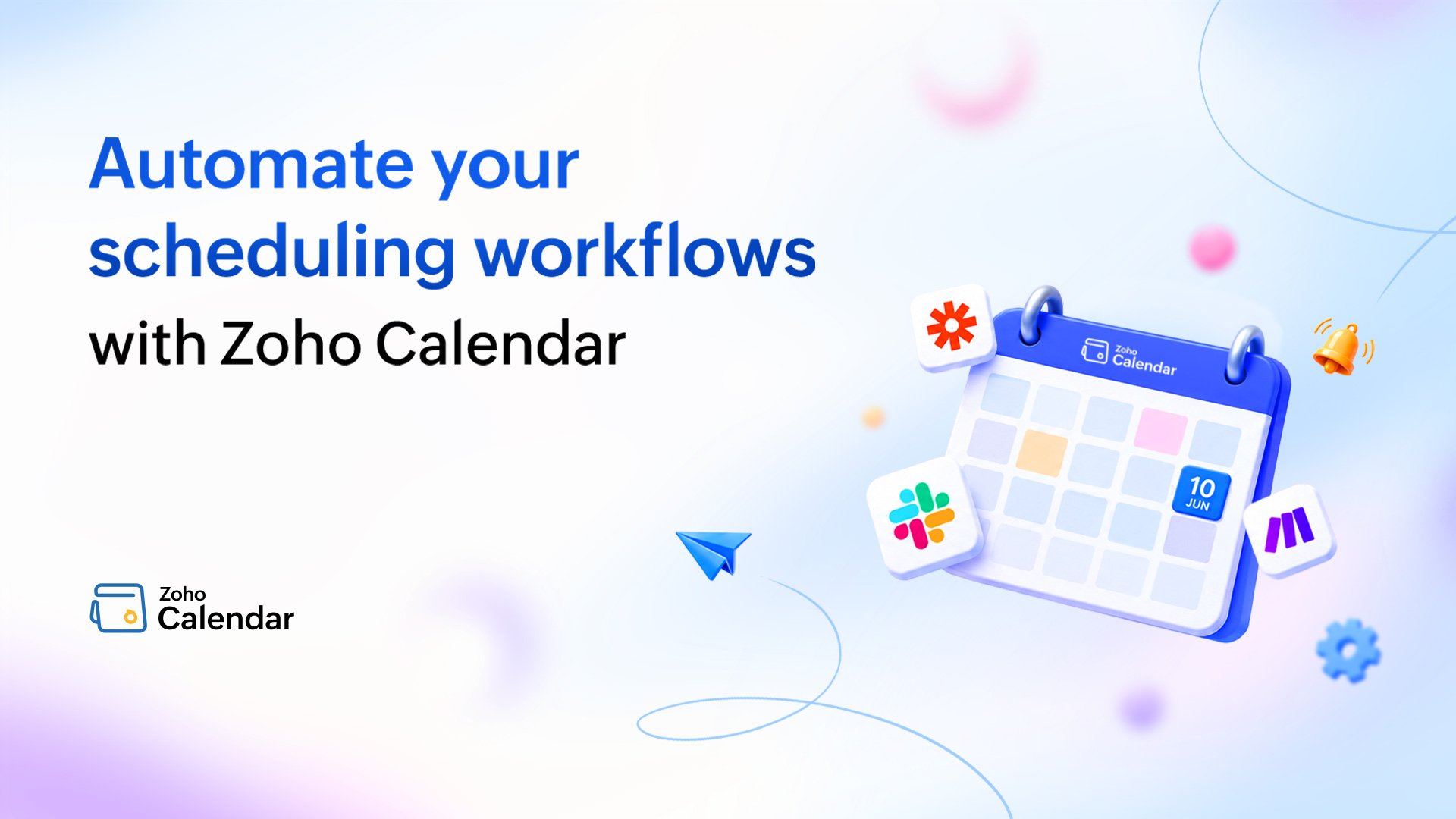
Your calendar can do more than schedule meetings
Creating a calendar event takes only a few seconds. But scheduling is rarely just about creating the event.
A request comes in, and someone needs to schedule a meeting. A meeting is created, and the team needs to know. The time changes, and information elsewhere needs to be updated. An event gets cancelled, and the next step in the process needs to change, too.
Individually, these are small tasks. But when they repeatedly happen across meetings, teams, and applications, they add up quickly. What if your calendar could take care of some of that work for you?
With workflow automation integrations, you can connect Zoho Calendar with the applications and processes your team already uses and automate the routine steps that happen before, after, and around an event.
Make your calendar part of the workflow
Think about the last meeting you scheduled. Chances are, the work didn’t begin when you clicked Create or end when the event appeared on your calendar.
Something probably happened before it. A form submission, a request, an email, or an action in another application. And something may have needed to happen afterwards, like a notification, an update, a follow-up task, or another step in a larger process.
Instead of manually moving information between these applications, you can build workflows where Zoho Calendar acts as either the trigger or the action.
In simple terms:
An action in another app can trigger a Calendar event, while an action in Zoho Calendar can set the next step of your workflow in motion.
Zoho Calendar supports event creation, updates, and deletions as workflow triggers across Zapier, Make, n8n, Workato, and Microsoft Power Automate. These platforms can also perform Calendar actions such as creating, updating, and deleting events.
So instead of thinking about what you can “integrate” with your calendar, a more useful question is: What repetitive work around your calendar could you stop doing manually?
Turn incoming actions into scheduled events
Not every meeting needs to start with someone opening their calendar. Maybe a customer submits an appointment request. Someone registers for a session. A request arrives through another application. Or a business process reaches the point where a meeting needs to happen.
That incoming action can become the starting point of an automated scheduling workflow. For example:
New form submission → Create an event in Zoho Calendar.
Zoho Calendar’s Zapier integration, for instance, can be used to create Calendar events from new Jotform submissions.
The same idea can extend to other workflows supported by the automation platform and connected applications. An action happens somewhere your team already works, and the required event is added to Zoho Calendar without someone having to create it manually.
Let an event start the next step
Sometimes scheduling the meeting is only the beginning.
Once an event is created, you may need to inform a team, create a task, pass information to another application, or continue another part of the process. Instead of relying on someone to remember those steps every time, the Calendar event itself can become the trigger.
Depending on the applications and automation platform you connect to, workflows could follow patterns such as:
New Calendar event → Notify the relevant team.
New Calendar event → Create a task in a connected application.
New Calendar event → Add corresponding information to another system.
The important part isn’t any one workflow. It’s that scheduling can initiate whatever needs to happen next rather than becoming a stopping point in the process.
Keep things moving when plans change
Of course, meetings don’t always stay exactly as they were scheduled. Times change. Details are updated. Meetings are cancelled. And every change can create another set of small manual tasks.
Zoho Calendar supports event-created, event-updated, and event-deleted triggers across Zapier, Make, n8n, Workato, and Microsoft Power Automate. A workflow can respond when the Calendar event changes. No one needs to carry changes manually.
For example:
Event updated → Update the related information elsewhere.
Meeting rescheduled → Trigger the corresponding workflow.
Event deleted → Start the required cancellation process.
The exact action depends on the automation platform and connected application, but the principle remains the same: When the schedule changes, the workflow can change with it.
Go beyond one-step automations
Not every workflow has to be a simple A → B connection. Zoho Calendar can also become one step within a larger automated process.
Imagine a workflow where an incoming request results in a Calendar event. Once that event is created, another step informs the relevant people. The workflow could then continue into other applications based on what needs to happen next.
Or, Calendar could sit in the middle of the process. An action in one application results in a scheduled event, and activity around that event moves the workflow forward.
What this looks like will differ from one organization to another, and that’s precisely where having multiple automation options helps.
Choose how you want to automate
Zoho Calendar supports five workflow automation platforms: Zapier, Make, n8n, Workato, and Microsoft Power Automate.
They share many core Zoho Calendar capabilities, but the broader automation experience and ecosystems they offer differ. So rather than choosing solely based on Calendar functionality, consider what your organization already uses and how you want to build your workflows.
Zapier: Get straightforward automations running quickly
Zapier is useful when you want to create no-code workflows connecting Zoho Calendar with other web applications. Zoho Calendar can work as either the trigger or action app in a Zap. In addition to event creation, updates, and deletion, the integration supports calendar-level triggers, such as a calendar being created, updated, deleted, or shared.
Actions include creating a calendar; creating, updating, and deleting events; and creating a quick event from text. There are also prebuilt Zoho Calendar Zaps to help you get started without building every workflow from scratch.
Explore Zoho Calendar + Zapier
Make: Visually build your automation scenarios
Make offers a visual approach to building no-code workflows across applications. Zoho Calendar can be used as either a trigger or action within a Make scenario. New, updated, and deleted events can start workflows, while Make can create, update, delete, or add Calendar events.
If you prefer seeing and building the different steps of an automation as a visual scenario, Make gives you another way to bring scheduling into your processes.
n8n: Build more customizable workflows
n8n offers a visual workflow environment along with greater flexibility for teams that want to customize how their automations are built and deployed. With Zoho Calendar, event creation, updates, and deletion can trigger n8n workflows. Workflows can also create, update, delete, or add Calendar events.
n8n also offers capabilities such as customizable workflow logic, error handling, scheduling, and self-hosting, making it an option for teams looking for more control over their automation setup.
Workato: Bring Calendar into broader business workflows
Workato focuses on automating business workflows across cloud and on-premises applications. Zoho Calendar events can be used as triggers within Workato recipes, while recipes can also create, update, delete, or add Calendar events.
For organizations already using Workato to connect applications and business processes, this allows scheduling to become another step within those broader workflows.
Explore Zoho Calendar + Workato
Microsoft Power Automate: Connect Calendar with your existing flows
For organizations already using Microsoft Power Automate, Zoho Calendar can become part of the flows they build across their applications and services.
Creating, updating, or deleting a Zoho Calendar event can trigger a flow. Power Automate can also create, update, retrieve, search for, and delete Calendar events.
Teams using Power Automate can now integrate Zoho Calendar. This enables them to use Zoho Calendar for other business processes.
Explore Zoho Calendar + Microsoft Power Automate
Which one fits your workflow?
There isn’t one automation platform that’s right for every team.
A better starting point is to consider your existing technology stack, the applications you want to connect, the complexity of your workflows, and how much control you want over how they’re built.
| If you’re looking for... | Explore |
| Straightforward no-code automations across web applications | Zapier |
| A visual approach to building multi-step automation scenarios | Make |
| Customizable workflows and greater control over deployment | n8n |
| Automation spanning broader business applications and processes | Workato |
| Connecting Calendar to an existing Power Automate environment | Microsoft Power Automate |
And you don’t necessarily have to start with the most complex workflow.
Start with one thing you do repeatedly
Look at what happens around the meetings on your calendar today.
Do you copy information from somewhere else every time you create an event? Do you notify the same people whenever a particular type of meeting is scheduled? Is there something you have to update every time a meeting moves? Does a cancellation mean going into another application and changing something there, too?
Start with one of those repetitive steps. Connect Zoho Calendar to the workflow automation platform that fits your setup, automate that step, and build from there.
Because your calendar doesn’t have to be where a workflow stops. It can be what keeps it moving.
Ready to automate your scheduling workflows?

Comments