Scheduling a webinar with registration: Forms & pages
Zoho Webinar's registration process empowers event organizers to effectively manage their webinars, engage with their audience, generate leads, and gather valuable data for future marketing and business strategies.
Try Zoho Webinar
Scheduling a webinar with registration
Zoho's webinar software allows you to create an event that captures the information you need from your target audience.
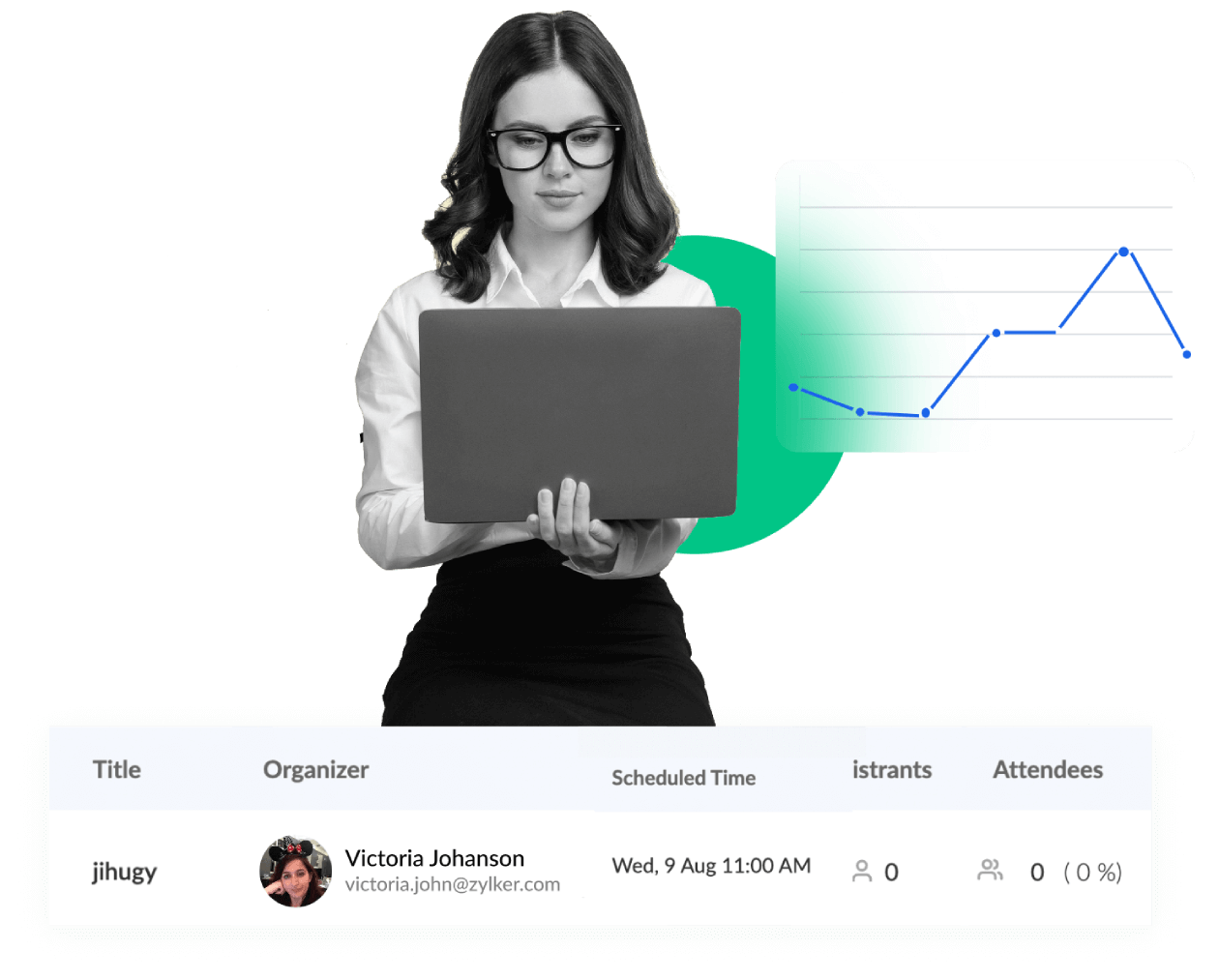
Audience management
The registration process allows you to collect essential information about your attendees, such as their names, email addresses, job titles, and company details. This data helps you better understand your audience and tailor your webinar content to their needs and interests.
Lead generation
By capturing attendee information during the registration process, you can build a valuable database of potential leads.
Attendance tracking
Registration helps you keep track of who has signed up for your webinar, allowing you to estimate attendance and plan accordingly. This information helps you manage your webinar invitations and registration, logistics, allocate resources, and ensure a seamless experience for your attendees.
Webinar registration forms
Customizable registration forms help you gather necessary information from your attendees so you can better understand their needs and offer solutions. Follow these 6 proven tips to increase webinar registrations.
Customization and branding
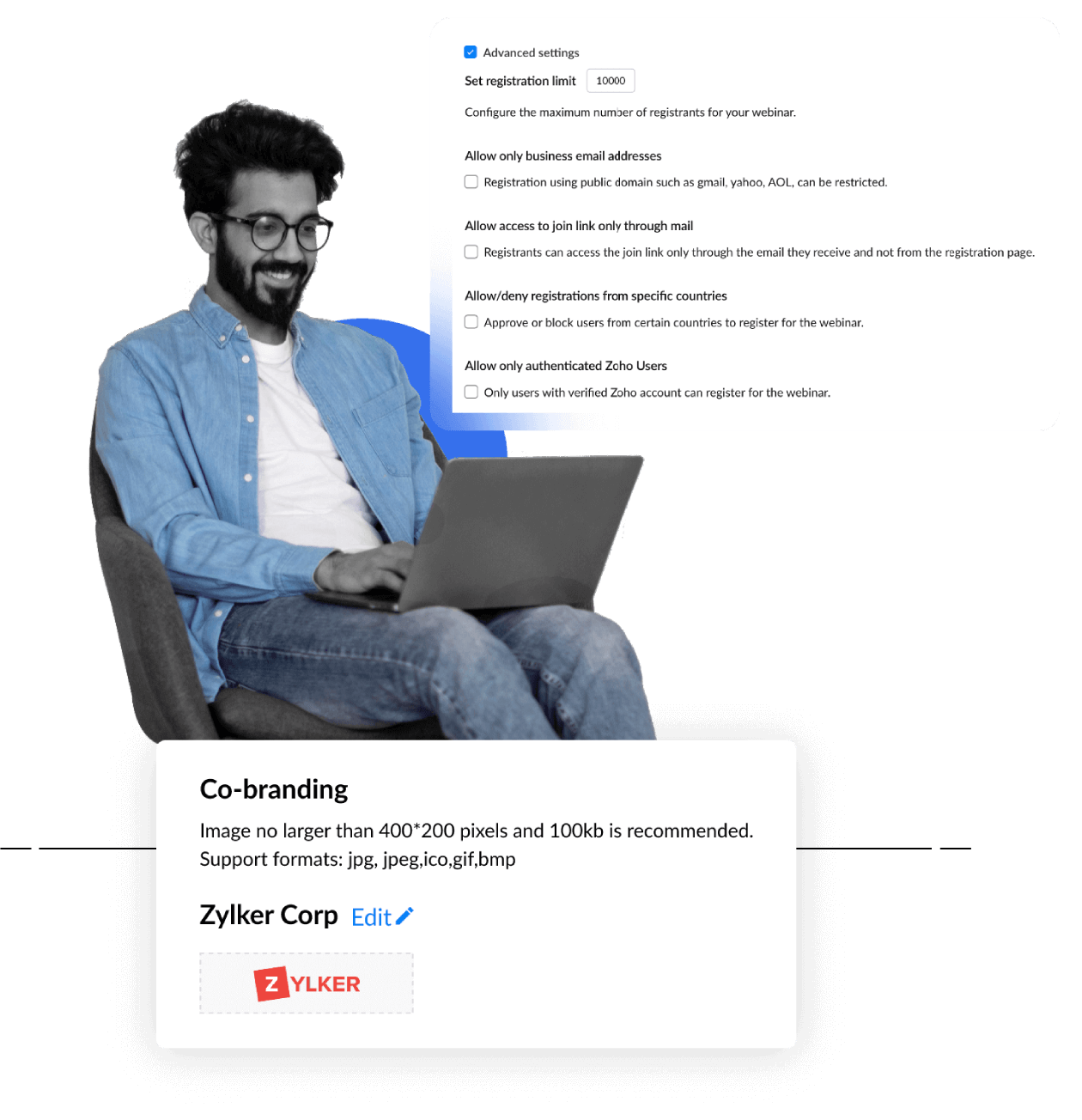
Zoho Webinar provides options to customize the registration form with your branding elements, such as your logo, and custom fields. This branding consistency enhances your professional image and reinforces your organization's identity.
Embed webinars
Embed the registration widget on webpages and blogs for people who visit your page to learn about it and register for webinars. They can also join the webinar at the scheduled time directly from the widget without accessing email invitations.
Advanced settings
Using the advanced settings, you can customize the registration process for webinars, such as the maximum number of registrants, allow registration only with an authorized domain, approve or block users from certain countries to register for the webinar, and so on.
Webinar registration form template
Add predefined or custom fields to your registration form to learn more about your leads' business needs, requirements, industry, and roles, as well as other details. You can also clone your webinar to keep the customized registration form as a template for your future webinars.
Add fields
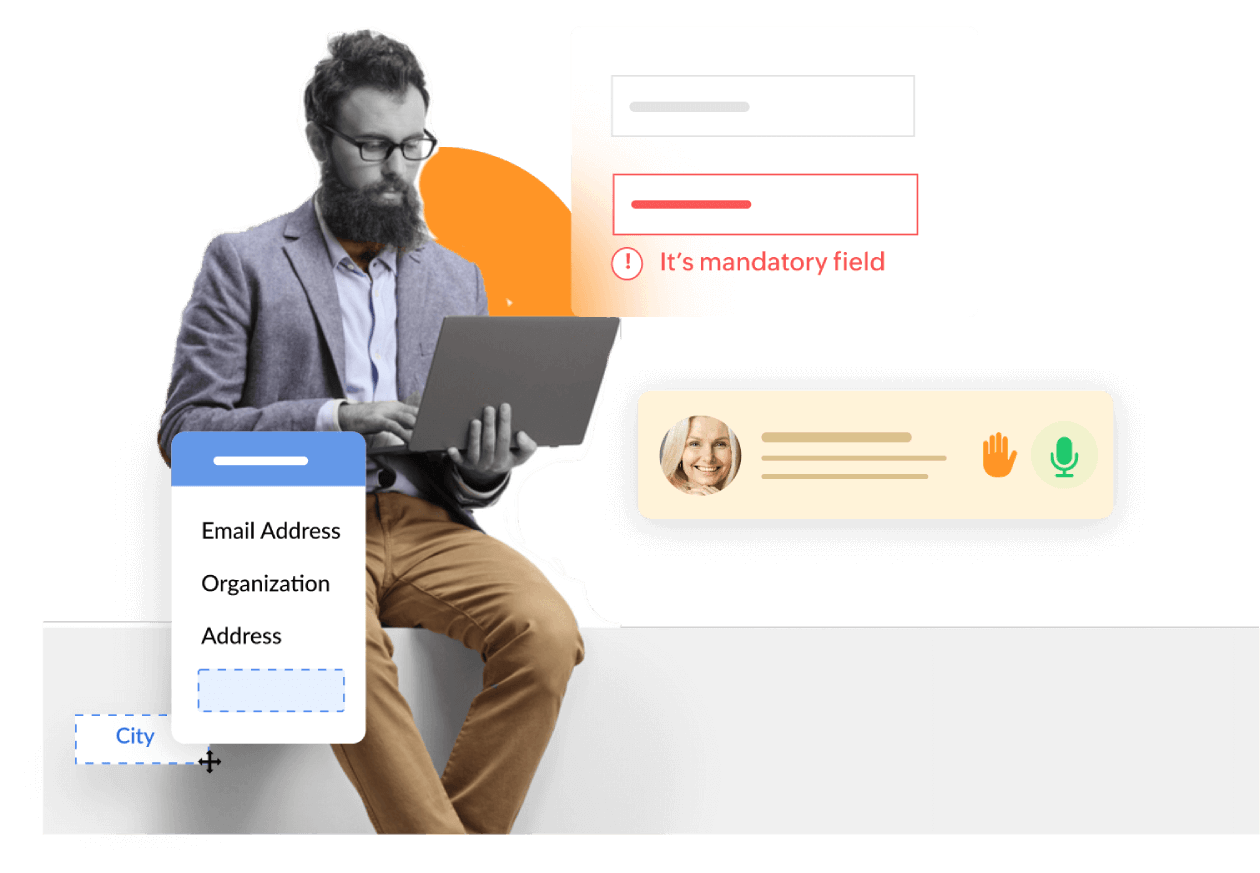
Zoho Webinar gives you many useful predefined fields that you can easily drag and drop into your registration form. You can also create new fields if you want to get more data from your audience.
Ask questions
Add custom fields with descriptive short-answer questions and multiple-choice questions to your registration form to learn more about your audience.
Create mandatory fields
Mark a field as mandatory to ensure that all attendees provide the data required for that field without skipping it.
Registration moderation
Zoho Webinar offers two registration moderation settings for scheduled webinars. In automatic approval mode, all webinar registrants are automatically approved to attend, but you still can cancel their registration if necessary. On the other hand, in manual approval mode, you have the control to allow or deny entry to each registrant based on your discretion.

View registration list
View the details of all webinar registrants before they receive the link to join your webinar.
Approve or deny registration
Accept registrations to let registrants attend your webinar. Denying someone's registration will prevent them from receiving the link to join your webinar.
Cancel registration
If you want to keep your audience small and your attendee count has exceeded your target, you can easily cancel registrations.
Webinar registration page customization
Zoho webinar software lets you create a branded, customizable registration page where your audience signs up and provides the details you need to run a successful webinar.

Add Logo and Banner
Elevate your webinar's professional image by customizing the registration page with your logos and banners, tailored button colors, and by featuring guest speakers. This branding creates a cohesive, on-brand experience that builds trust and excitement among potential attendees.
Highlight speakers
Personalized visuals featuring speaker spotlights, including biographies, social media links, and profile pictures, attract visitors by making the content more relatable and engaging, thereby increasing registration rates and aligning with audience expectations.
Conversion optimization
A branded, visually appealing page enhances credibility, reduces bounce rates, and encourages more sign-ups, turning casual browsers into committed leads ready for your webinar.
Webinar promotion
Promote your webinar effectively using registration links to attract more registrants and ensure strong attendance. Use targeted channels, track sources, and keep registrants engaged with timely reminders.

Webinar promotion
Spread the word about your webinar across multiple channels to reach your target audience and drive registrations. Share the registration link via email campaigns, social media posts, blogs, and partner networks to maximize visibility and sign‑ups.
Source Tracking
Zoho Webinar's source tracking helps you identify where your registrants are coming from by creating unique registration links for each promotion channel. After the webinar, analyze the source data to understand which marketing efforts were most effective and refine your strategy for future events.
Reminder campaigns
Send automated reminder emails to registrants before the webinar to reduce no‑shows and boost attendance. Schedule a series of reminders with the join link and a quick recap of what they’ll learn.
For organizers
How to schedule a webinar with registration
Log in to Zoho Webinar. Don’t have an account? Sign up for a 14-day free trial.
Schedule the webinar as an organizer. Fill in the details for your webinar.
Under Registration Setup, select the "With Registration" option.
Customize your webinar registration form with the required fields.
Once you have filled in all the details, click "Finish" to schedule your webinar.
You will receive a registration link that you can share with your audience to register for the webinar.
How to create a webinar registration form
The Registration form has default fields - Name and Email ID. You can click Manage Fields to edit, delete, or make the fields mandatory by clicking the options next to them.
To add a predefined field, click the + sign on the right.
To add a custom field, click Add Custom Fields and select the type of question you want to add: Multiple Choice or Short answer.
Enter the question in the Field label space.
Provide the answer if you’ve selected to ask a Multiple Choice question.
Click Save.
Click + Add Fields to add more custom fields.
For attendees
How to register for a webinar
- Click on the registration link to access the registration page for the webinar.
- On the registration page, fill in the details such as your name, email address, and any other information requested by the organizer.
- After registering, you will receive a confirmation email with details about the webinar, including the date, time, and how to join.
How to join a webinar as an attendee
- Register for the webinar.
- Receive a registration confirmation email with a unique join link.
- Click the link at the scheduled time to join the webinar in your browser or mobile app.
Frequently Asked Questions
Webinar registration is the process where attendees sign up (register) for webinars in advance. It usually involves collecting contact details like name and email, and sometimes job title, company, or other information relevant to the webinar. Once registered, attendees typically receive a confirmation email with a unique link to join the webinar at the scheduled time.
A webinar registration form is an online form that potential attendees fill out to register for a webinar. It collects essential information such as name, email address, company, job title, and sometimes custom questions about interests or needs. The form is usually embedded on a registration page and can be customized with branding, required fields, and additional questions to qualify leads or tailor the webinar content.
The registration form has default fields: Name and Email ID. You can click Manage Fields to edit, delete, or make the fields mandatory by clicking the options next to them.
Fields like name, email address, industry, job title or role, organization, and “How did you hear about this webinar?” give organizers context about each registrant, allowing them to tailor relevant and engaging webinar experience. With this data, organizers can personalize email copy, segment audiences by role or industry, time reminders by region, and understand which marketing channels drive the most sign-ups, ultimately improving both attendee satisfaction and campaign ROI.
The email address lets organizers send confirmations, reminders, and post-webinar follow-ups that significantly lift show-up rates and conversions. With email, organizers can segment audiences and run targeted nurture campaigns before and after the webinar.
Zoho Webinar lets organizers block specific email domains and allow registrations only from authorized domains. You can restrict attendees to join only via the unique link sent to their registered email. Registrants can also be redirected to a custom page after signing up. You can allow or deny registrations from selected countries or limit access only to authenticated Zoho users for internal webinars.
Organizers can choose the registration moderation setting of any scheduled webinar in one of the following modes:
- Automatic approval mode: Anyone who registers for the webinar will be automatically approved to attend. Organizers will still be able to cancel any attendee's registration if needed.
- Manual approval mode: If anyone registers for the webinar, organizers can allow or deny them entry.
Zoho Webinar source tracking lets you see exactly where your registrants came from (like email, social media, website, or partner links) by using unique registration links for each promotion channel. After the webinar, youo can check the Source Tracking report to see how many visitors and registrants came from each link (source), and which channels (email, social, website, etc.) drove the most registrations.
Scheduling a webinar without registration will allow attendees to join without needing to register for the webinar. You have the choice of allowing anyone with the link to join, or allowing only authenticated users to join.