

Quarterly Updates

Under Making Tax Digital for Income Tax, you must submit quarterly updates to HMRC to report your business income and expenses. In Zoho Books, you can fetch your quarterly submission obligations from HMRC and submit the updates directly.
Prerequisite:
Before you can fetch and submit quarterly updates, ensure that you have enabled Making Tax Digital for Income Tax and connected your Zoho Books organisation with HMRC.
Fetch Quarterly Updates
To fetch quarterly updates from HMRC into Zoho Books:
- Go to Filing & Compliance on the left sidebar and select MTD Income Tax.
- Click Fetch Obligations From HMRC.
- In the Fetch Obligations from HMRC pop-up, fill in the following fields:
- Tax Year: Select the tax year for which you want to fetch obligations.
- Business: Select the business for which you want to fetch obligations.
- Period Type: Select the period type:
- Standard: Quarters follow the standard tax year, starting from 6 April (e.g., 6 Apr – 5 Jul, 6 Jul – 5 Oct, and so on).
- Calendar: Quarters follow calendar months, starting from 1 April (e.g., 1 Apr – 30 Jun, 1 Jul – 30 Sep, and so on).
- Tax Basis: Select the tax basis (Accrual or Cash).
- Click Fetch Obligation.
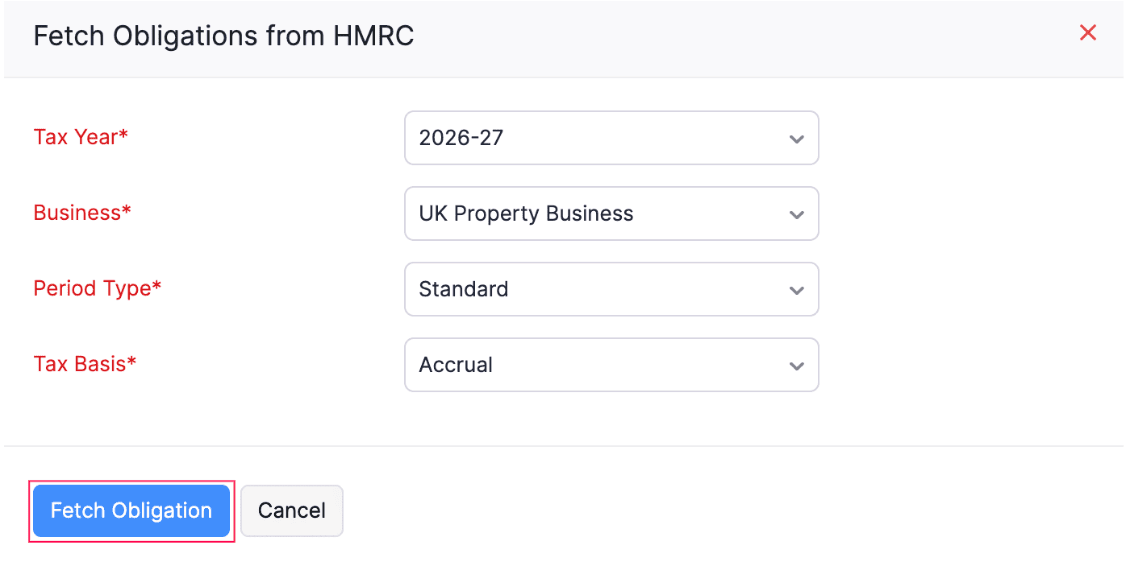
The quarterly submission periods will be fetched from HMRC and listed under the Quarterly Updates section.
Finalise Quarterly Updates
To finalise your quarterly update:
- Go to Filing & Compliance on the left sidebar and select MTD Income Tax.
- In the Quarterly Updates section, select the quarterly update that you want to finalise.
- In the Generate and Finalise Quarterly Update page, the income and expense values are pre-populated based on the default account mappings. If you have previously submitted a quarterly update, your account mappings from the previous submission will be carried forward automatically.
- To review or update the account mappings, click Configure Account Mapping in the top-right corner.
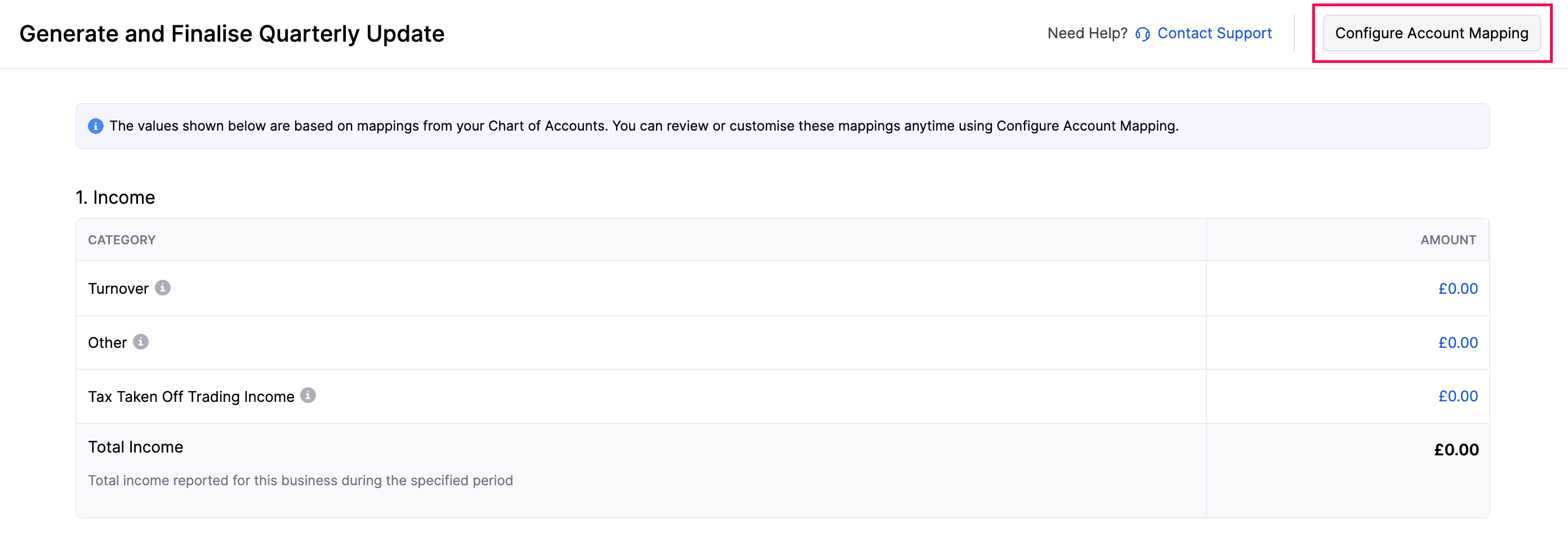
- In the Configure Account Mapping page, under the Income and Expenses sections, click + Add Accounts next to an HMRC category to add or update the mapped accounts.
- In the Add Accounts to Turnover pop-up, select the accounts you want to map under the All Accounts tab, then click Save.
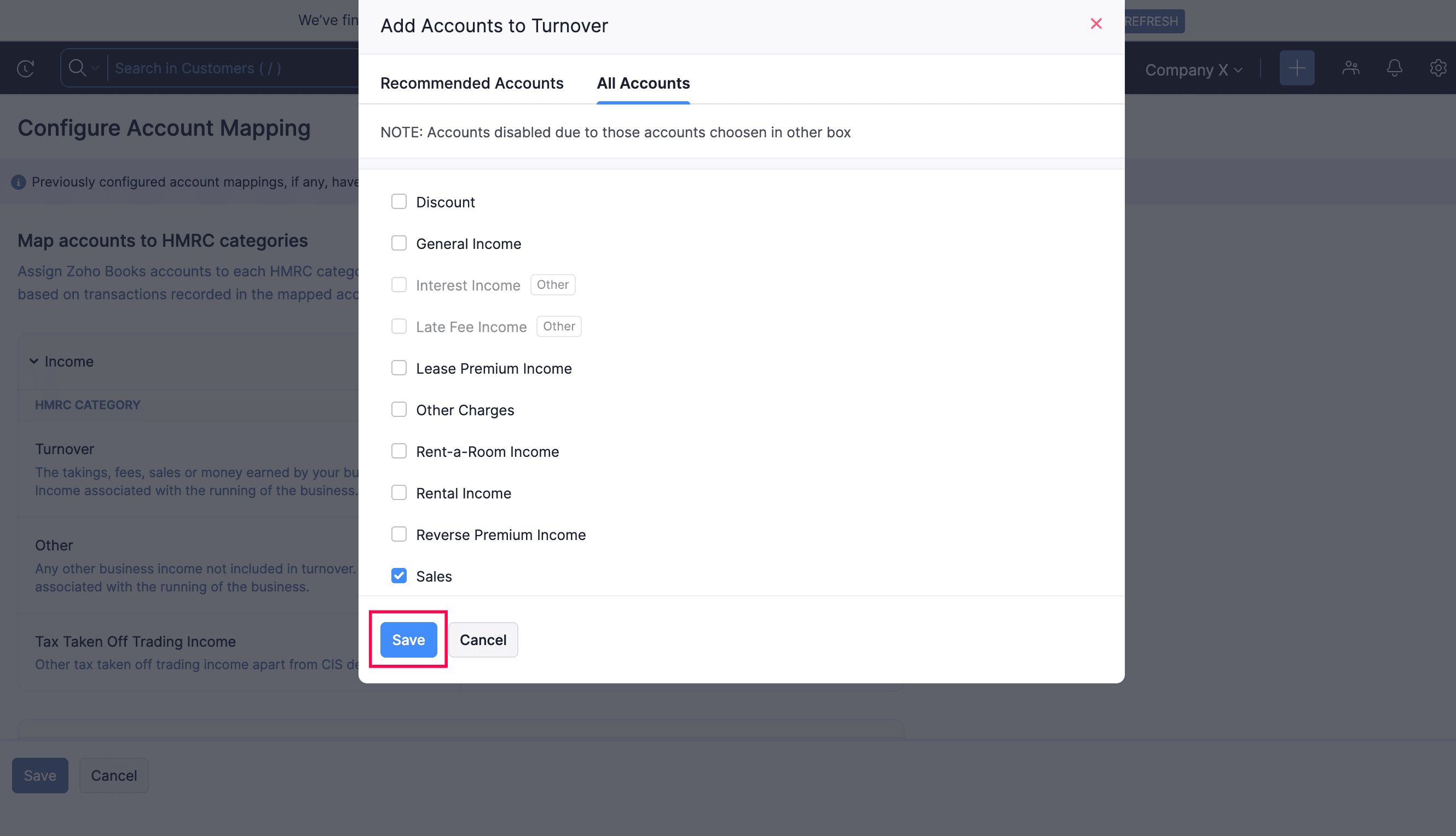
- Review the updated figures and click Save and Generate.
- In the pop-up that appears, click Finalise Update.
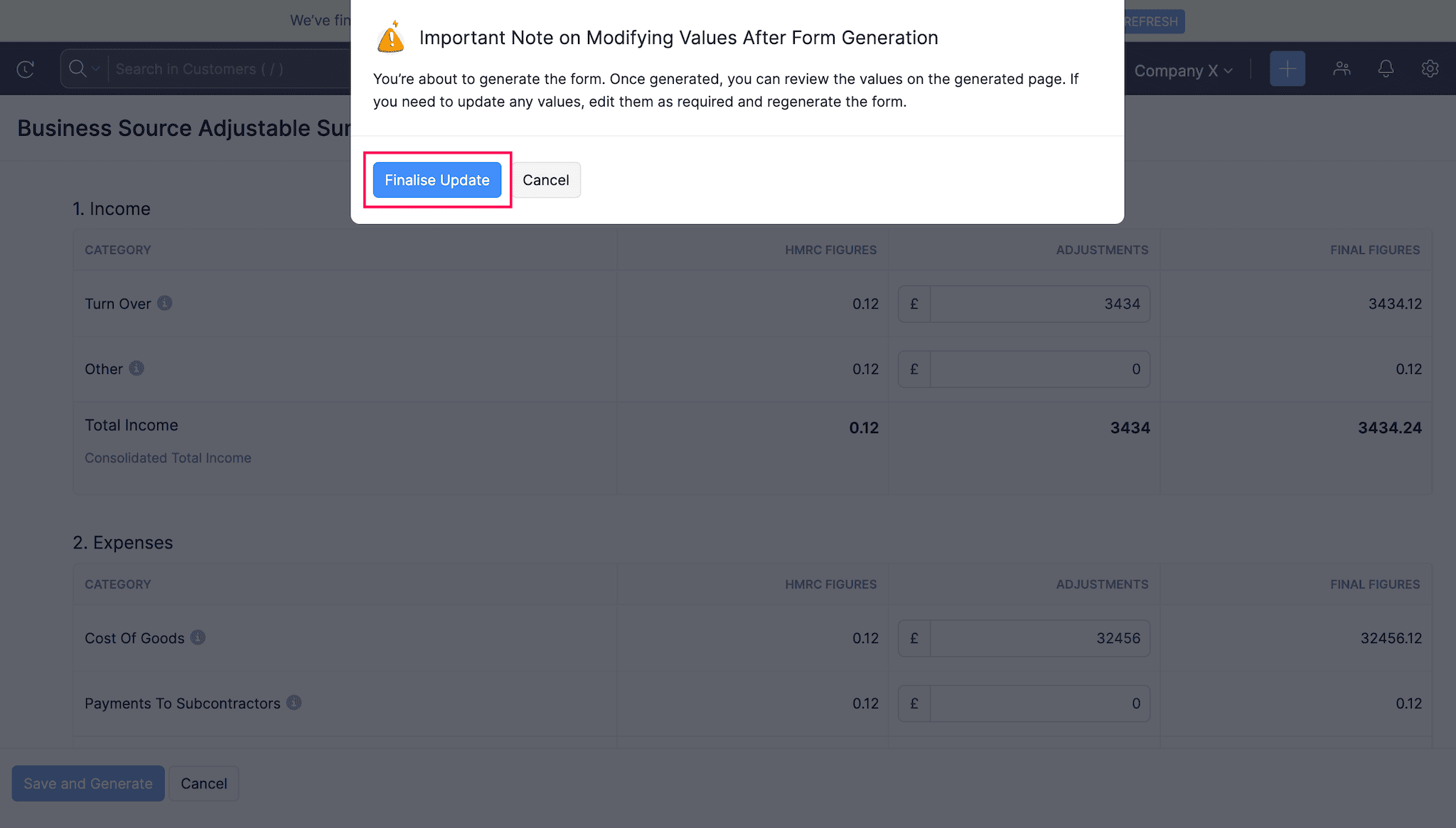
The quarterly update will be marked as Finalised and the summary page will be displayed with the submission details.
Edit Quarterly Updates
Once a quarterly update is finalised, you can only edit the mapped accounts. To edit a quarterly update:
- Go to Filing & Compliance on the left sidebar and select MTD Income Tax.
- Select the quarterly update you want to edit.
- In the quarterly update summary page, click the More icon in the top right corner and select Edit from the dropdown.
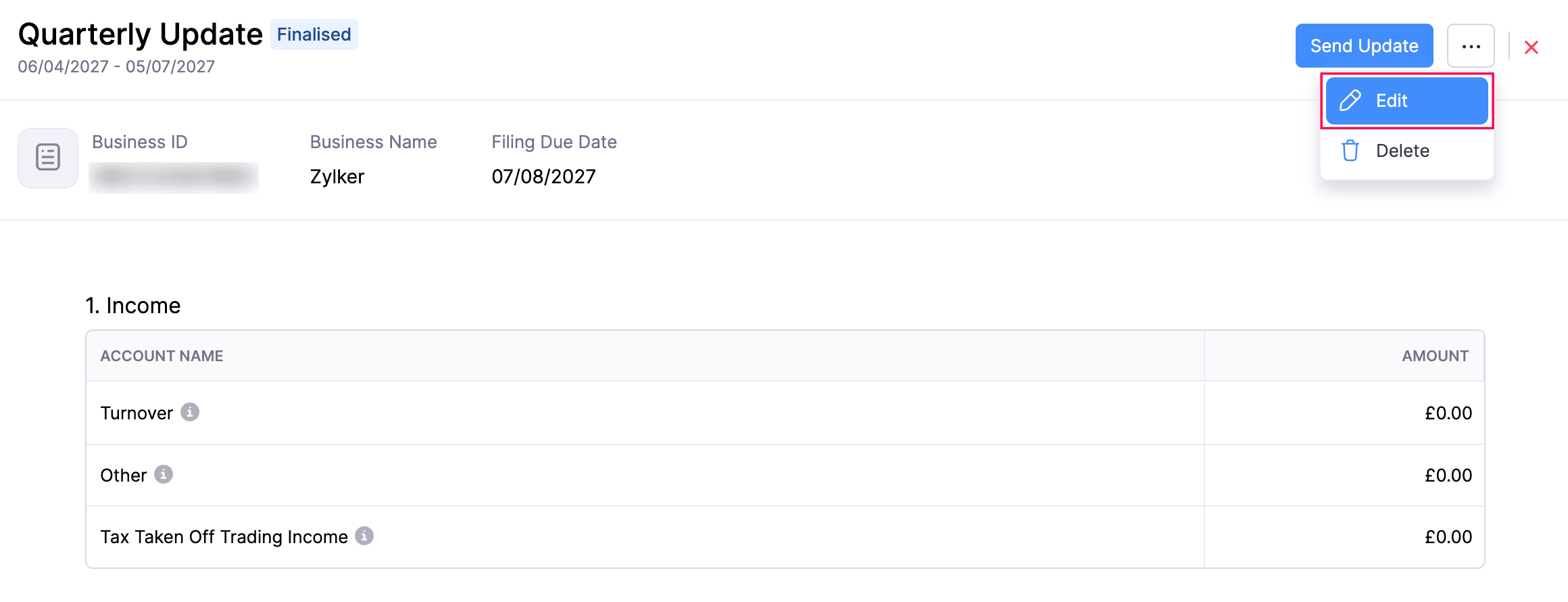
- In the Edit Quarterly Update pop-up, click Continue to Edit. The quarterly update will be moved to Draft status.
- In the form, click Configure Account Mapping and update the mapped accounts as required.
- Click Save and Generate to finalise the update again.
Submit Quarterly Updates
Prerequisite:
Before submitting the quarterly updates to HMRC, ensure that your Zoho Books organisation is connected to HMRC. If not, reauthorise your connection with HMRC to submit the updates.
To submit your quarterly update to HMRC:
- Go to Filing & Compliance on the left sidebar and select MTD Income Tax.
- Select the quarterly update you want to submit.
- In the quarterly update summary page, click Send Update in the top right corner.
- In the Send Quarterly Update to HMRC pop-up, click Send Update.
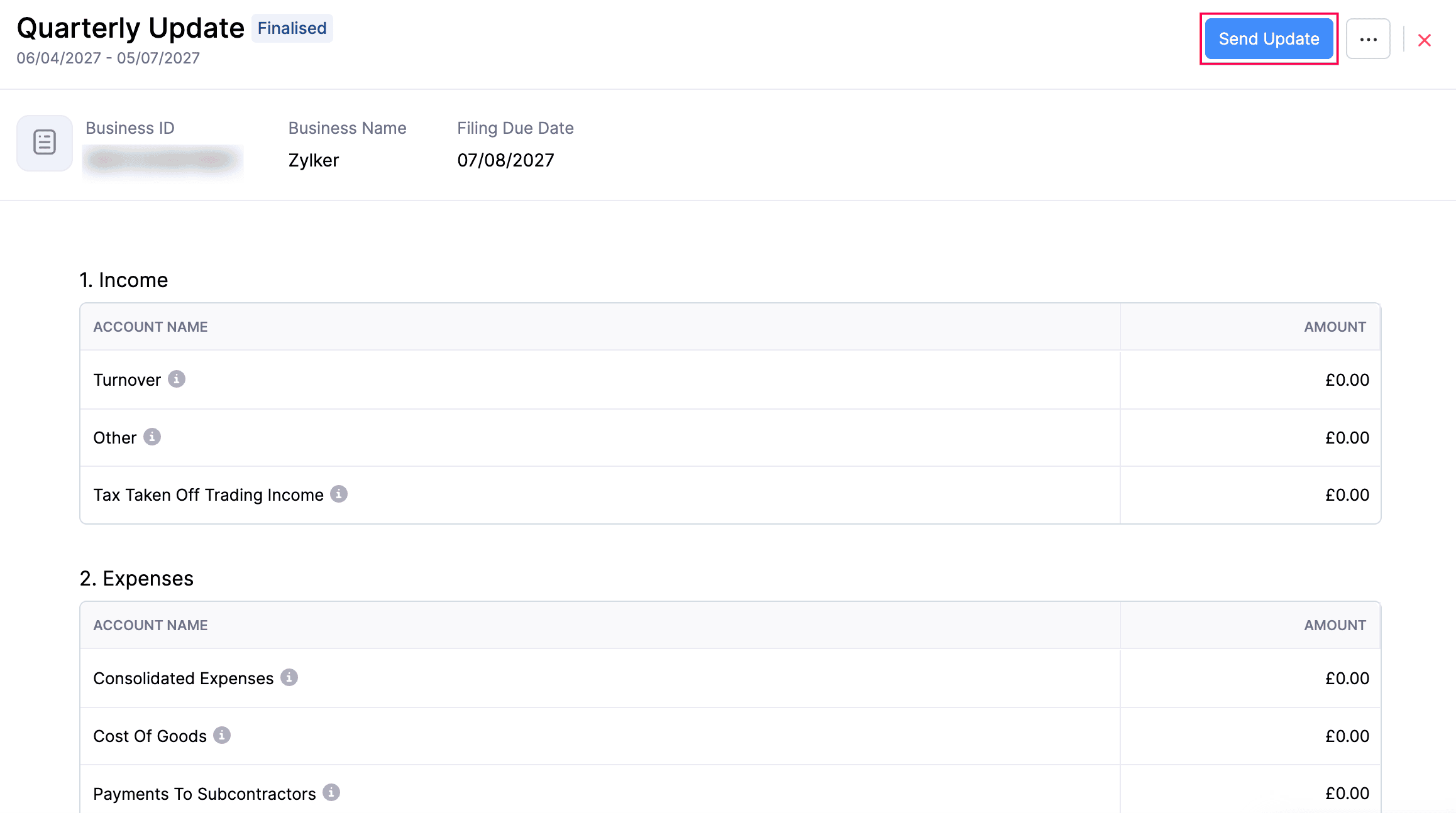
The quarterly update will be marked as Submitted.
 Yes
Yes