

Integrate Zoho Books with Zapier

Zapier is a web-based automation service that connects different apps. Whenever you perform a task in one application, you can automatically trigger a related action in the other application.
When you integrate with Zapier, you can connect your Zoho Books organization with over 8,000 third-party applications to automate repetitive tasks like creating invoices, updating customer details, and more. This helps keep your data consistent across apps.
How the Integration Works
Once you integrate Zoho Books with Zapier, you can create Zaps in your Zapier account. A Zap is a workflow that connects apps and automates tasks. Each Zap starts with a trigger and performs one or more actions.
A Trigger is an event that starts a Zap. The following triggers are supported in Zoho Books:
- New Customer - When a new customer is created
- New Estimate - When a new quote is created
- New Expense - When a new expense is created
- New Item - When a new item is created
- New Sales Invoice - When a new invoice is created
An Action is an event a Zap performs after the trigger event occurs. The following create and search actions are supported in Zoho Books:
Create
- Create Customer - Creates a new Customer
- Create Estimate - Creates a new Estimate/Quote
- Create Item - Creates a new Item
- Create Sales Invoice - Creates a new Invoice
- API Request (Beta) - Makes a raw HTTP request
Search
- Find Invoice - Finds an existing Invoice
Scenario: Patricia is the Sales Manager at Zylker Corporation, a web design company. She wants all the customers that are created in her Zoho Books organization to be added to her MailChimp account as well so that she can send them promotional emails about the latest offers. To do this, she creates a Zap with the following trigger and action:
Trigger: New Customer (Zoho Books)
Action: Add/Update Subscriber (MailChimp)
Scenario: Bailey runs a startup that sells printed materials. She wants to automatically create a new item in her Zoho Books organisation whenever she adds a new item entry as a row in Google Sheets. So she creates a Zap with the trigger and action as follows:
Trigger: Create Spreadsheet Row (Google Sheets)
Action: New Item (Zoho Books)
Set up the Integration
Prerequisites: Ensure that you already have a Zapier account to proceed with the integration. If you don’t have an account, create one.
To integrate with Zapier:
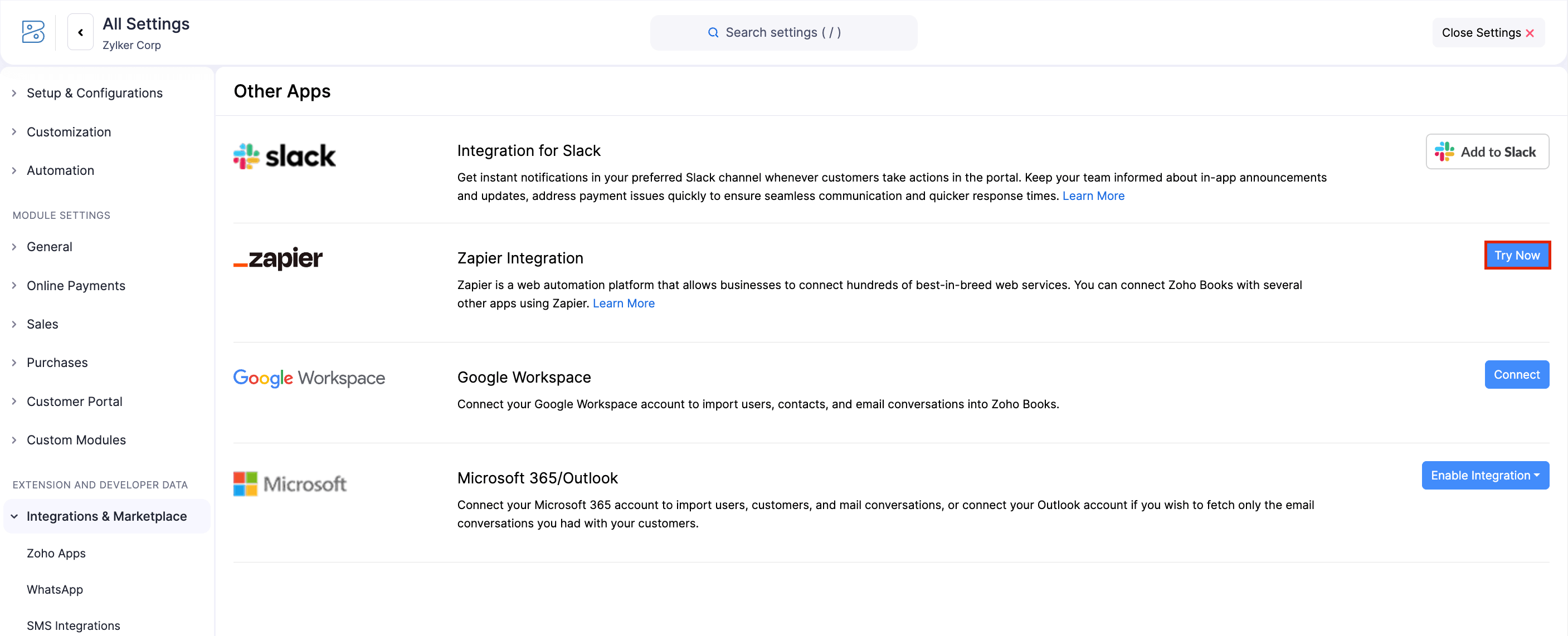
Go to Settings.
Select Other Apps under Integrations & Marketplace.
Click Try Now next to Zapier. You’ll be redirected to the Zapier’s website.
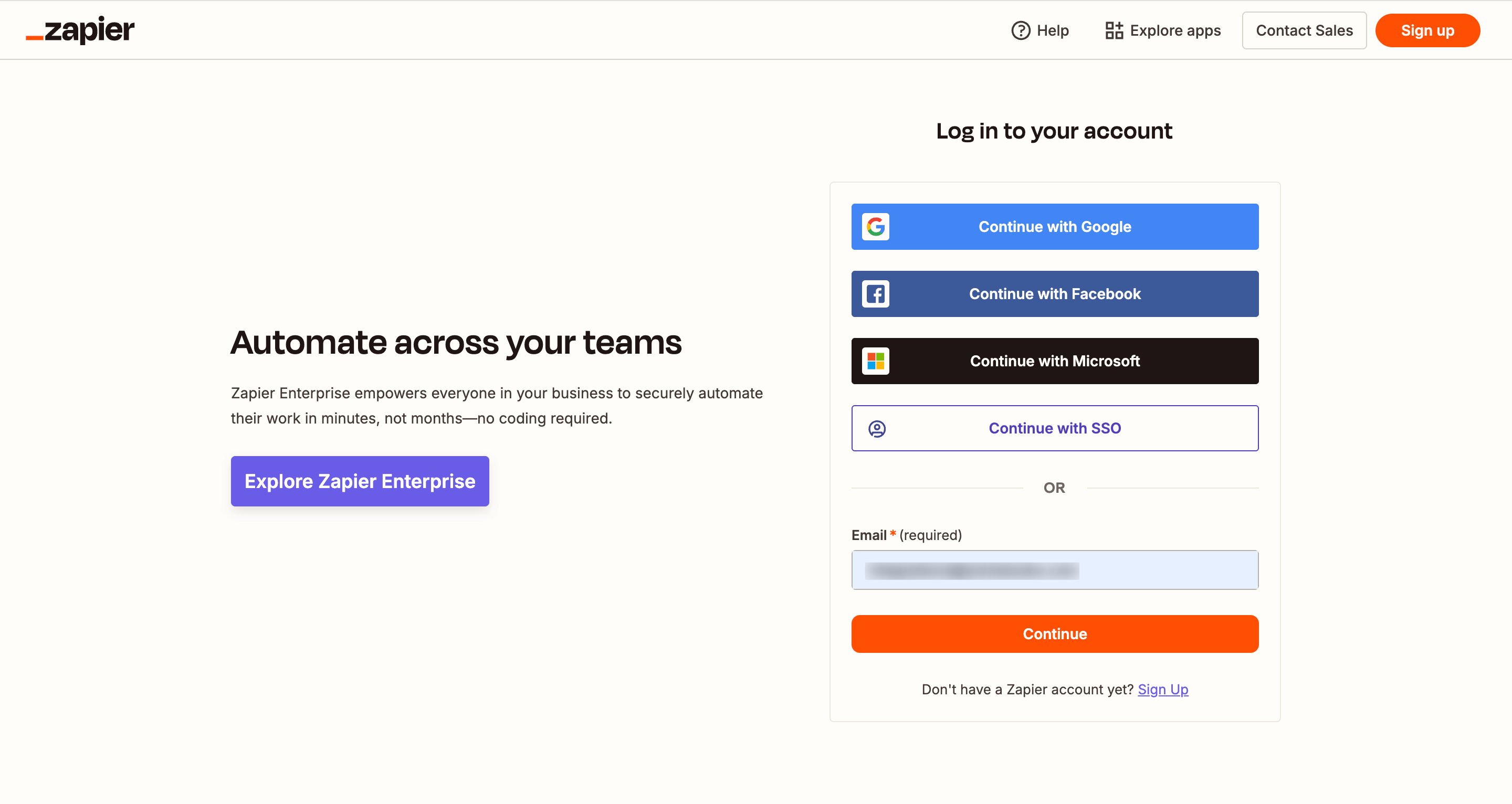
Click Login in the top right corner of the page.
Enter your Email and click Continue.
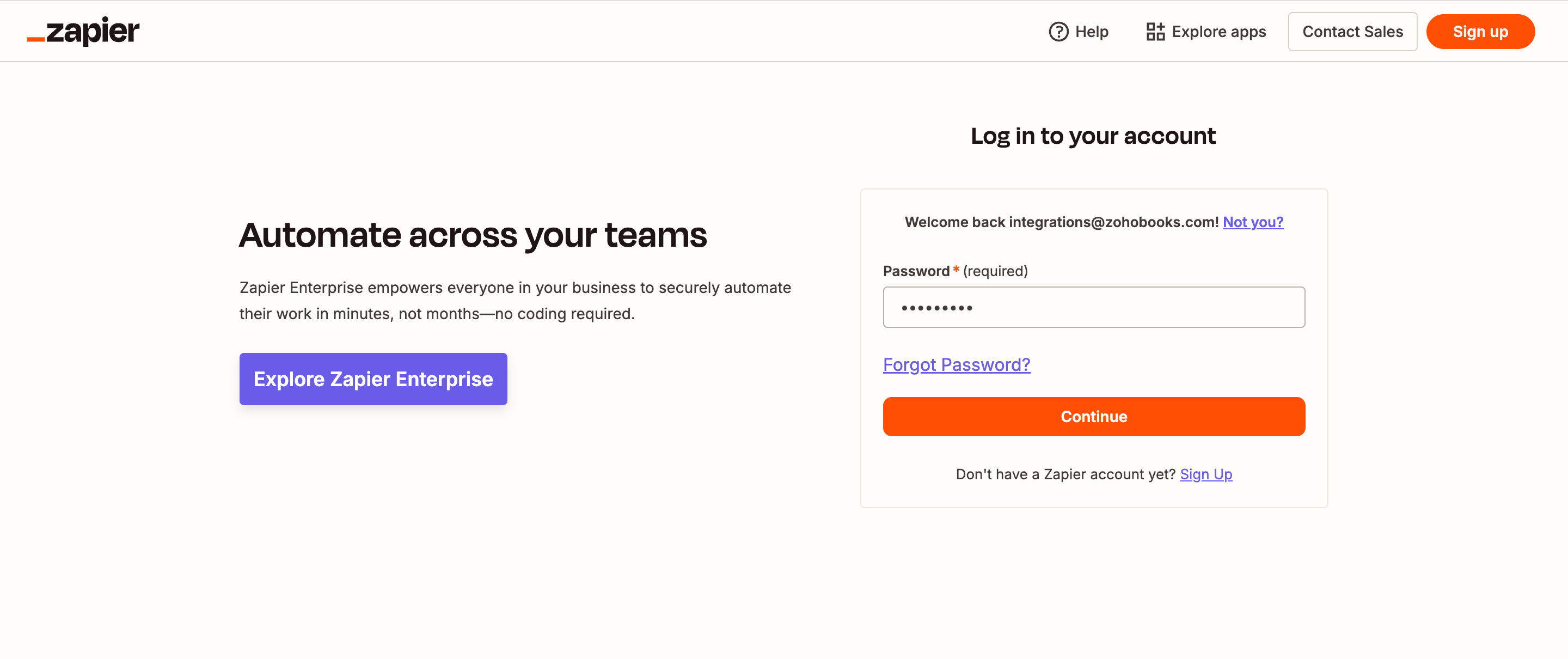
Enter your Password and click Continue.
Your Zoho Books organization will now be integrated with Zapier. You’ll be redirected to Zapier’s Home page.
Create a Zap
Consider you want to create a new row in Google Sheets whenever a customer is created in Zoho Books. In this case, the trigger event is New Customer in Zoho Books, and the action event is New Row in Google Sheets. You can automate this workflow by creating a Zap. To do so:
- Click + Create in the top left.
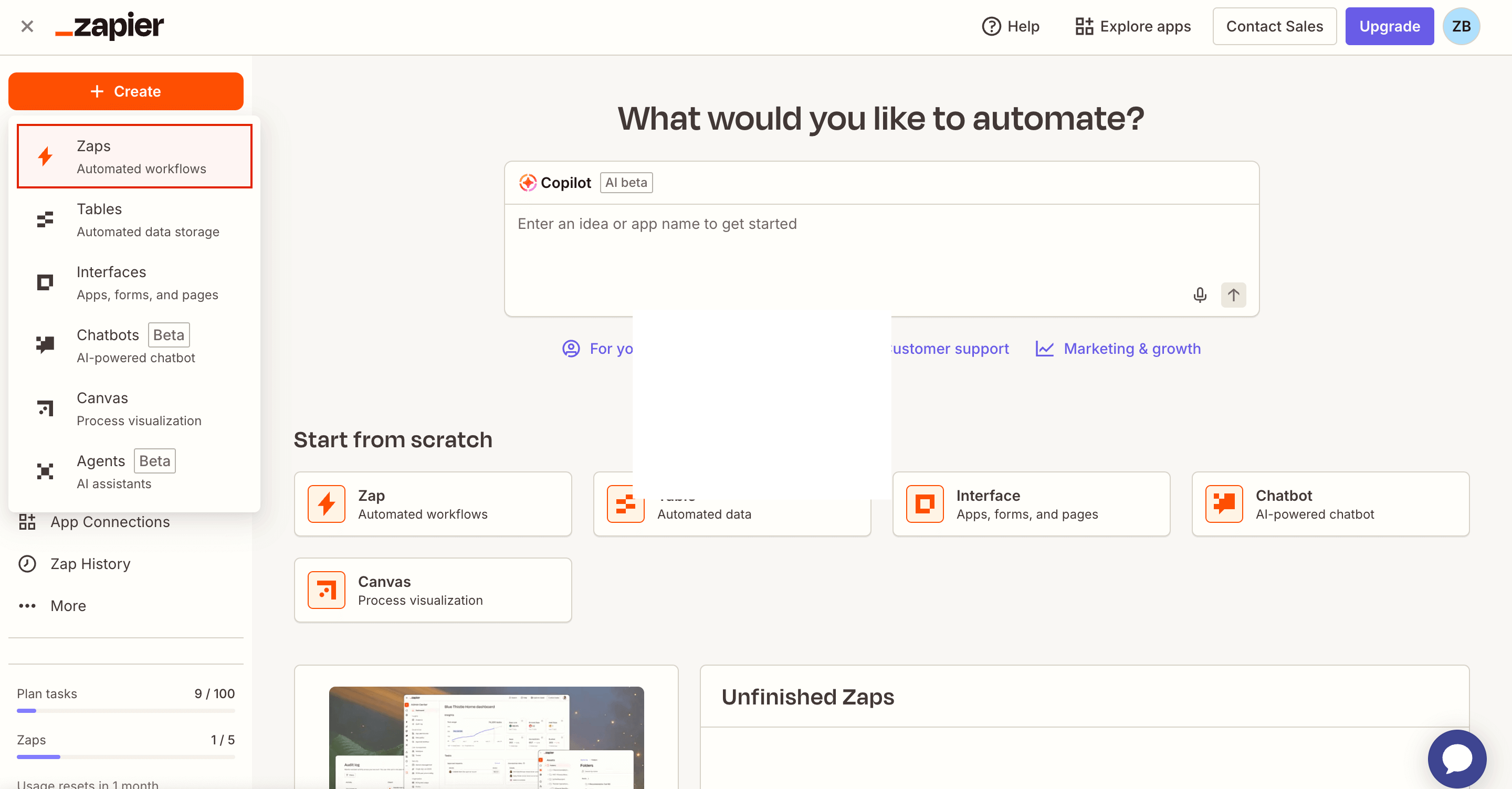
- Select Zaps.
- Click Trigger and search for Zoho Books.
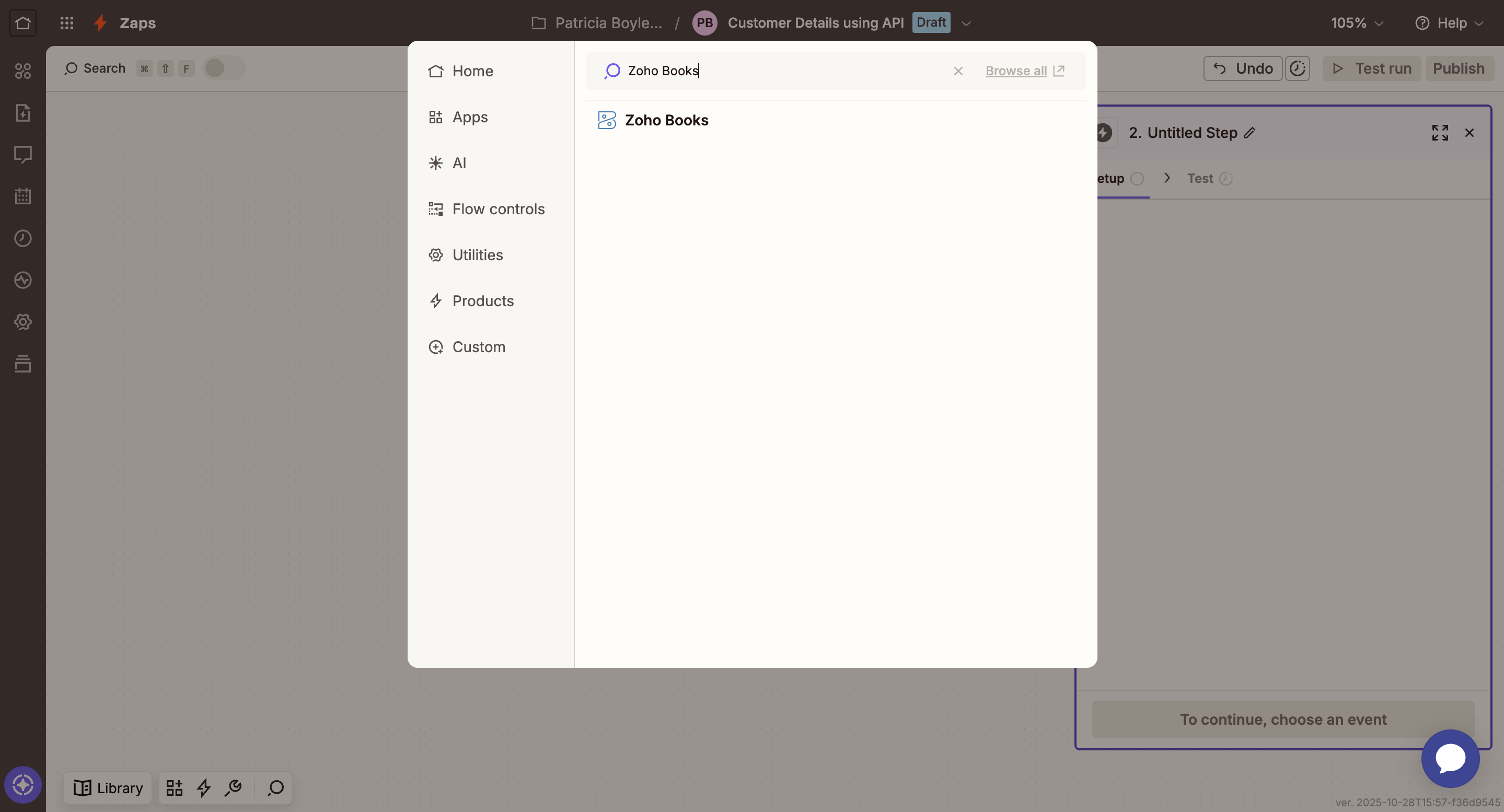
- Select Zoho Books and right pane will appear.
- Under Setup, select New Customer as Trigger event.
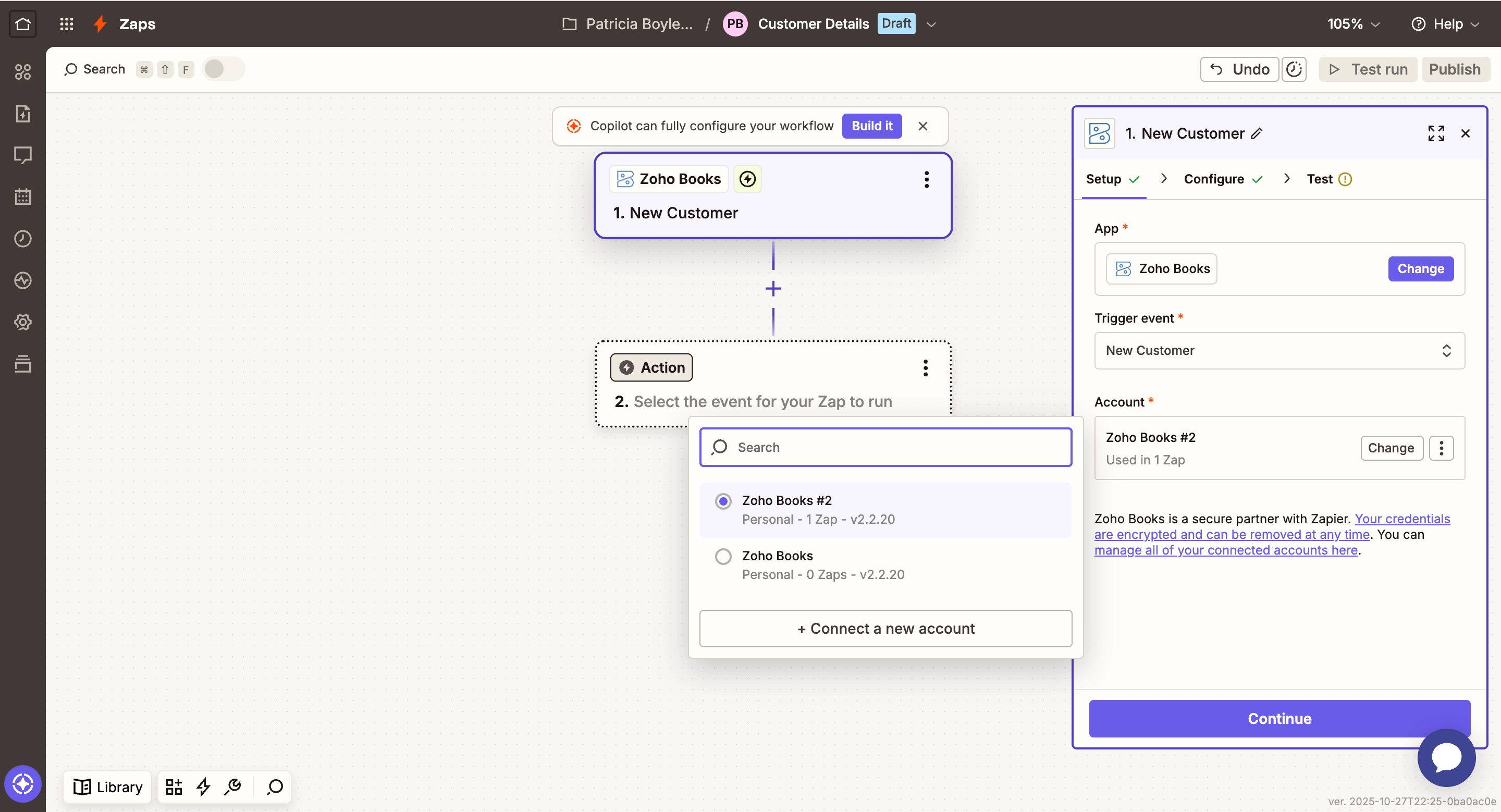
Select your existing Zoho Books account as Account.
Or,
Click + Connect a new account to add a new one.- In the next page, select the Sub Domain and Domain.
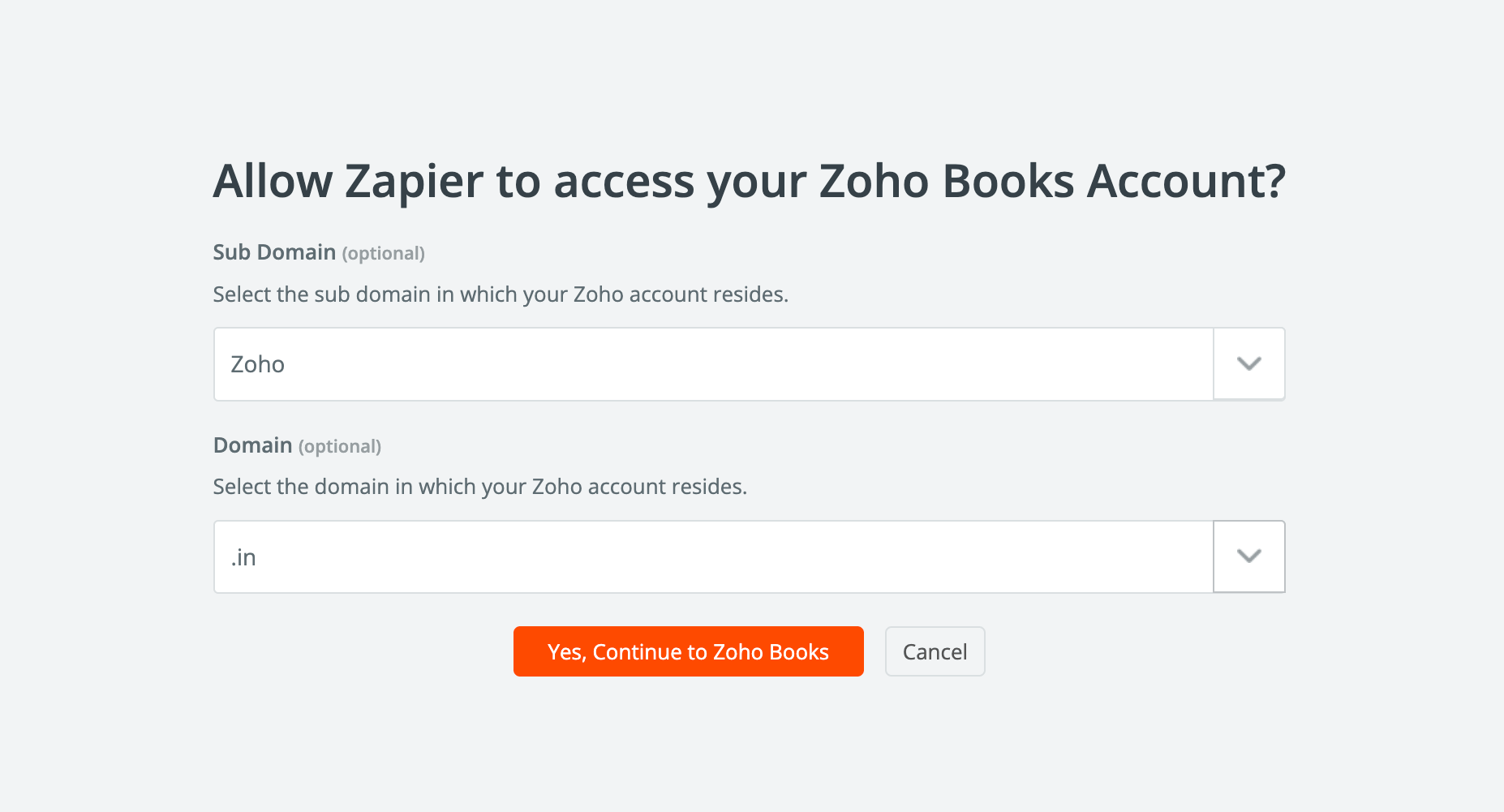
- Click Yes, Continue to Zoho Books.
- Check the box to accept the terms and click Accept.
- Click Continue.
Under Configure, select the Organization for which you are creating the Zap.
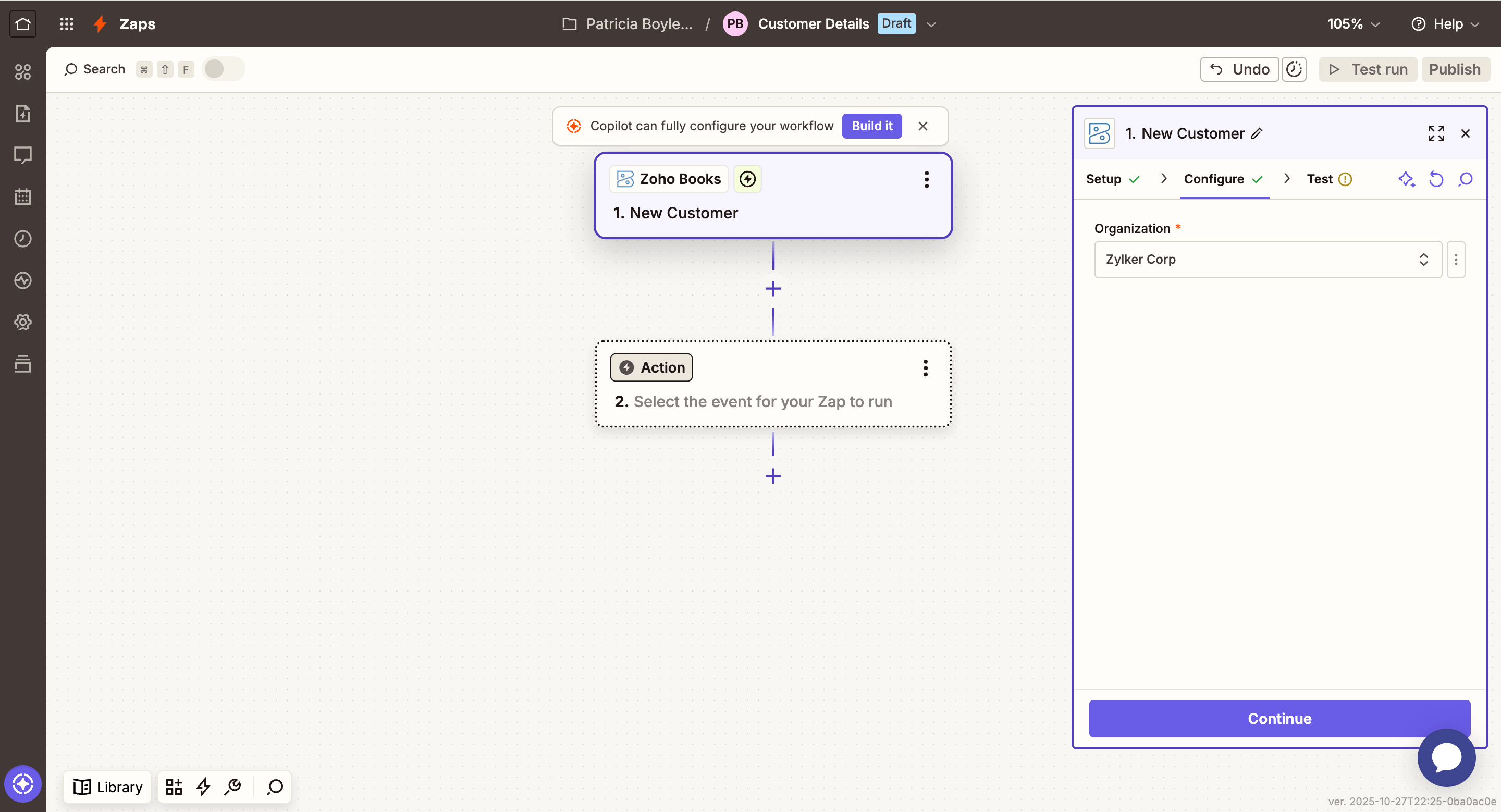
Click Continue.
Click Test trigger to load recent customer records from Zoho Books.
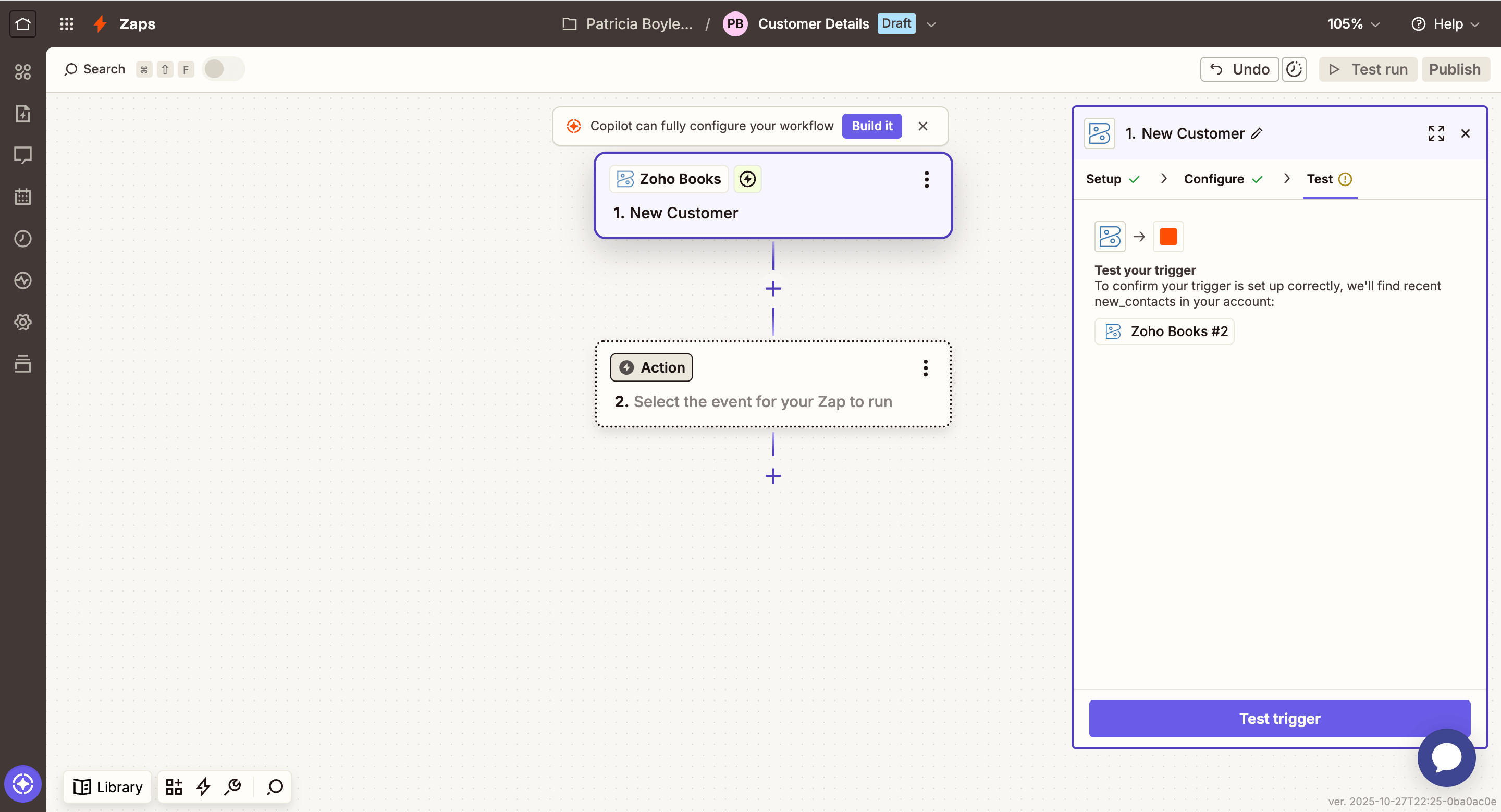
Select a record to test with and click Continue with selected record.
For action, search for Google Sheets and select it.
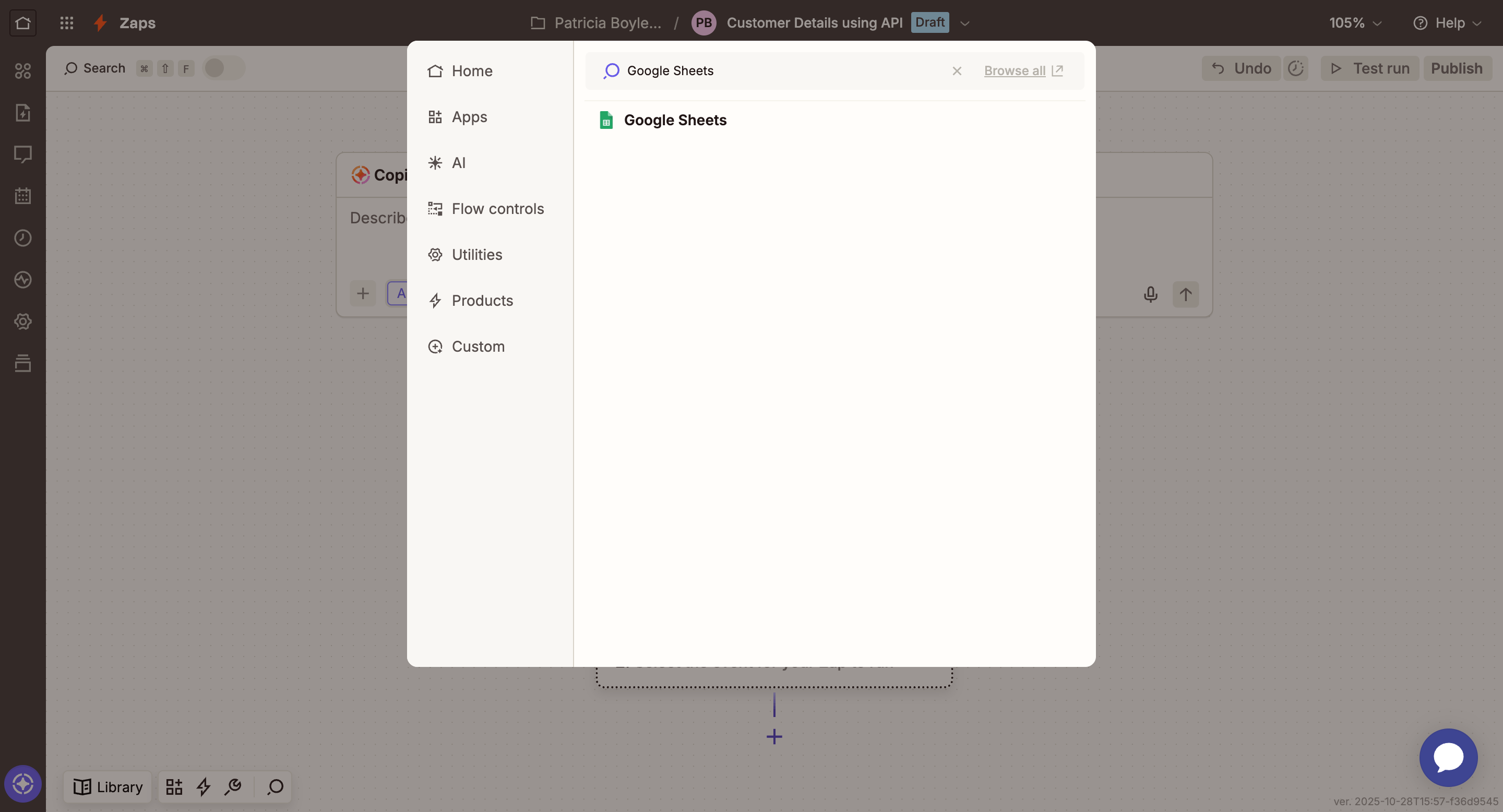
Under Setup, select Create Spreadsheet Row as Action event.
Select your existing Google account as Account. Or, click + Connect a new account to add a new one.
Click Continue.
Under Configure, select the Spreadsheet and Worksheet.
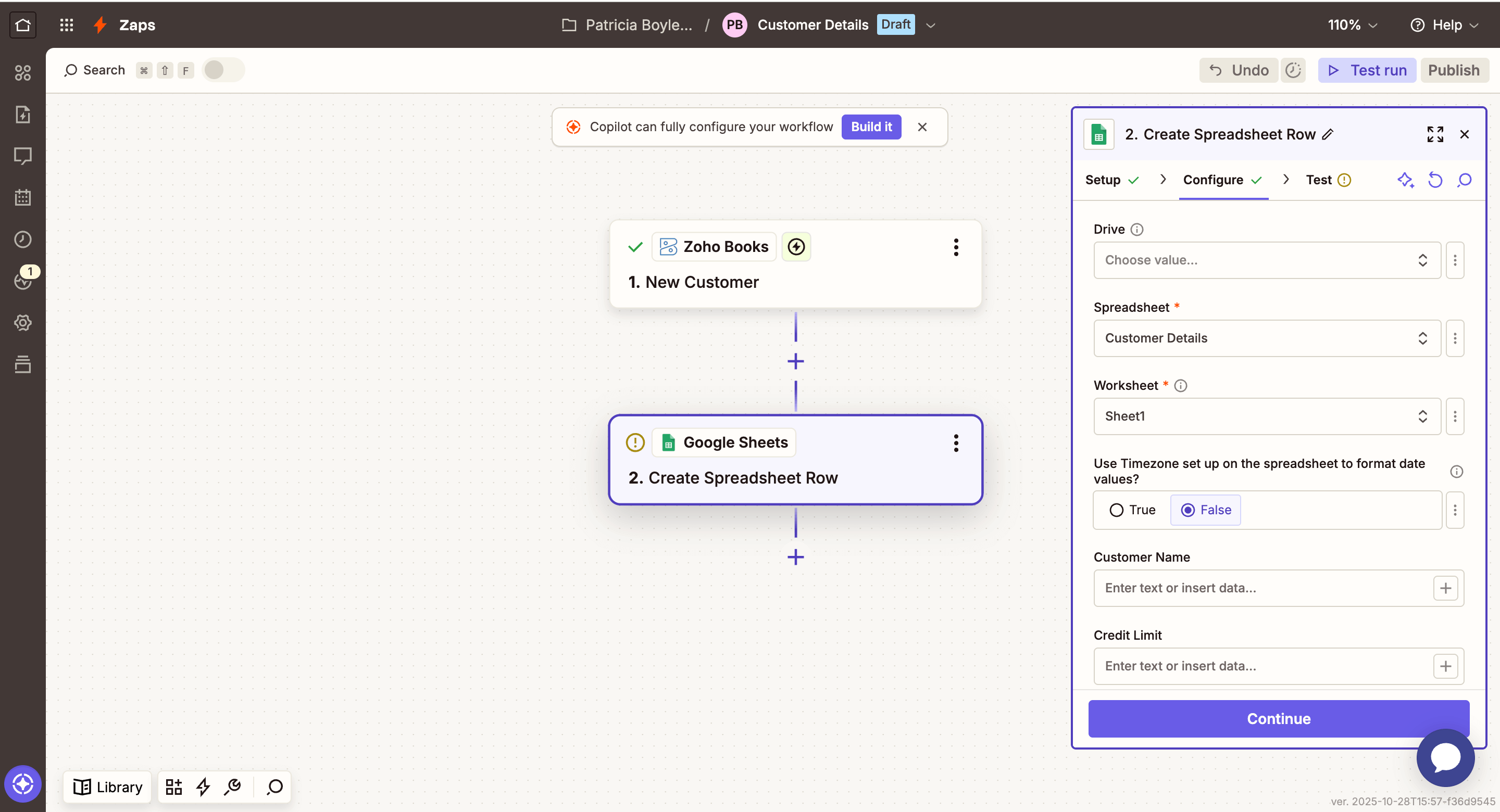
Click Continue.
Under Test, click Test step if you want to create a test row in Google Sheets. Or, click Skip test.
Click Publish.
Once published, for every customer added in Zoho Books, your Zap will be triggered and a new row will be created in Google Sheets.
Note: If you choose Zoho Books as the Action app for a Zap, a new workflow action and rule will be created and activated in your organization. If that action or rule is deleted, the Zap will fail.
Make Custom API Request
Other than the predefined actions in Zoho Books, you can create Zaps to perform additional actions using HTTP API requests.
For example, consider you want to create a new vendor in Zoho Books using API, whenever a new row is added in Google Sheets. In this case, the trigger event is a New Spreadsheet Row in Google Sheets, and the action event is API Request (Beta) in Zoho Books. You can automate this workflow by creating a Zap in your Zapier account. To do so:
- Click + Create in the top left.
- Select Zaps.
- For trigger, click Trigger and search for Google Sheets.
- Select Google Sheets and a the right pane will appear.
- Under Setup, select New Spreadsheet Row as Trigger event.
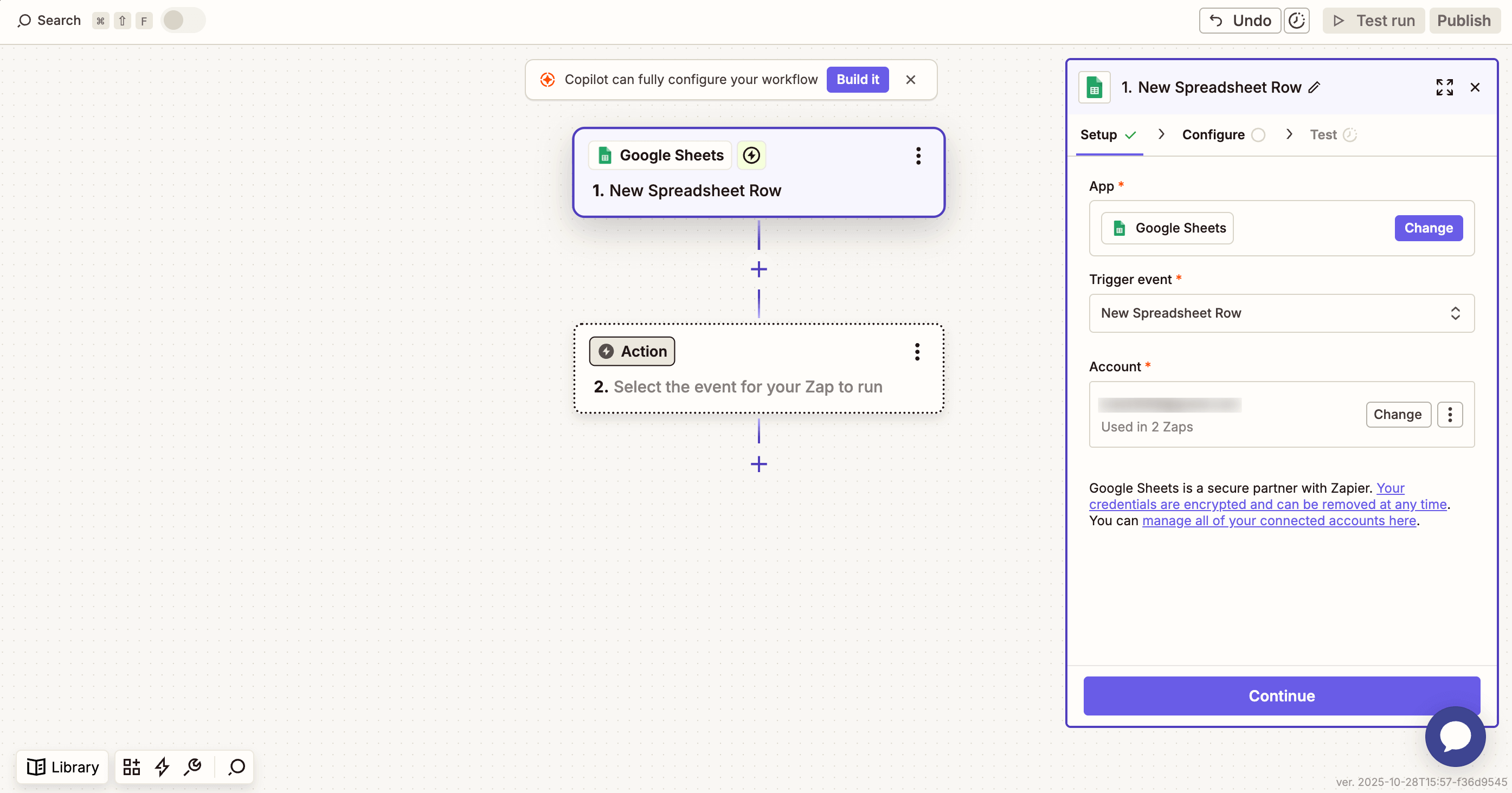
- Select your existing Google account as Account. Or, click + Connect a new account to add a new one.
- Click Continue.
- Under Configure, select the Spreadsheet and Worksheet.
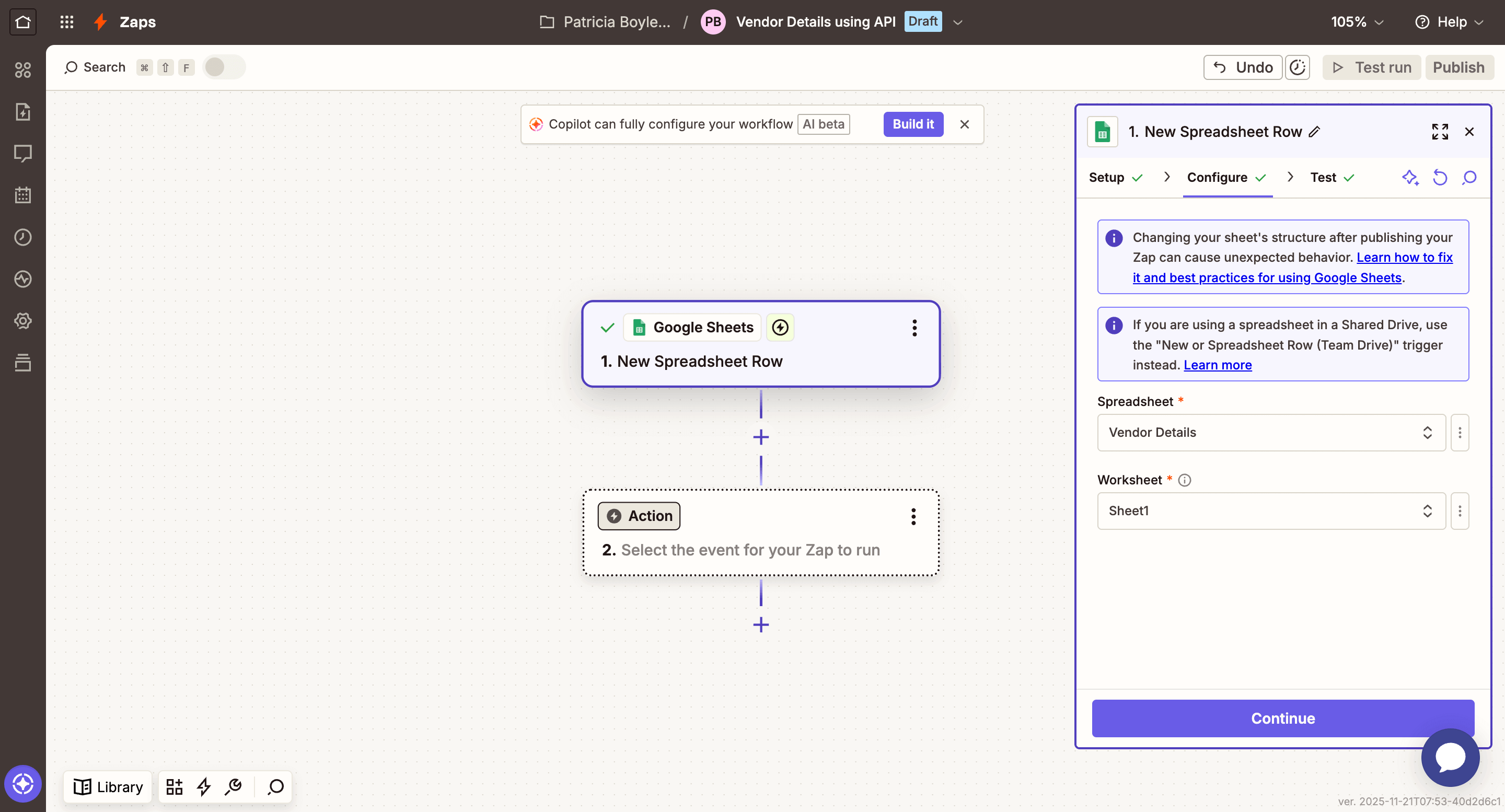
- Click Continue.
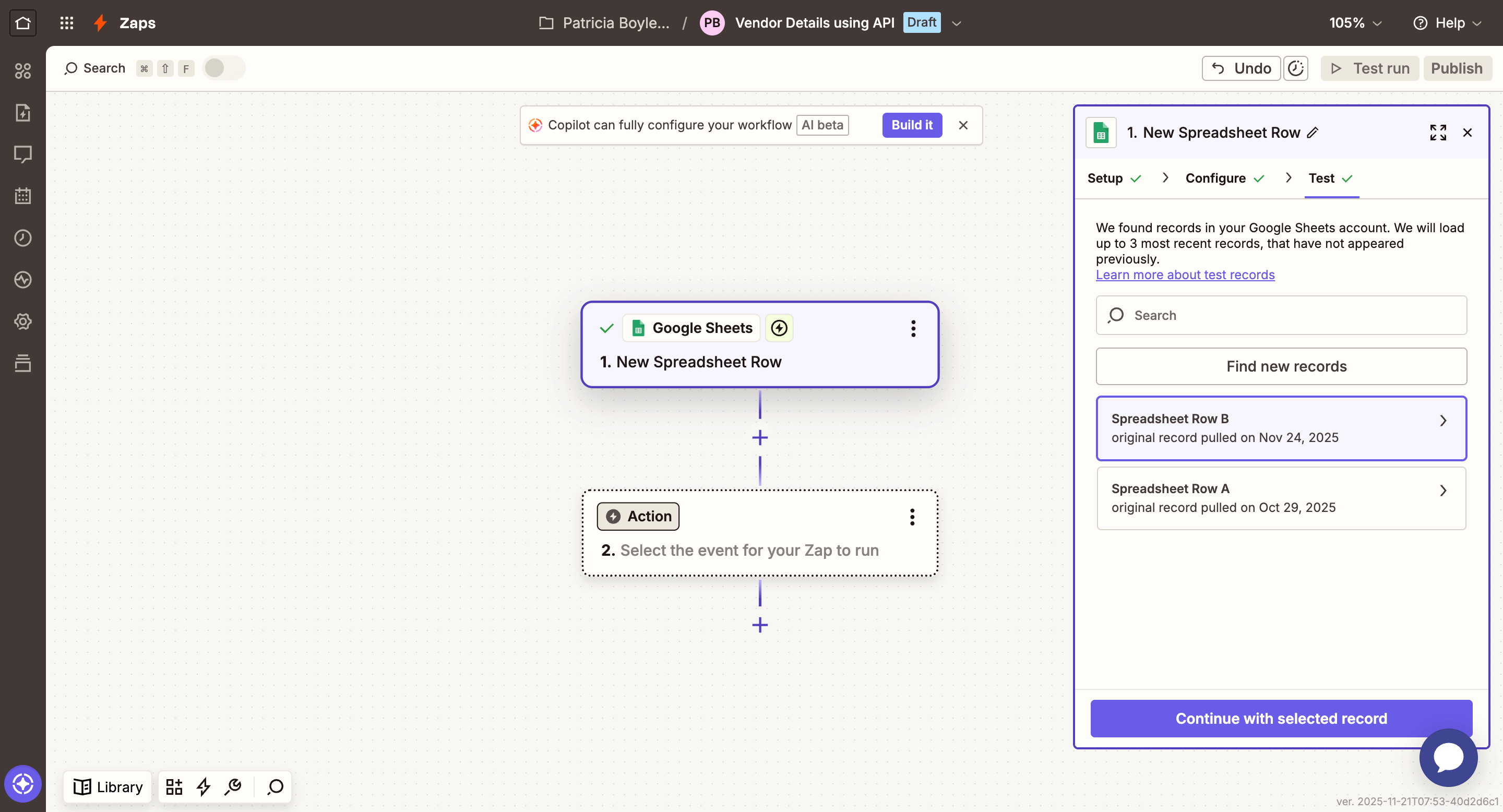
- Click Test trigger to load the most recent records.
- Select the record to test with and click Continue with selected record.
For action, search for Zoho Books and select it.
Under Setup, select API Request (Beta) as Action event.
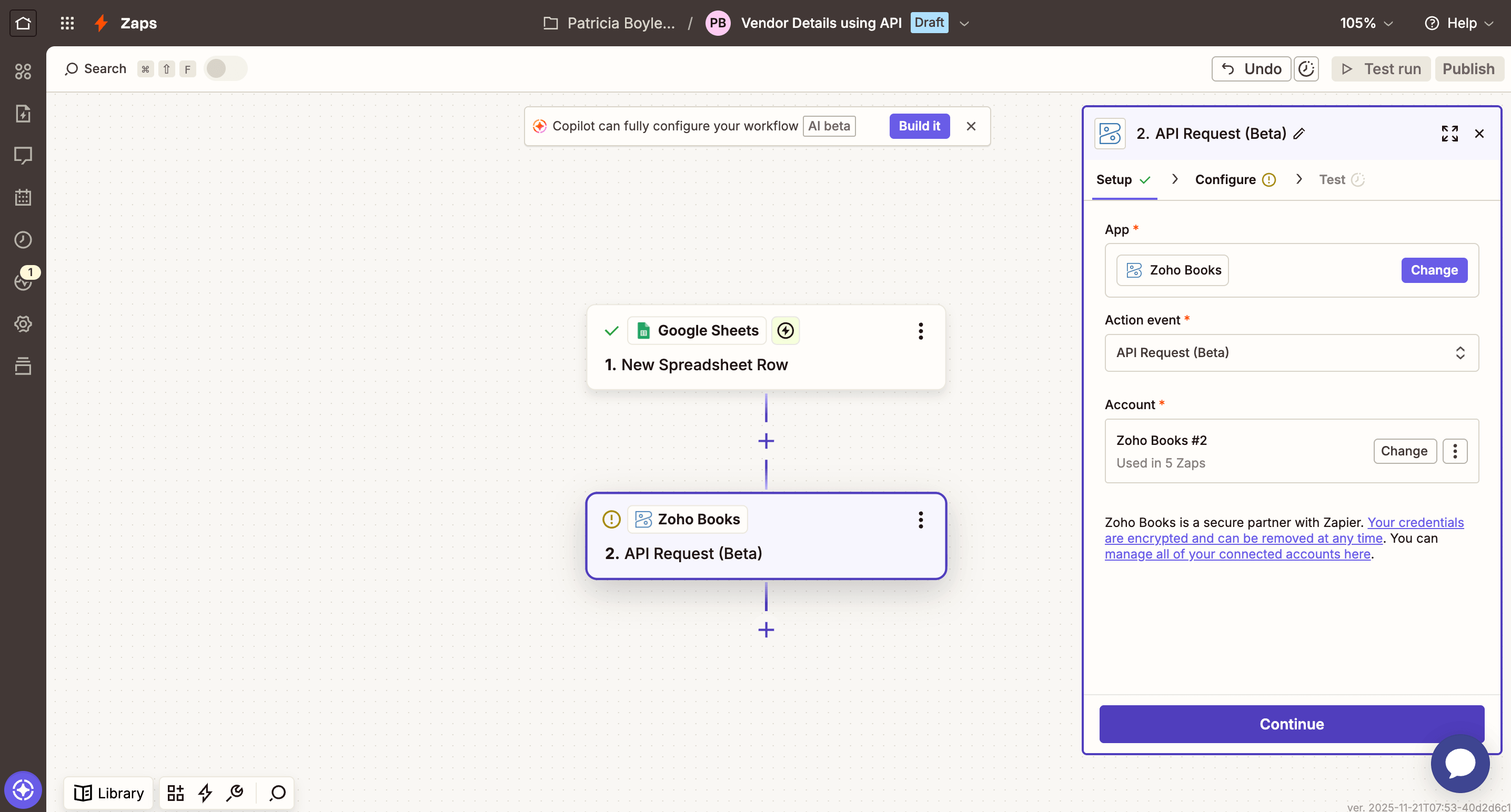
Select your existing Zoho Books account as Account. Or,
Click + Connect a new account to add a new one.- In the next page, select the Sub Domain and Domain.
- Click Yes, Continue to Zoho Books.
- Check the box to accept the terms and click Accept.
Click Continue.
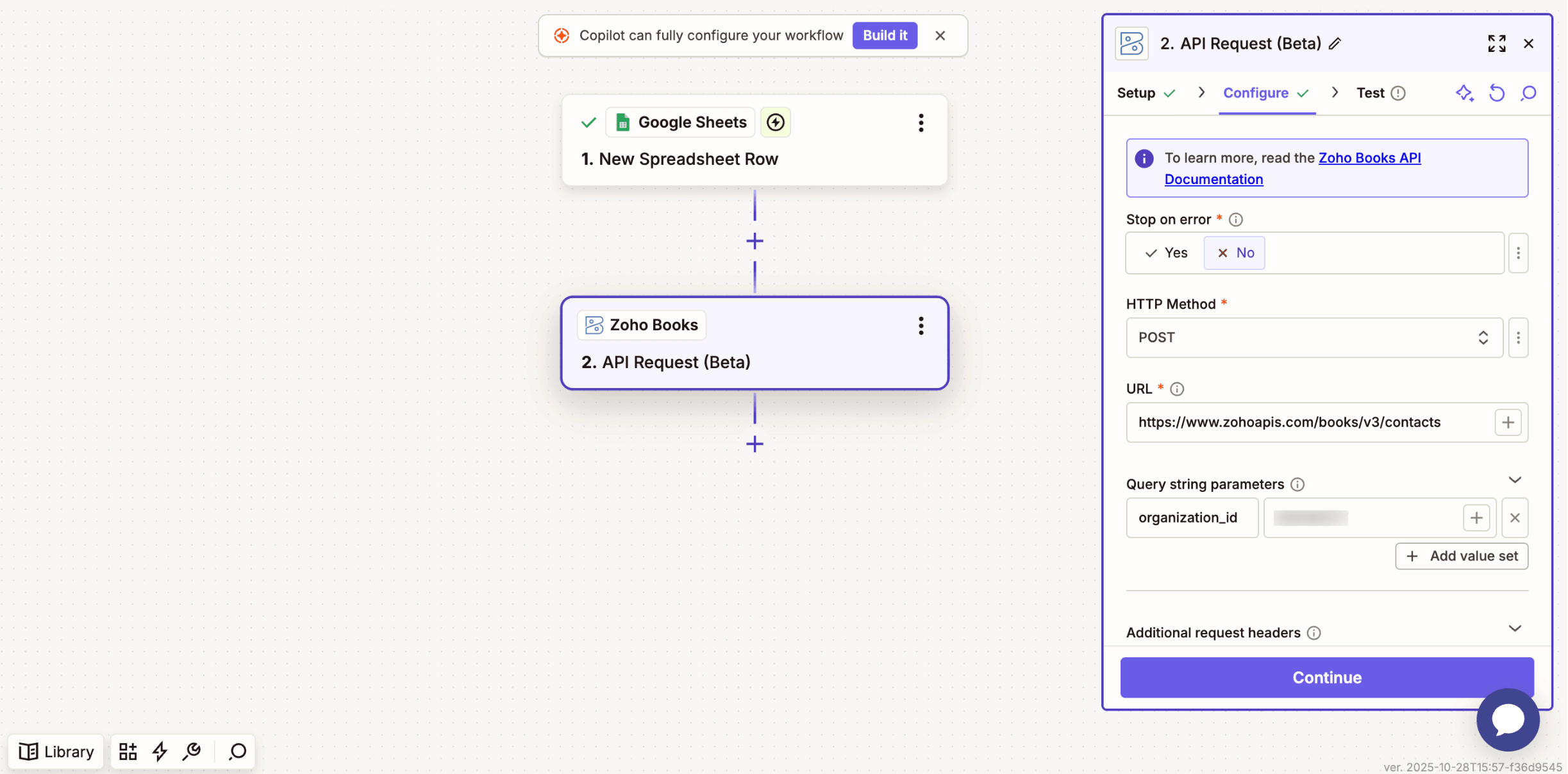
Under Configure, select the HTTP Method as POST.
Note: You can refer to Zoho Books API Docs for more information about the request, body parameters and the arguments.
Enter URL as https://www.zohoapis.com/books/v3/contacts.
Enter Query string parameters as organization_id and your organization ID.
Enter Body to send raw JSON data for your API call, adjusting the arguments mapping as per your requirements.
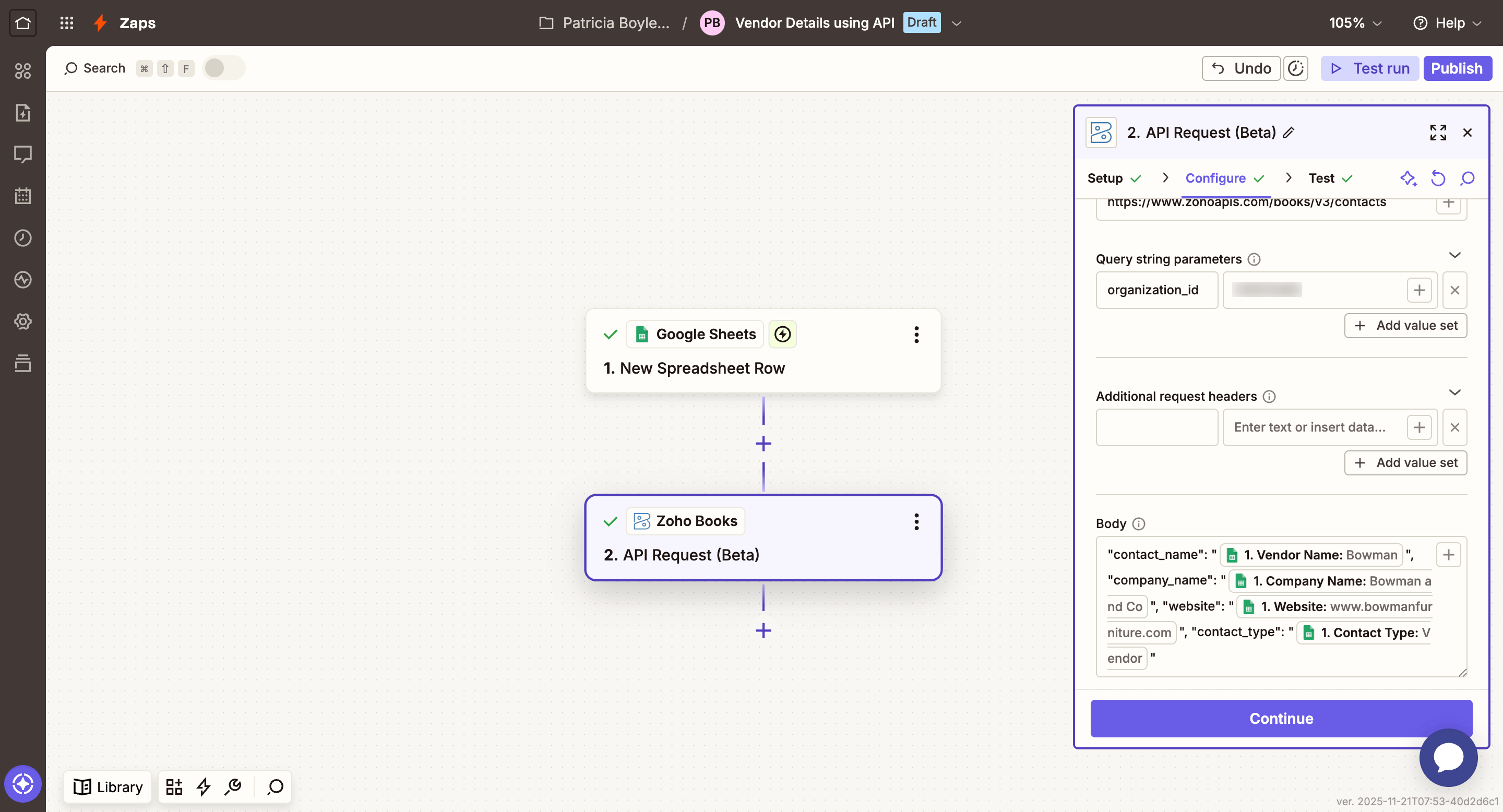
Click Continue.
Under Test, click Test step if you want to create a test customer in Zoho Books. Or, click Skip test if you want to skip.
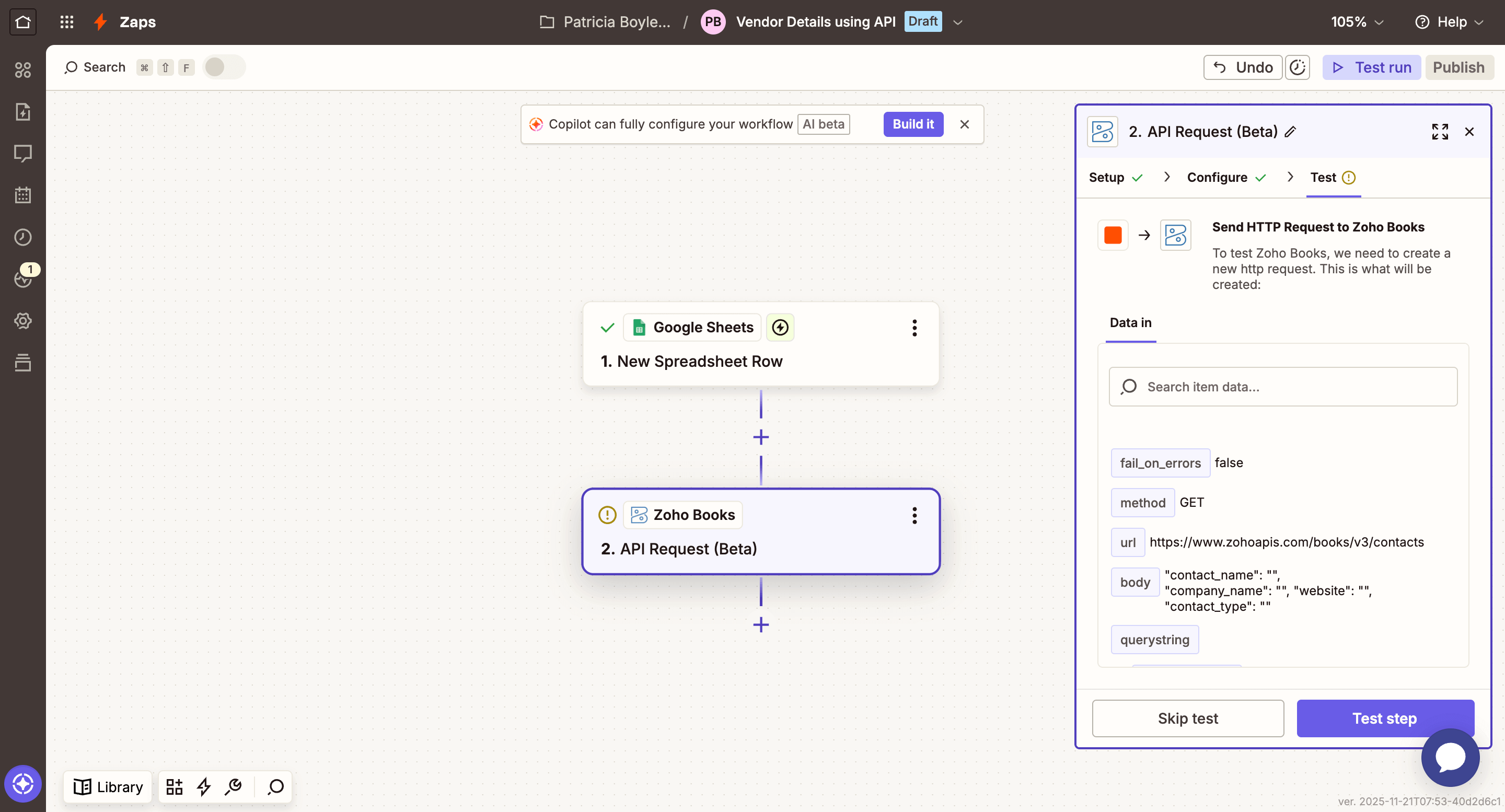
Click Publish. Once published, for every row you add in Google Sheets, your Zap will be triggered, and a new vendor will be created in Zoho Books by API requests.
Delete a Zap
When you feel that you don’t need a Zap anymore, you can delete it by following these simple steps:
Go to the dashboard of your Zapier account.
Click Assets in the left sidebar.
Select Zaps under list of Assets.
Click the More icon next to the Zap you want to delete.
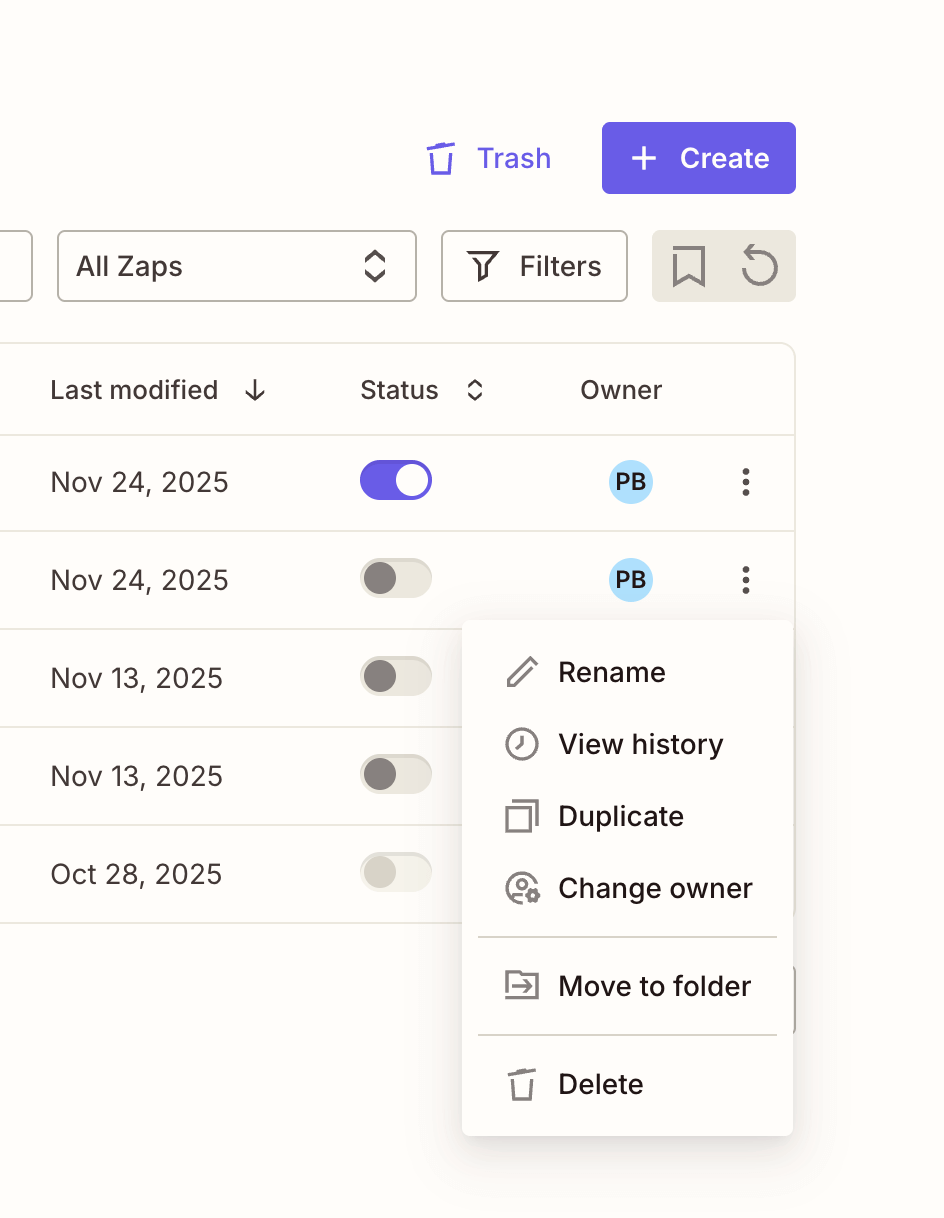
Click Delete.
In the pop-up that appears, click Delete Zap.
Your Zap will be deleted. The automated workflow will not execute when a Zap is deleted or unpublished.
Note: If the user who created a Zap is deleted from your organization, the action event will fail. Another user must again integrate the Zap to Zapier using the same credentials.
 Yes
Yes