


Integrate Zoho Inventory with Shiprocket

Shiprocket is a leading logistics and shipping platform in India that enables businesses to streamline their order fulfillment process. By integrating Shiprocket with Zoho Inventory, you gain access to a wide network of shipping carriers for efficient order fulfillment, real-time shipment tracking, and streamlined logistics management.
Note: The status of your shipments will be automatically updated once every 12 hours. You can also manually fetch the latest status for each shipment if you need it immediately.
Benefits of Integration
- Automate order status updates with shipment information from Shiprocket directly in Zoho Inventory.
- You can sync and deduct stock the moment a shipping label is created.
- Centralizes audit data to provide one reliable source for stock movement, fulfillment history, and inventory valuation.
Setting up the integration
To setup the Shiprocket integration:
- Log in to your Zoho Inventory organization.
- Click Settings in the top right corner.
- Navigate to Shipping under the Integrations & Marketplace.
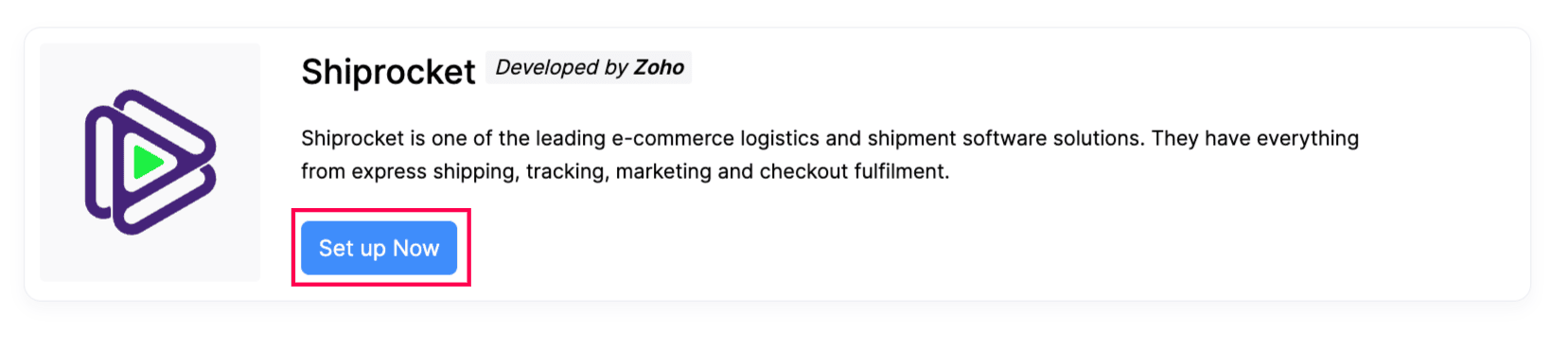
- Click Set up Now under Shiprocket.
- In the pop-up that appears, make sure you already have completed the following steps:
- Set Up an Account: To integrate, you’ll need a Shiprocket account. If you haven’t created one yet, click here to sign up.
- Create an API User: Next, you need to create a new API user in your Shiprocket account for integration. Learn how to create an API user.
- Enter the API User Credentials To Integrate: Enter your registered email and password to link your existing Shiprocket account with Zoho Inventory.

- Check the box to allow Zoho Inventory to securely store your Shiprocket login details for this integration.
- Click Connect to successfully integrate.
Edit the Integration
You can edit the integration if you want to update API User credentials or switch your Shiprocket account.
To edit the Shiprocket integration:
- Log in to your Zoho Inventory organization.
- Click Settings in the top right corner of the page.
- Navigate to Shipping under Integrations & Marketplace.
- Click the Edit under Shiprocket.
- Make the necessary changes.
- Click Connect.
Delete the Integration
If you want to unlink the Shiprocket integration from Zoho Inventory. Follow the below steps:
Sign in to your Zoho Inventory account.
Click Settings in the top right corner of the page.
Navigate to Shipping under Integrations & Marketplace.
Click the Delete icon under Shiprocket.

In the pop-up, click Ok to confirm.