


Shipping & Pickup

Shipping & Pickup lets you define where you deliver, set delivery charges and timelines, and offer curbside pickup from your business locations. Configure these options from your Zoho Commerce organization settings.
To open Shipping & Pickup:
- Go to Settings in the top-right corner.
- Select Shipping & Pickup under Sales.
Shipping Zones
The Shipping Zones tab lists the delivery regions configured for your store. Each zone can contain one or more shipping rates, such as standard or free shipping. The list displays the shipping method, rate type, shipping range, shipping rate, and status for each rate.
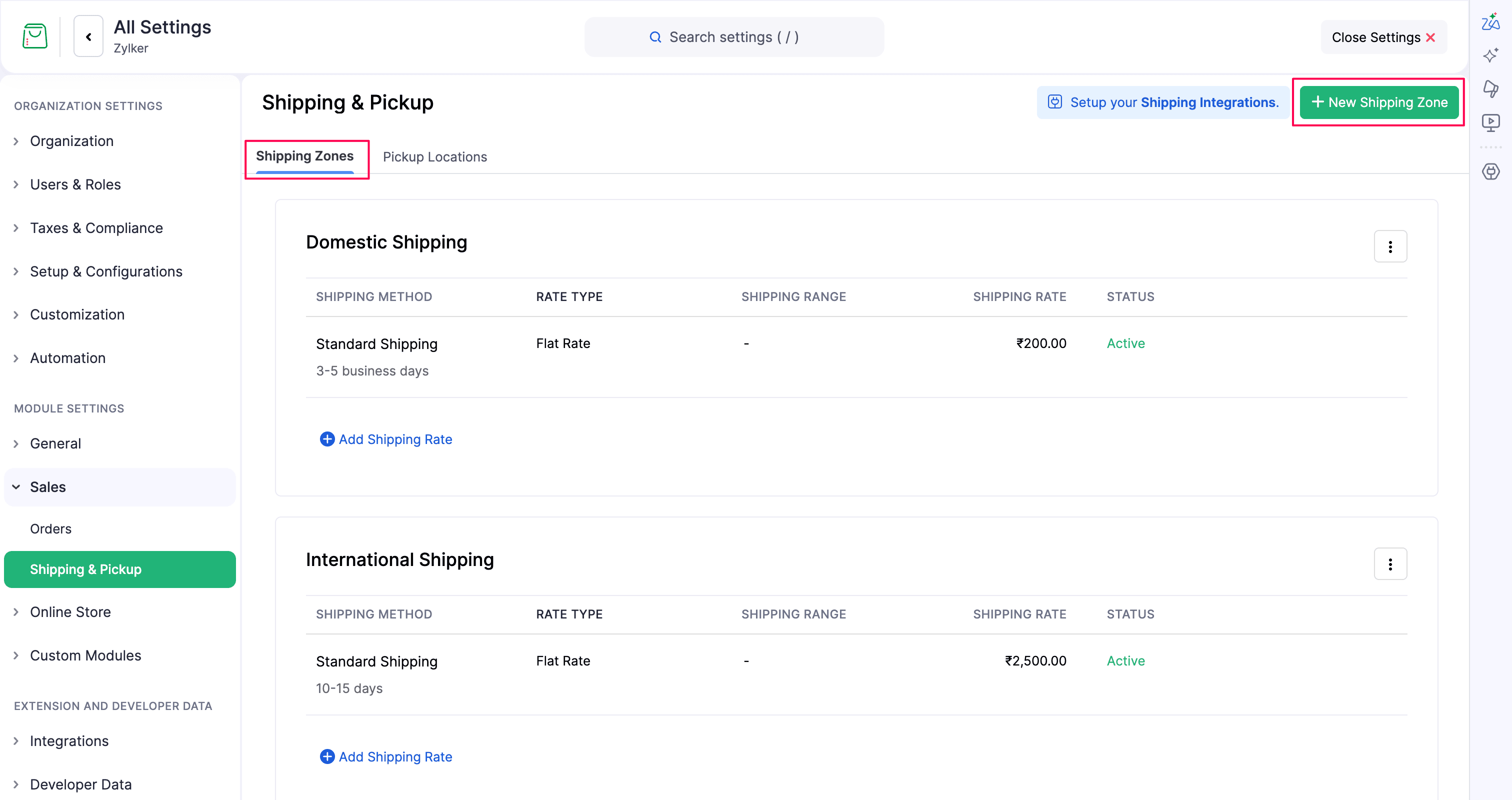
From this tab, you can:
- Click Setup your Shipping Integrations to connect a shipping carrier.
- Click + New Shipping Zone to define a delivery region.
- Click Add Shipping Rate inside a zone to add another shipping rate.
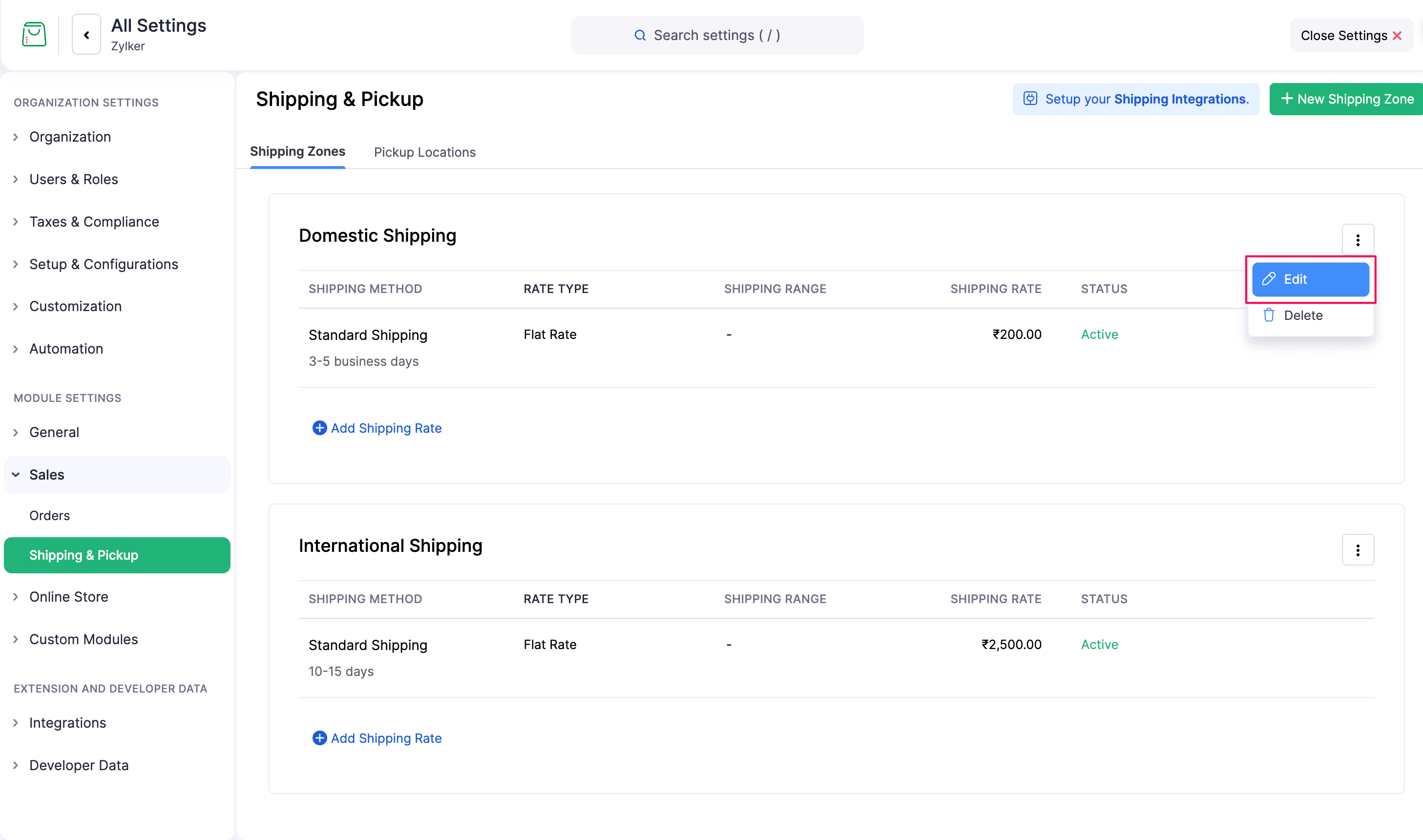
- Click More Options on a shipping zone row to edit or delete the shipping zone.
- Use the Edit and Delete actions on a shipping-rate row to manage that rate.
Create a Shipping Zone
Create a shipping zone when the delivery rate or availability differs by country, state, or postal-code area.
To create a shipping zone:
- Go to Settings in the top-right corner.
- Select Shipping & Pickup under Sales.
- Click + New Shipping Zone.
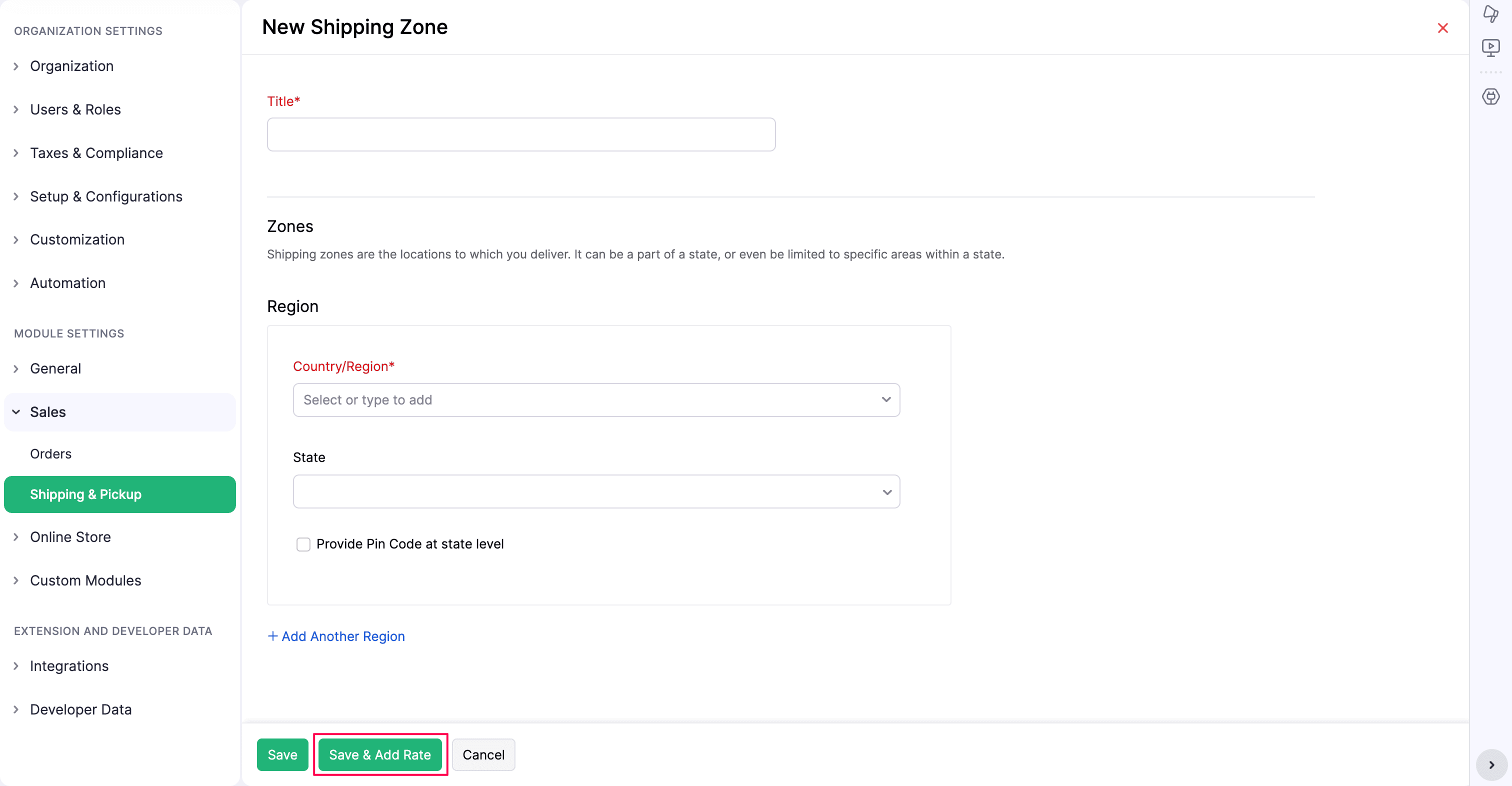
- Enter a Title for the zone.
- Under Region, select a Country/Region. You can search for or type a country or region. You can select multiple countries or regions for a single zone.
- Select a State if you want to limit the zone to a state. You can select multiple states or all states. The State field is displayed if only one country is selected.
- Check Provide Pin Code at state level if you want to define the delivery area using postal codes.
- In the Pin Codes field, enter the postal codes for the delivery area. You can enter multiple postal codes separated by commas. You can also enter a range of postal codes using a hyphen (for example, 10001-10010).
- Click + Add Another Region to add more countries, states, or locations to the zone.
- Click Save.
Click Save & Add Rate if you want to create the zone and immediately add a shipping rate.
Only the locations associated with a shipping zone are considered for fulfilling orders in that zone. When a customer enters a delivery address, Zoho Commerce matches it to the applicable zone and displays the rates configured for that zone.
Add a Shipping Rate
Add a shipping rate to specify the delivery method, estimated delivery time, and charge shown to customers at checkout.
To add a shipping rate:
- Go to Settings in the top-right corner.
- Select Shipping & Pickup under Sales.
- Click Add Shipping Rate under the shipping zone where you want to add the rate.
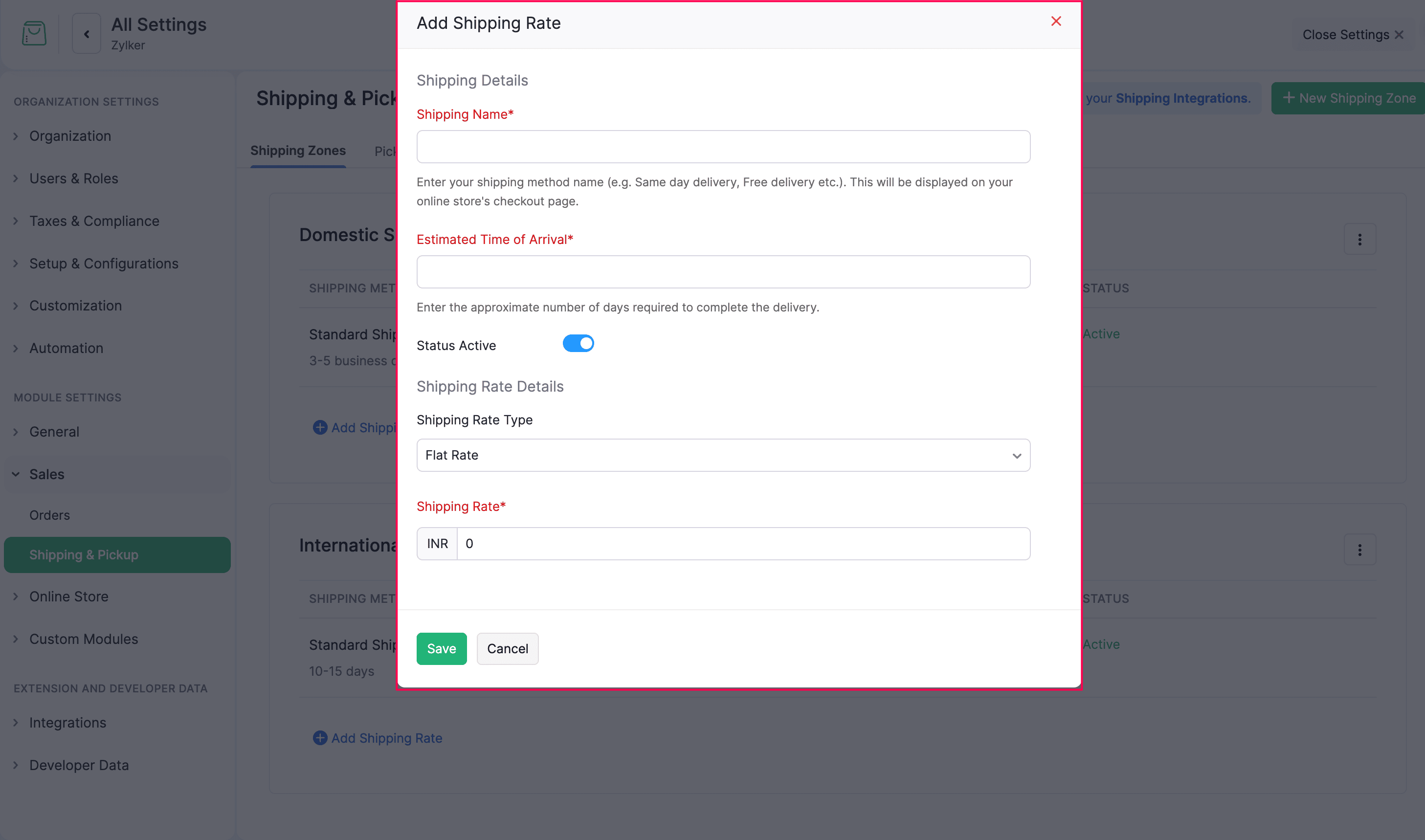
- Enter a Shipping Name, such as Standard Shipping or Free Shipping.
- Enter the Estimated Time of Arrival for the delivery method.
- Enable or disable Status Active. Active rates are available for customers in the zone.
- Select a Shipping Rate Type:
- Flat Rate: Charge one fixed amount for the shipping method.
- Enter the Shipping Rate and select the currency shown beside the amount.
- Order Value: Set rates based on the order value. You can define ranges for the order value and set a shipping rate for each range.
- Order Quantity: Set rates based on the number of items in the order. You can define ranges for the order quantity and set a shipping rate for each range.
- Rate Per Item: You can enable this toggle to set a rate for each item that satisfies the item quantity in the order.
- Order Weight: Set rates based on the total order weight. You can define ranges for the order weight and set a shipping rate for each range.
- Rate Per Unit: You can enable this toggle to set a rate for each weight unit that satisfies the order weight.
- Click Add New Condition to add more ranges for the selected rate type.
- Flat Rate: Charge one fixed amount for the shipping method.
- Click Save.
When you choose Order Value, Order Quantity, or Order Weight, enter the ranges and corresponding rates before saving.
Manage Shipping Zones
Use the shipping zone’s more options menu to update or remove the entire zone. These actions are separate from the actions for individual shipping rates within the zone.
To edit a shipping zone:
- Go to Settings in the top-right corner.
- Select Shipping & Pickup under Sales.
- Open the Shipping Zones tab.
- Click the More Options menu for the shipping zone.
- Select Edit.
- Update the zone title, regions, or locations.
- Click Save.
To delete a shipping zone:
- Click the More Options menu for the shipping zone.
- Select Delete.
- Click Delete in the popup to confirm the deletion.
Deleting a shipping zone also removes the shipping rates configured within that zone.
Manage Shipping Rates
Each shipping rate has its own Edit and Delete actions. These actions affect only the selected rate and do not edit or remove the shipping zone.
To edit a shipping rate:
- Go to Settings in the top-right corner.
- Select Shipping & Pickup under Sales.
- In the Shipping Zones tab, find the shipping zone that contains the rate you want to update.
- Hover over the shipping rate row, edit and delete icons appear.
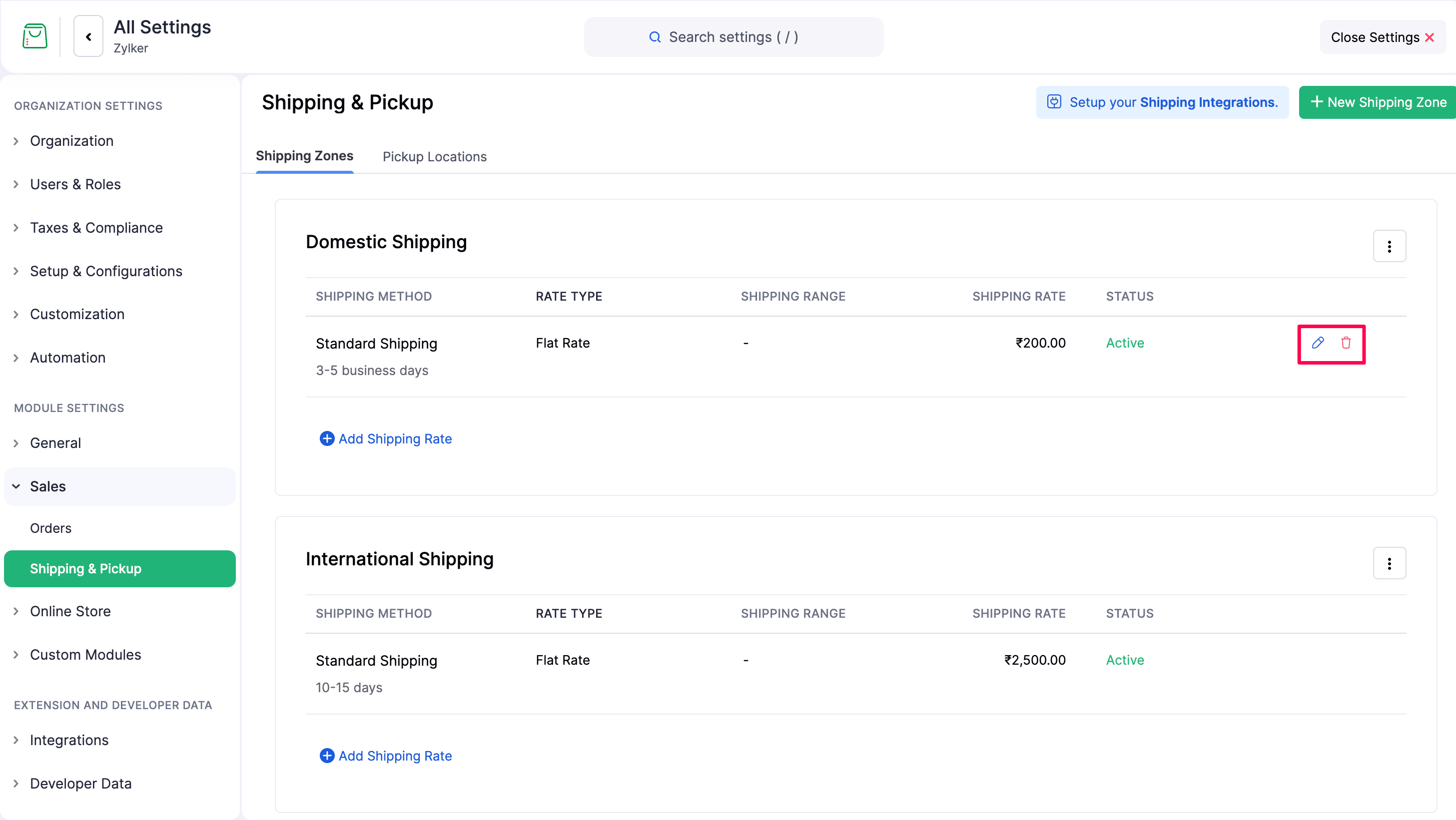
- Click Edit. The Edit Shipping Rate popup appears.
- Update the shipping name, estimated arrival time, status, rate type, or shipping rate.
- Click Save.
To delete a shipping rate:
- Find the shipping rate you want to remove.
- Hover over and click Delete.
- Click Delete in the popup to confirm the deletion.
Pickup Locations
The Pickup Locations tab lets you offer curbside pickup from your locations. If no pickup locations exist, the page displays an Add Pickup Location button. After you create a location, the tab displays the + New Pickup Location button and a list of your pickup locations.
The list displays the location name, country, state, address, contact name, and contact number. Use the Action column to update or remove a pickup location.
Add a Pickup Location
Add a pickup location with its contact details, address, operating availability, and shipping-zone restrictions.
To add a pickup location:
- Go to Settings in the top-right corner.
- Select Shipping & Pickup under Sales.
- Open the Pickup Locations tab.
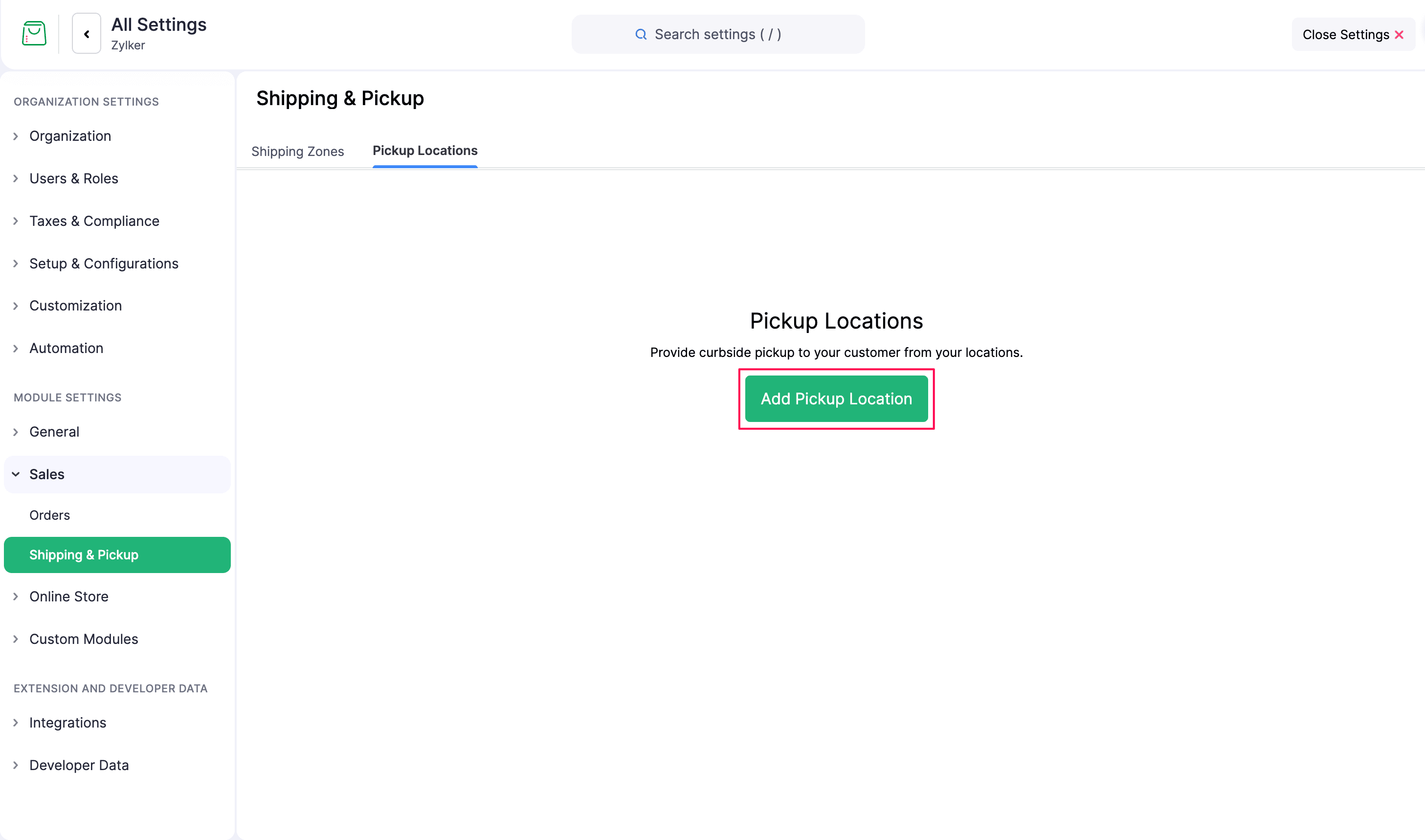
- Click Add Pickup Location.
- In the New Pickup Location page, enter the location Name.
- Under Contact Information, enter the Contact Name, Email Address, and Contact info.
- Under Address Information, enter the Company Name, Address, City, Country, State, and ZIP Code.
- Under Availability Information, select the Working days, enter the Working hours, and add any additional details in Notes.
- Under Restrict to certain shipping zones, select the shipping zones that can use this pickup location.
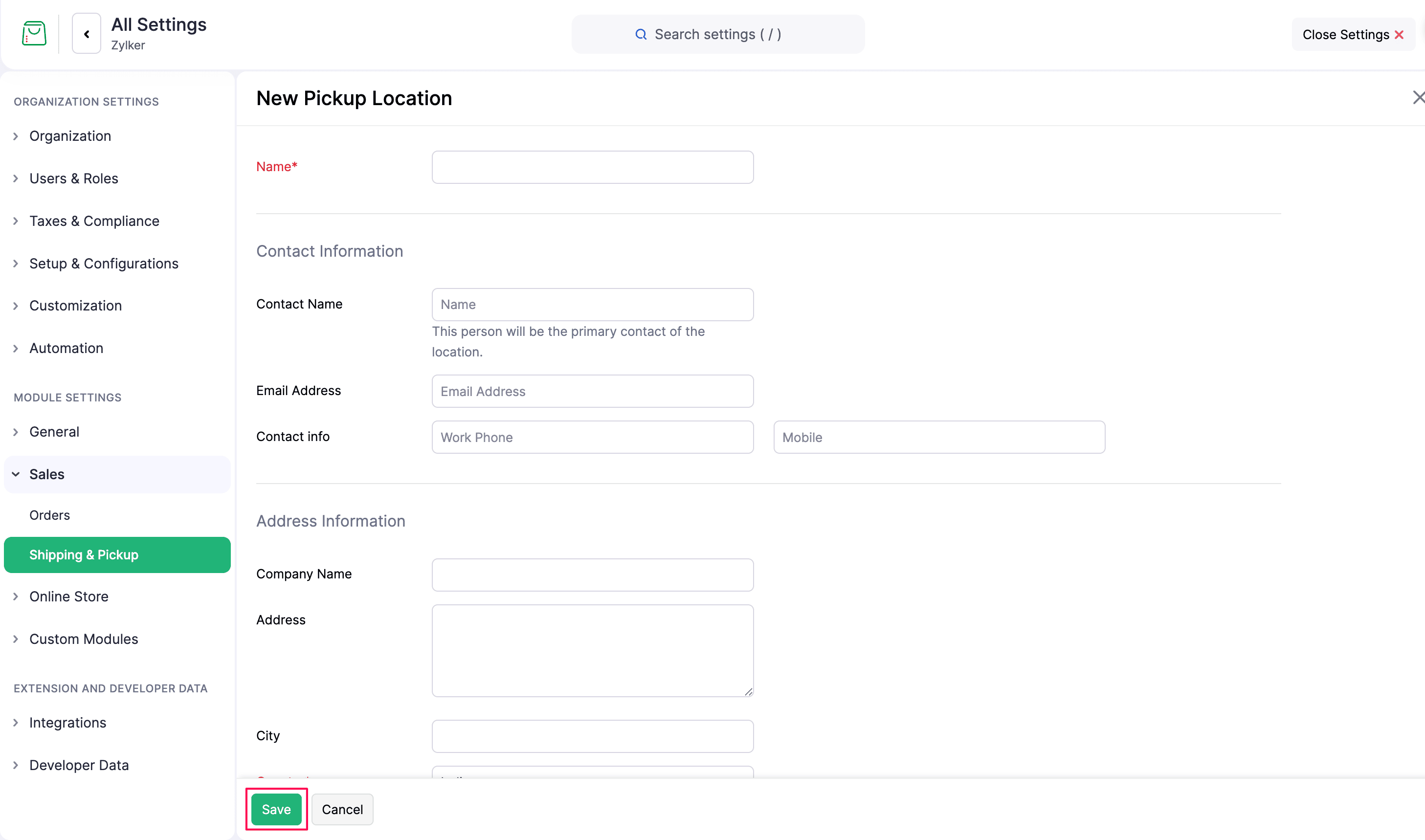
- Click Save to create the pickup location.
- Click Cancel to discard the details and return to the pickup locations page.
Manage Pickup Locations
To update a pickup location:
- Go to Settings in the top-right corner.
- Select Shipping & Pickup under Sales.
- Open the Pickup Locations tab.
- Hover over the pickup location, edit and delete options appear.
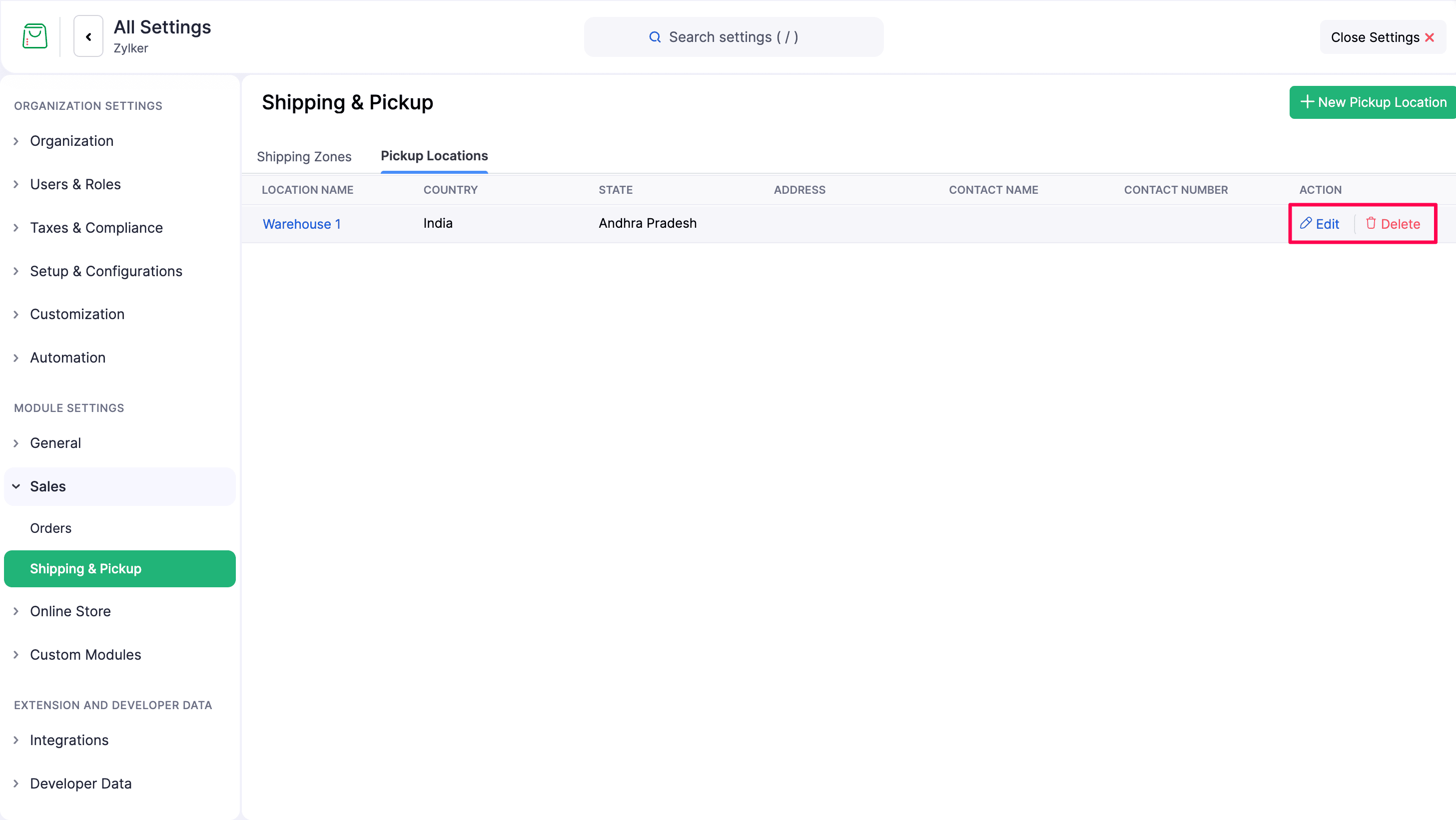
- Click Edit in the Action column for the location you want to update.
- Edit the location details.
- Click Save.
To remove a pickup location:
- Go to Settings in the top-right corner.
- Select Shipping & Pickup under Sales.
- Open the Pickup Locations tab.
- Click Delete in the Action column for the location you want to remove.
- Click Delete it in the popup to confirm the removal of the pickup location.