



Getting Started

Zoho Commerce is a cloud-based ecommerce platform designed to help entrepreneurs get their online store up and running in under an hour. You can easily build and customize your online store without any technical expertise. From managing inventory and processing orders to accepting payments and creating a professional online store, Zoho Commerce gives you everything you need to start selling to customers worldwide.
Access Zoho Commerce
Welcome to Zoho Commerce! Your one-stop destination for building and managing a successful online store. Dive in and explore the features designed to make your ecommerce journey seamless.
Already have an account? Sign in to Zoho Commerce. New here? Sign up today!
Sign Up for Zoho Commerce
If you’re a new user, you can sign up for a free 14-day trial. You can upgrade to a paid plan anytime during or after the trial period.
To sign up:
- Go to the Zoho Commerce Home page.
- Click Sign Up Now in the top right corner.
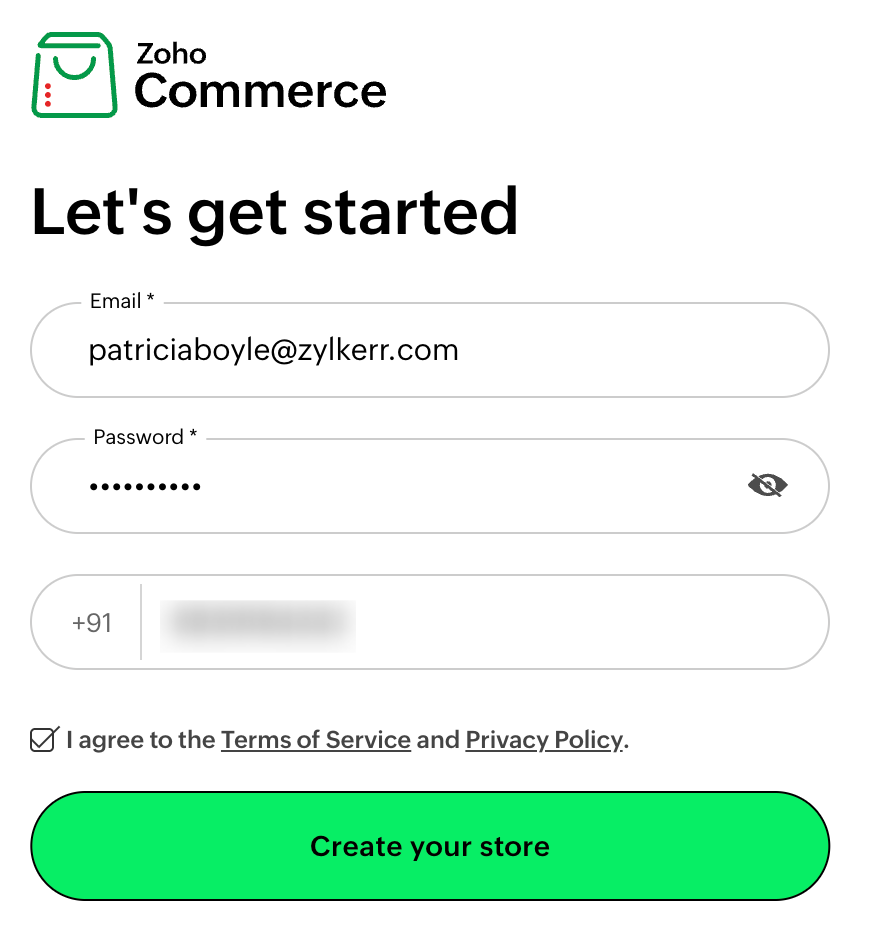
- On the Let’s get started page, fill in the following fields:
- Email Address: Enter the email address for your store.
- Password: Create a password for your account with at least 8 characters.
- Mobile Number: Enter your mobile number, which you want to associate with the store.
- Check I agree to the Terms of Service and Privacy Policy after reading it to accept the terms and conditions.
- Click Create your store.
- Enter the OTP sent to your mobile number and click VERIFY.
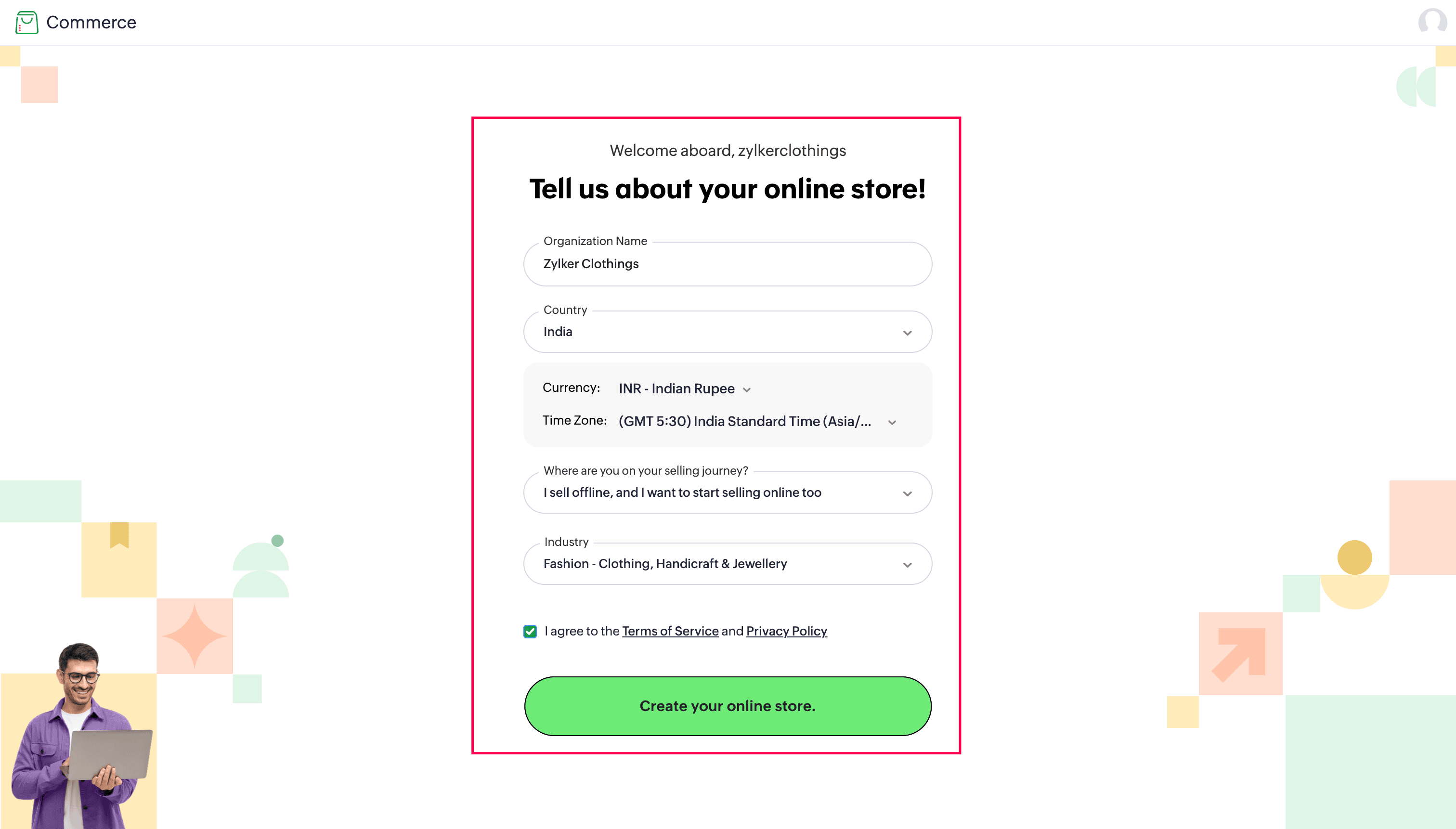
- Enter your business details to customize your online store:
- Organization Name: Enter your online store’s name.
- Country: Select the country where your store operates.
- Currency: Select your organization’s accounting currency.
- Time Zone: Select the time zone in which your store operates.
- Where are you on your selling journey?: Choose your current stage in the selling journey from the dropdown list.
- Industry: Choose your store’s domain.
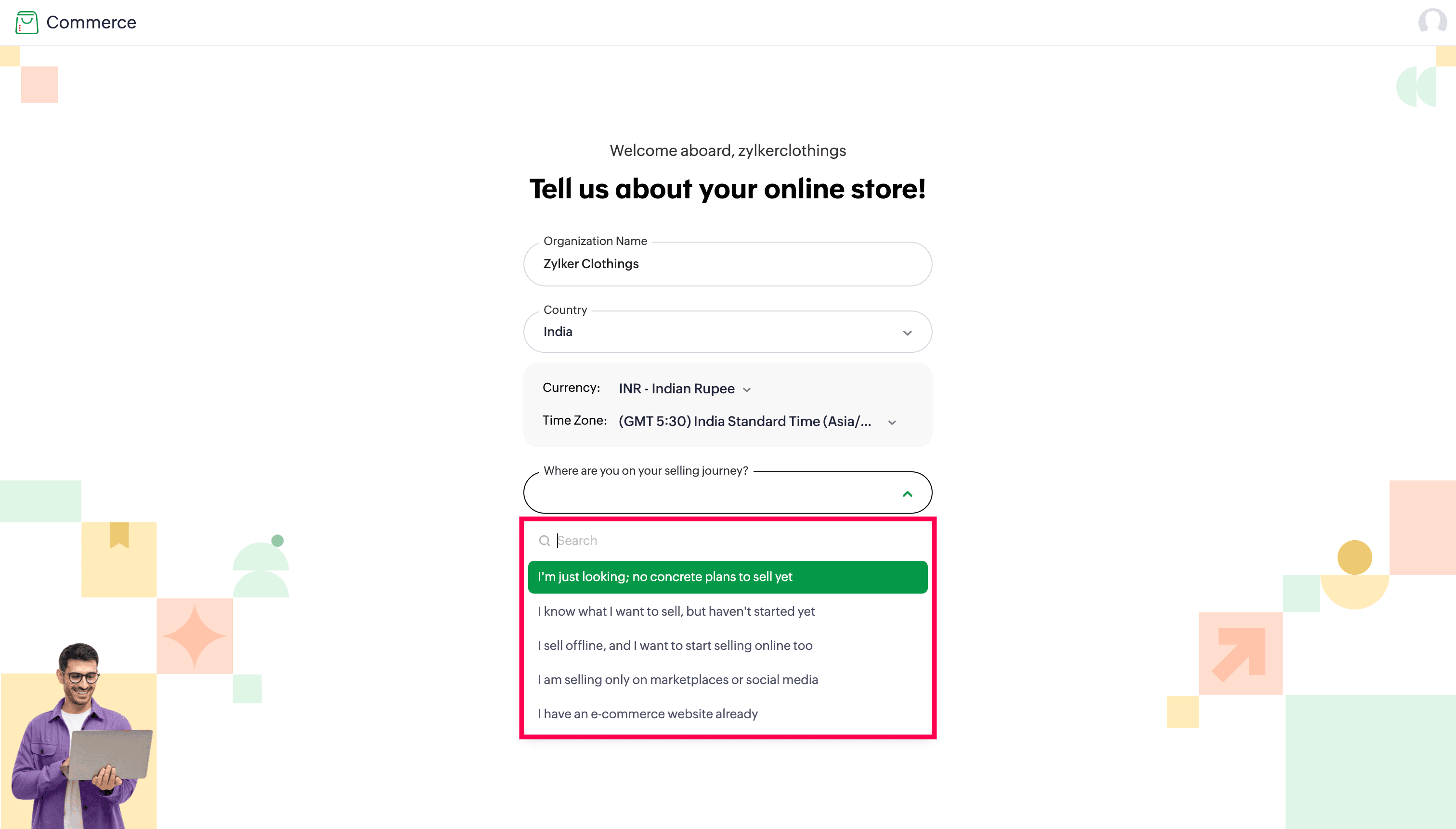
- Check I agree to the Terms of Service and Privacy Policy after reading them.
- Click Create your online store.
- On the next page, click Get Started to create the store with a default theme that is selected automatically based on your industry details. (OR) Click View All Themes to select a theme of your choice from the theme library and click Use This to set the template for your online store.
Note: You can change templates or customize them at any point in the future.
Sign In to Zoho Commerce
If you’ve already signed up for Zoho Commerce, you can sign in to your account.
To sign in:
- Go to the Zoho Commerce Home page.
- Click Sign In in the top right corner.
- In the next page, fill in the following fields:
- Email Address or Mobile Number: Enter your registered email address or mobile number to sign in to your Zoho Commerce account. You’ll be asked to enter the OTP sent to your email or mobile, or enter your account password.
- If you’ve enabled MFA for your account using OneAuth:
- Open OneAuth (v3.1 or higher) on your device.
- In the MFA tab, tap Smart Sign-in.
- Scan the displayed QR code.
- If you’ve forgotten your account password, click Forgot Password? to reset it.
- After entering your email or mobile number and password, click Sign In.
Navigating Zoho Commerce
Let’s look at how to get around Zoho Commerce:
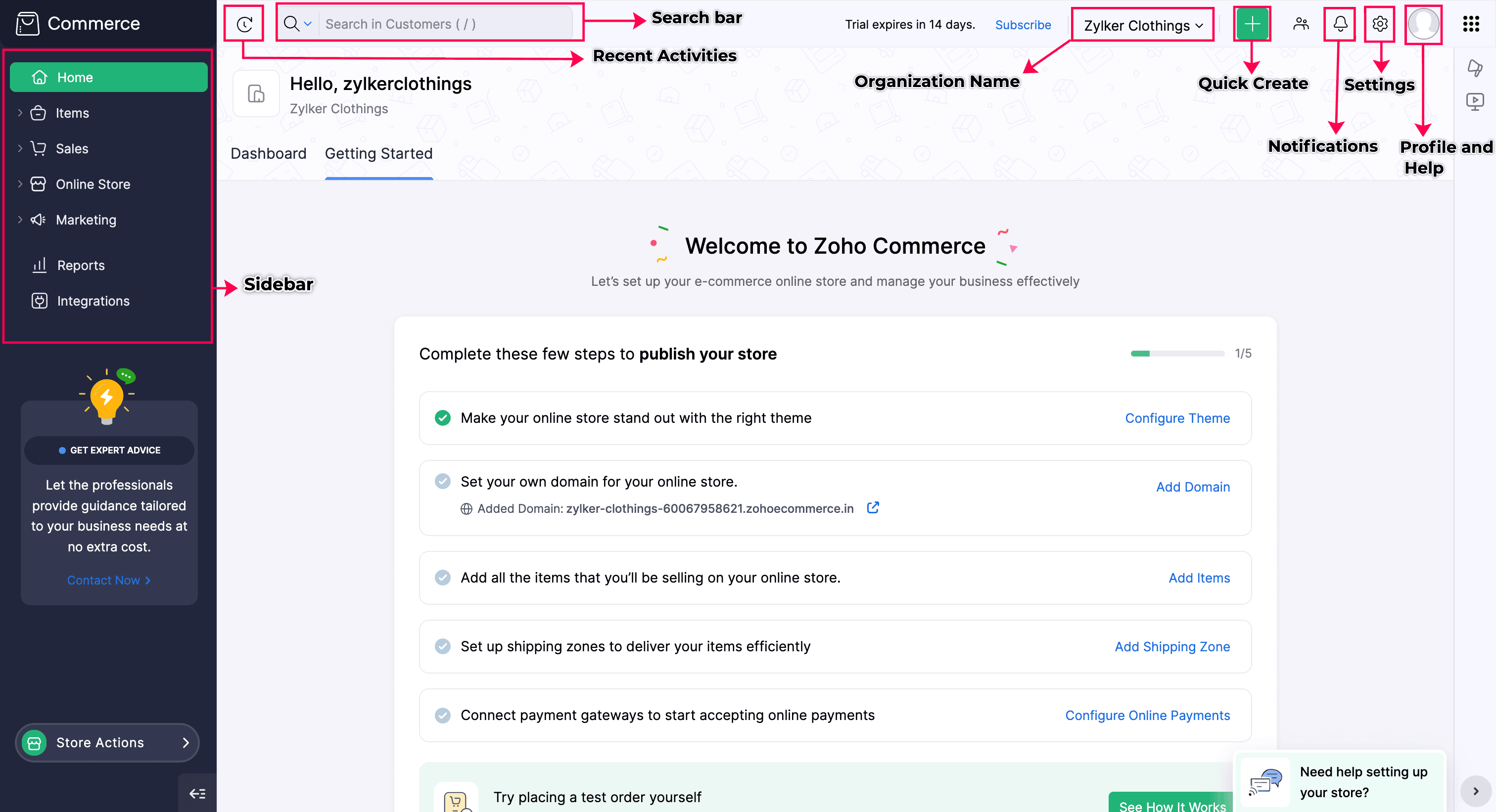
- Sidebar: Access different modules within the application.
- Recent Activities: View recently visited items, sales orders, and customers.
- Search Bar: Find anything you need within Zoho Commerce. Use Advanced Search to apply filters to modules and locate specific information.
- Organization: Manage or switch between multiple organizations.
- Quick Create: Create items, coupons, or customers with a single click.
- Notifications: Alerts notify you of important updates about quotes or orders and actions created and modified in your organization.
- Settings: Customize and configure your organization and online store preferences in Zoho Commerce.
- Profile and Help: Access account information, help docs, FAQs, and blogs in one place.
- All Zoho Apps: Click this icon in the top right corner to access all Zoho apps.
How Zoho Commerce Works
Explore the core modules available in Zoho Commerce to fully understand how it works. These include item management, order processing, payment configuration, shipping integrations, and more.
Plans
After your free trial expires, you can subscribe to any one of the paid plans to continue using Zoho Commerce. You can view the pricing page for more details.
Migrating from Other Software
If you’re migrating from other software to Zoho Commerce, you’ll need to import your items into the Zoho Commerce store. You can learn how to set up Zoho Commerce here.
Dashboard
The dashboard gives you a clear picture of your online store’s performance. It gives you an overview of orders, cancel requests, sales summary, shipping overview, store visits, page visits, and top items. You can learn more about the Dashboard from the help document.
Items
Items are the products that you sell in your store. Add or import items and price lists into Zoho Commerce to start selling them on your online store. You can learn more about Items from the help document.
Categories
Categories help you group items so customers can browse and find what they need easily. You can learn more about Categories from the help document.
Collections
Collections let you showcase related or similar themed items together. Useful for promotions or seasonal displays. You can learn more about Collections from the help document.
Item Reviews
Item reviews allow your customers to rate and review products. This builds trust and helps others know more about your item to make informed decisions. You can learn more about Item Reviews from the help document.
Orders
Orders show all your order-related data, including order status, payment status, and shipping status. You can learn more about Orders from the help document.
Carts
Carts show what your customers have added but not yet purchased. Track interest and follow up when needed. You can learn more about Carts from the help document.
Customers
Customers list the users who have signed up for your online store. View their details, order history, and engagement. You can learn more about Customers from the help document.
Settings
Settings gives you full control over your organization and online store, bringing all customization options under one roof. Refer to the help documents to explore available preferences and configure your store to suit your needs.
Integrations
Zoho Commerce can be integrated with various third-party apps, as well as Zoho apps like Inventory, CRM, and more. You can also integrate Zoho Commerce with multiple payment gateways to receive payments directly from your customers. You can learn more about integrations from the help document.
Online Store
Your online store is what customers see when they visit your site. Customize its look, layout, and branding. You can learn more about the Online Store from the help document.
Coupons
Coupons help you create discounts and special offers. Run promotions and attract new or returning customers. You can learn more about Coupons from the help document.
Blogs
Blogs let you share content with your audience. Publish updates, tips, and stories to drive traffic. You can learn more about Blogs from the help document.
Reports
Reports give you a clear view of your store’s performance. Check sales, traffic, and other key metrics. You can learn more about Reports from the help document.