



Items - Digital Downloads

Zoho Commerce supports the sale of digital download items, such as eBooks, software, antivirus programs, and other non-physical products. Unlike physical items, digital items are delivered through a download link, so they do not require shipping.
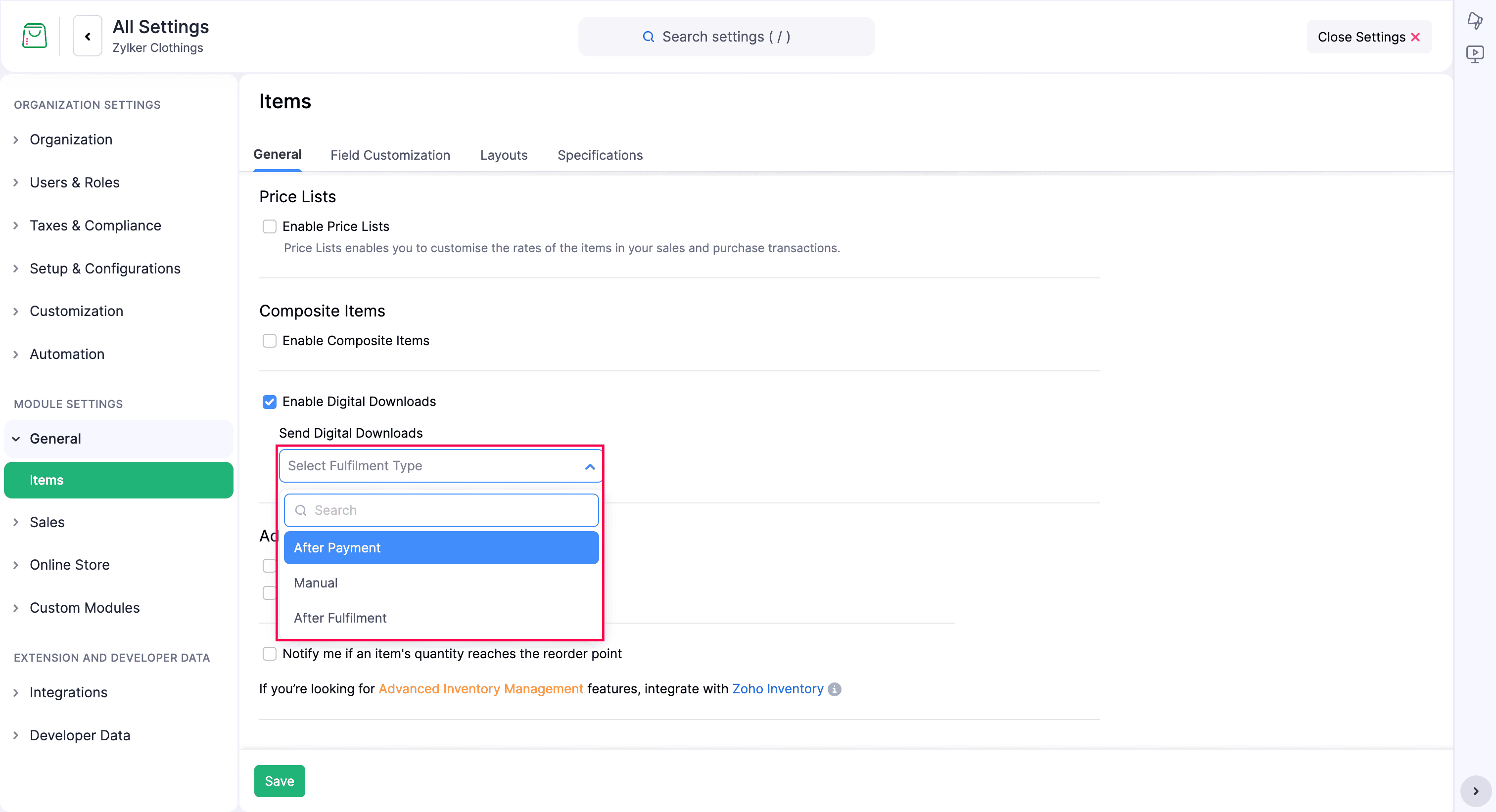
Prerequisite: Enable Digital Downloads under Items settings before you create digital download items. You can also configure when to send the download link from the general settings.
Add a Digital Download Item
The Items module allows you to create digital download items by uploading the files that you want to sell. After you upload the files, customers can purchase the item from your online store and download the files according to your delivery settings.
Scenario: An online education provider sells eBooks, course guides, and practice papers. By listing these materials as digital download items, the provider lets students purchase and access them immediately.
To add a digital download item:
- Click Items in the left sidebar.
- Click New Item.
- Enter the general details, including the item Title.
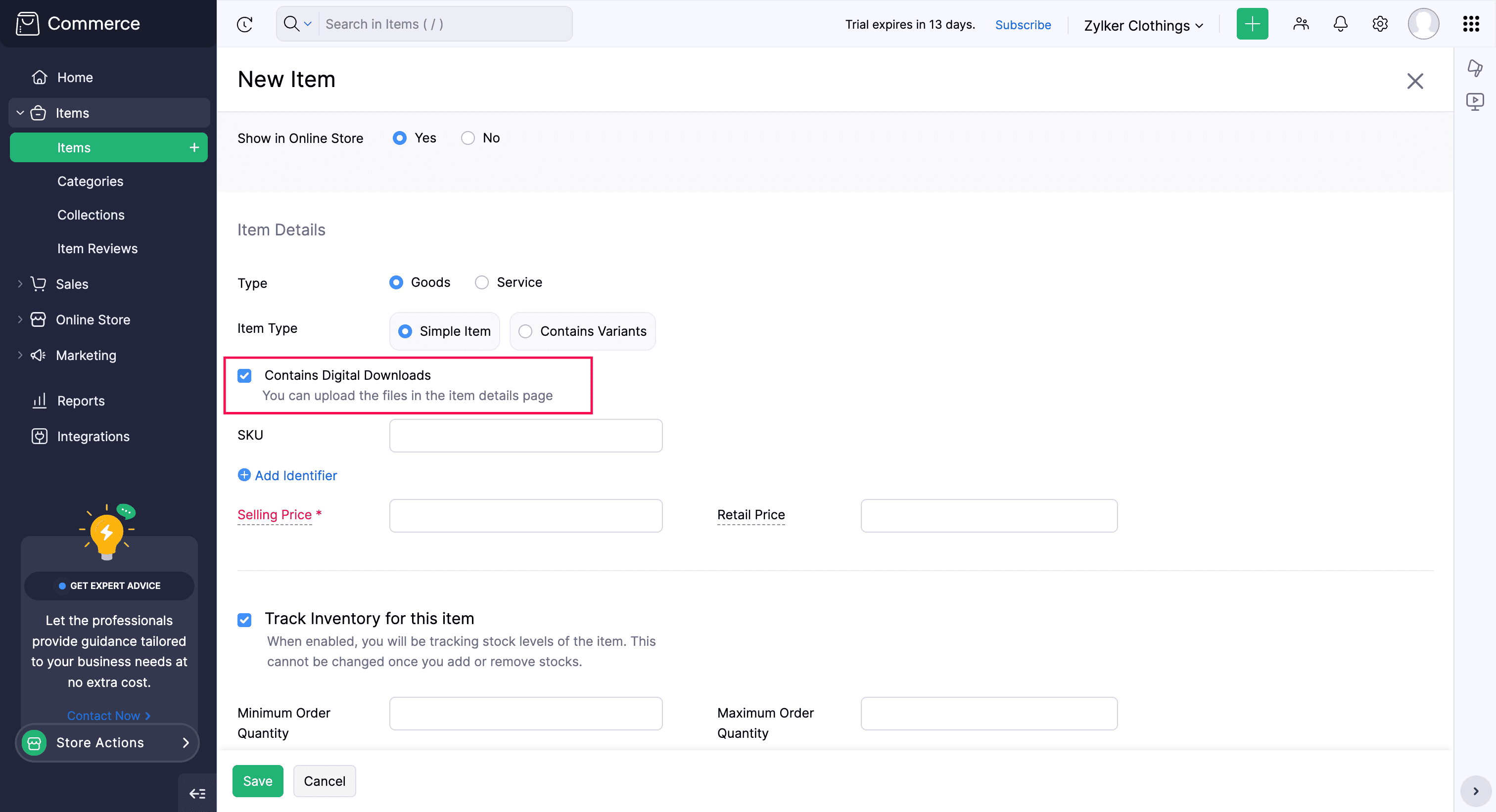
- Under Item Details, select Contains Digital Downloads.
- Enter the Selling Price and complete the required details.
- Click Save to create the digital download item.
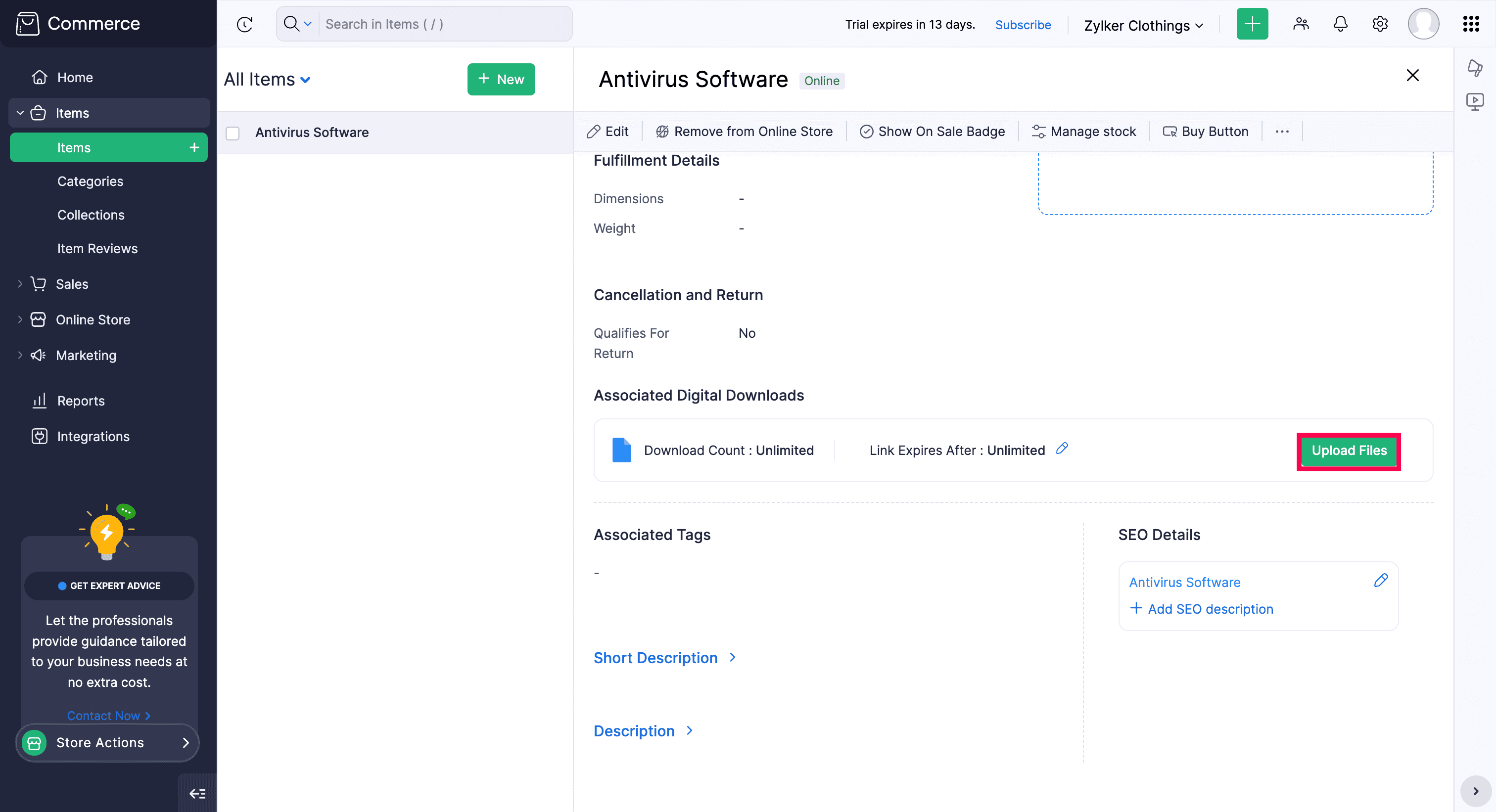
- Under Associated Digital Downloads, click Upload Files.
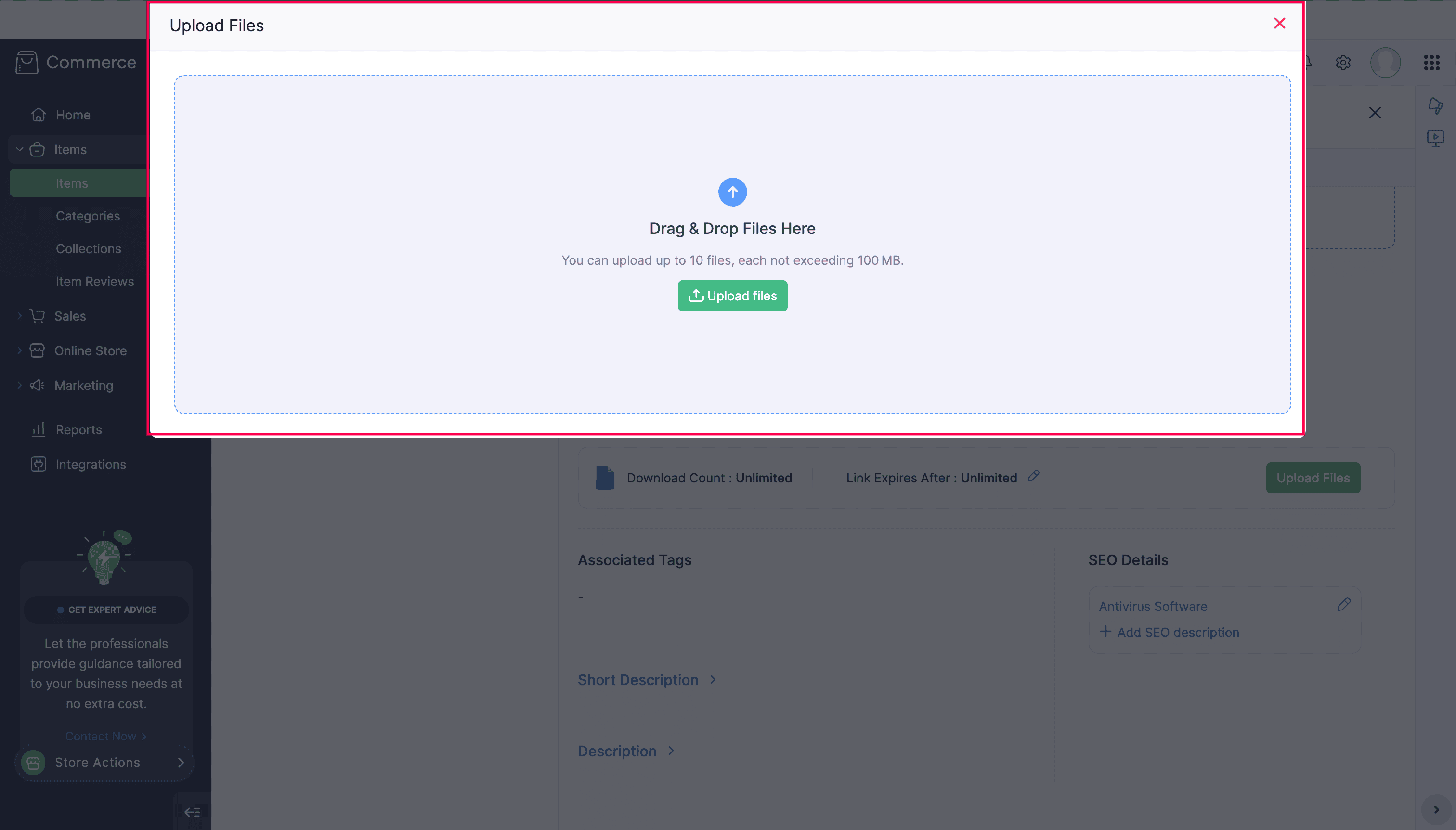
- In the popup, click Upload files, or drag and drop the files into the upload area.
Note: You can upload a maximum of 10 files. Each file must not exceed 100 MB.
You can click View and Upload to view the uploaded files and upload additional files.
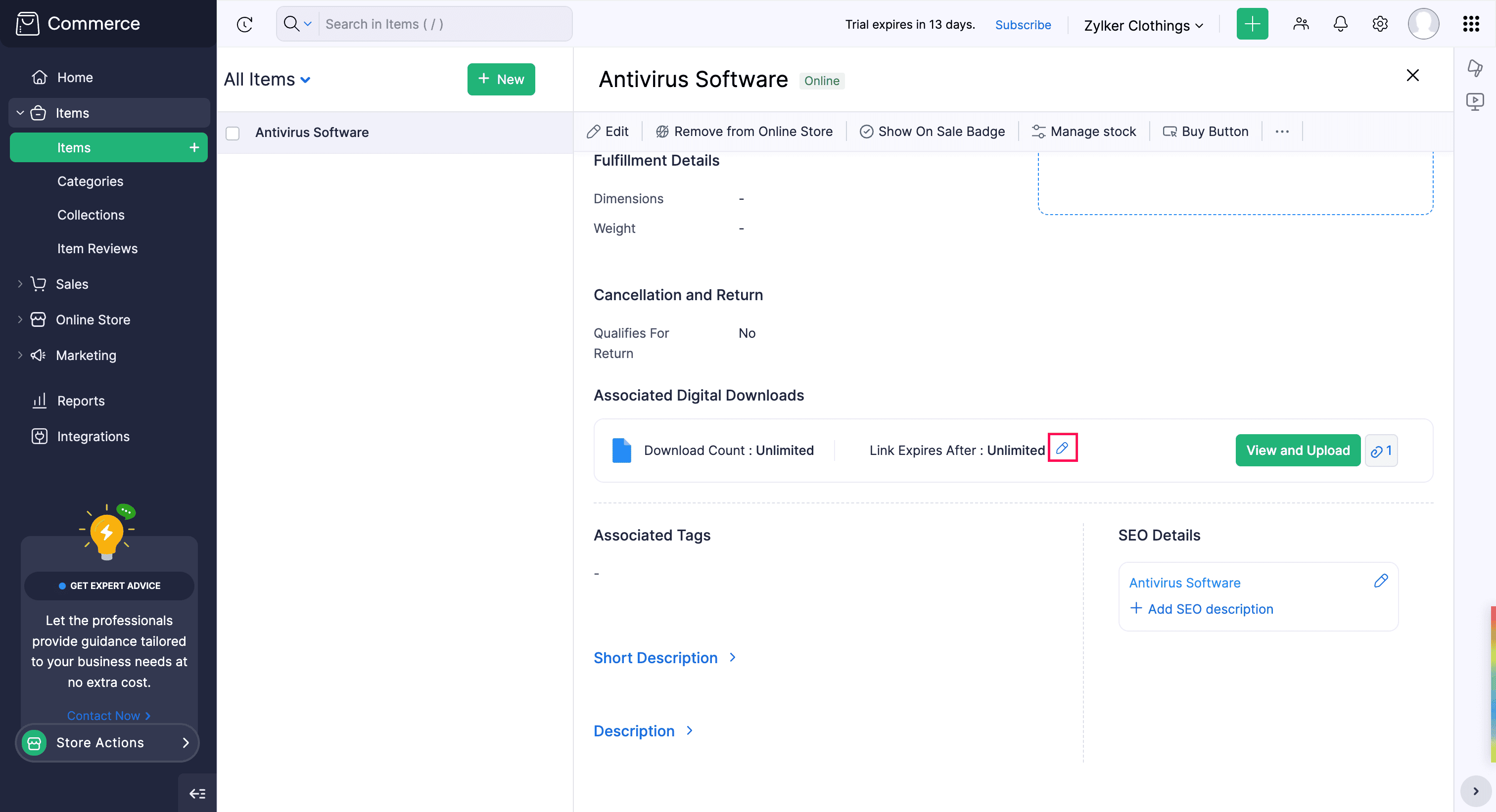
To configure the download details:
- Click the Edit icon next to Link Expires After.
- In the Edit Download Details popup, configure the following preferences:
| Field | Description |
|---|---|
| Download Count | Set the maximum number of times customers can download the files. |
| Link Expires After | Set the number of days after which the download link expires. |
| Send Digital Downloads | Choose when to send the download link: After Payment, Manual, or After Fulfilment. |
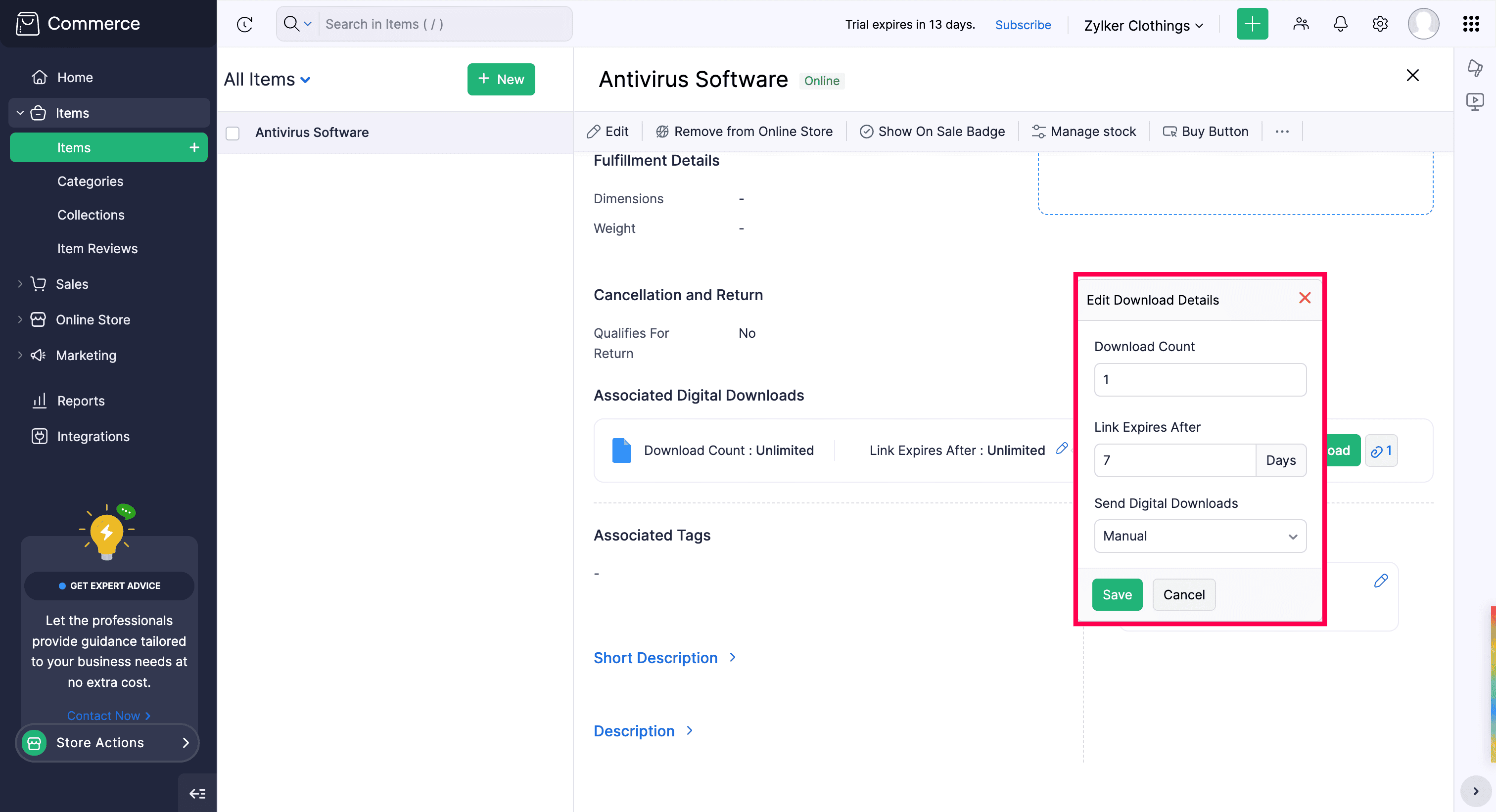
- Click Save.
Send Digital Download Files
After a customer places an order for a digital download item, the order appears in the Orders module. Zoho Commerce sends the files according to the Send Digital Downloads preference.
If you select Manual, send the download link from the sales order after reviewing the order.
- Click Sales in the left sidebar.
- Select Orders.
- Select the order that contains the digital download item.
- On the sales order details page, click Send Link.
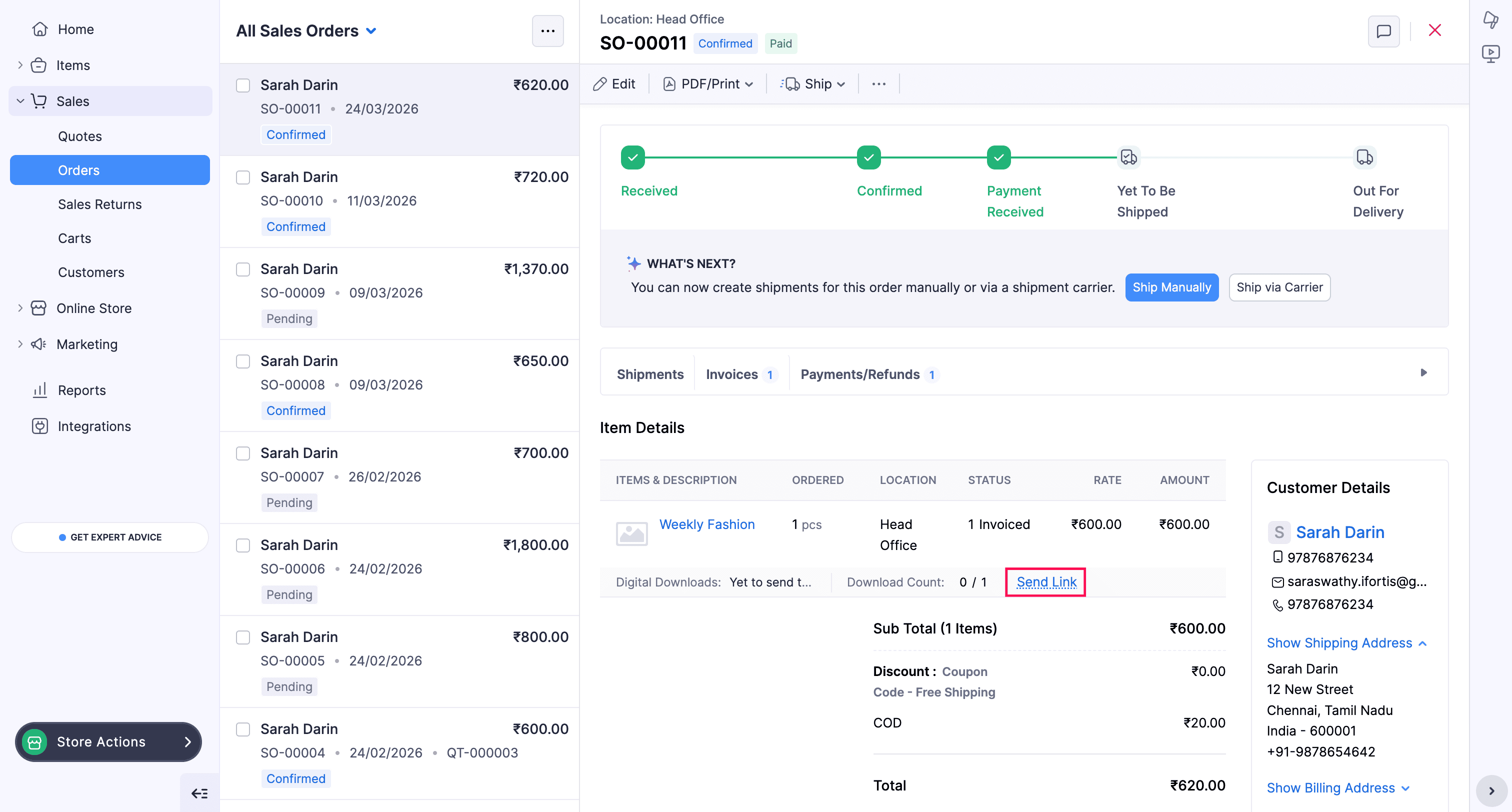
Zoho Commerce sends an email containing the download link to the customer’s email address.