
Customer Portal

The customer portal is a self-service area in the online store. Registered customers can manage their profile, track and reorder purchases, review quotes shared with them, and maintain saved addresses.
This guide is for online store customers. If you are a store admin, refer to Customer Portal Settings.
Prerequisite: The admin must enable the customer portal from the online store settings before you can sign up or sign in. If the admin enables Mandatory Sign In, you must sign in to browse the store.
Sign Up and Sign In
You can become a registered member of the store by signing up for the customer portal. Once registered, you can sign in to view your orders, quotes, and saved addresses.
Sign Up
To sign up for the customer portal:
- Go to the online store.
- Click the Profile icon in the top-right corner.
- Select Sign Up.
- Enter the required details in the sign-up form.
- Click Sign Up to create your account.
Note: The fields shown on the sign-up form depend on the admin’s configuration. If Enable Sign Up is turned off, you can join the portal only when the admin invites you by email.
Sign In
To sign in to the customer portal:
- Go to the online store.
- Click the Profile icon in the top-right corner.
- Select Sign In.
- Enter your email address and password.
- Click Sign In.
Note: If the admin enables social login, you can also sign in with a supported social account, such as Google or Facebook.
Access the Customer Portal
Once you sign in, you can open the portal from any page in the online store.
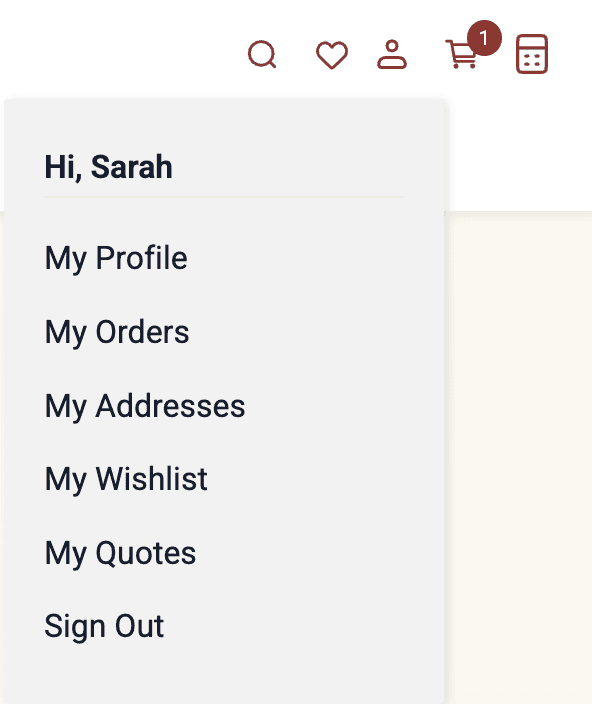
- Sign in to the online store with your registered email address and password.
- Click the Profile icon in the top-right corner.
- Select My Profile, My Orders, My Quotes, My Wishlist, or My Addresses from the dropdown.
The selected option opens the corresponding page in the customer portal.
My Profile
The My Profile page lists the personal information saved against your account. You can also change your password from this page.
View Profile Details
- Click the Profile icon in the top-right corner.
- Select My Profile.
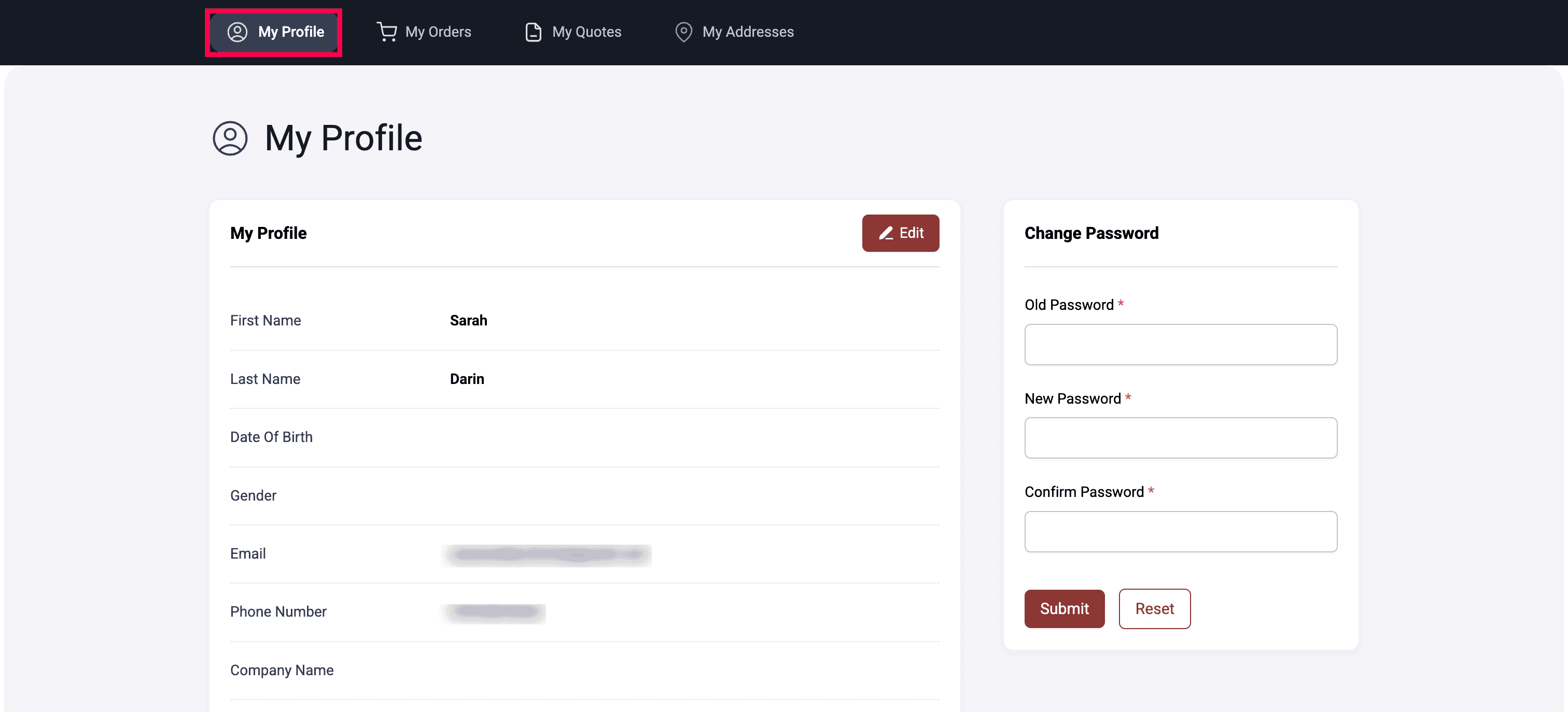
The following details are shown on the My Profile page:
| Field | Description |
|---|---|
| First Name | Your first name from sign-up or checkout. |
| Last Name | Your last name from sign-up or checkout. |
| Date Of Birth | Your date of birth, if provided. |
| Gender | Your gender, if provided. |
| The email address registered with your account. You use this address to sign in and receive order notifications. | |
| Phone Number | The phone number associated with your account. |
| Company Name | The company name, if you registered as a business customer. |
| Job Title | Your designation at the company, if provided. |
| Address | The street address saved against your profile. |
| City | The city for the saved address. |
| State | The state or province for the saved address. |
| Country | The country for the saved address. |
| ZIP Code | The postal code for the saved address. |
| Receive promotional emails | Whether you opted in or opted out of marketing emails from the store. |
| GSTIN | Your Goods and Services Tax Identification Number, if you registered as a business customer. This field is available in the India edition only. |
Edit Profile
You can update your personal information from the My Profile page.
- Click the Profile icon in the top-right corner.
- Select My Profile.
- Click the Edit icon on the My Profile page.
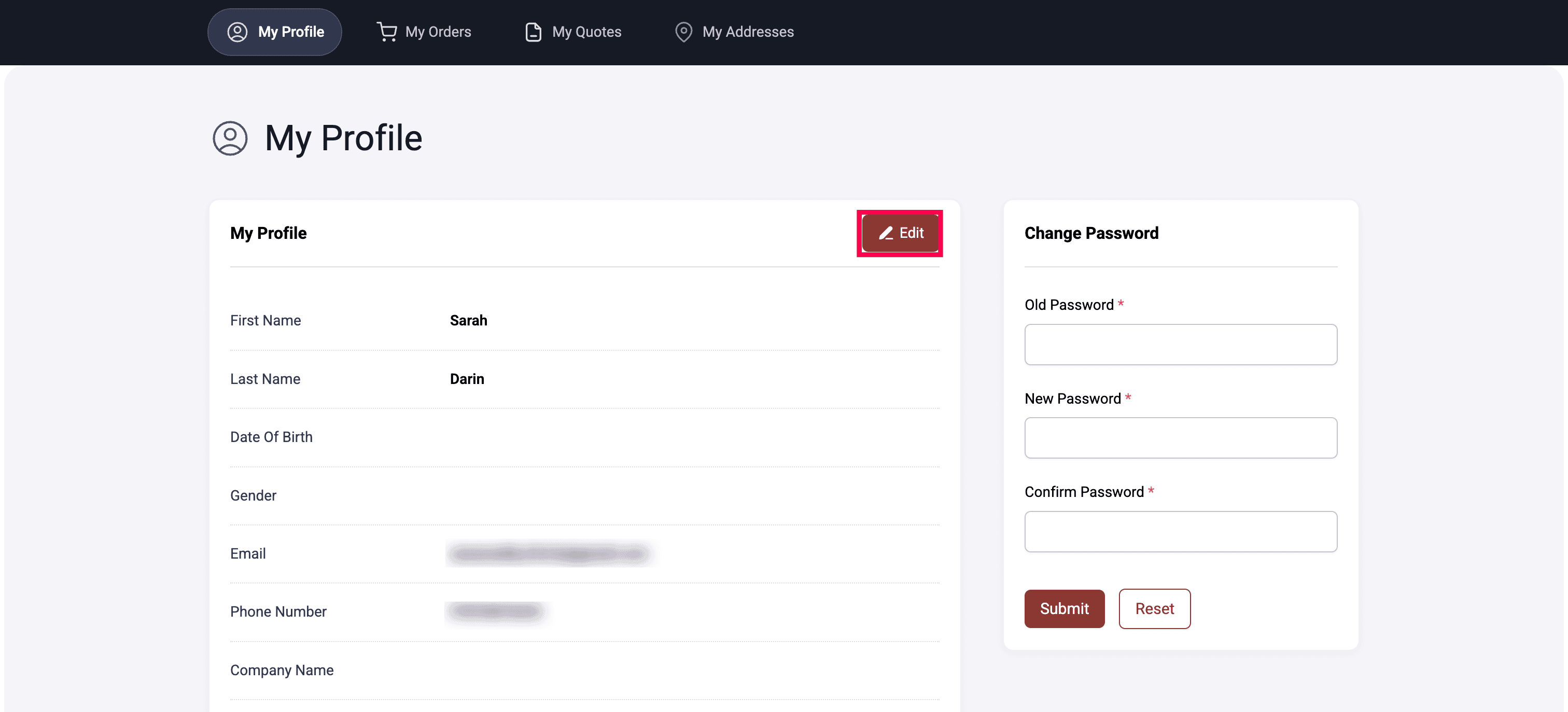
- Update the fields you want to change.
- Click Save.
Your updated profile details appear on future orders and notifications.
Change Password
You can change your portal sign-in password from the My Profile page.
- Click the Profile icon in the top-right corner.
- Select My Profile.
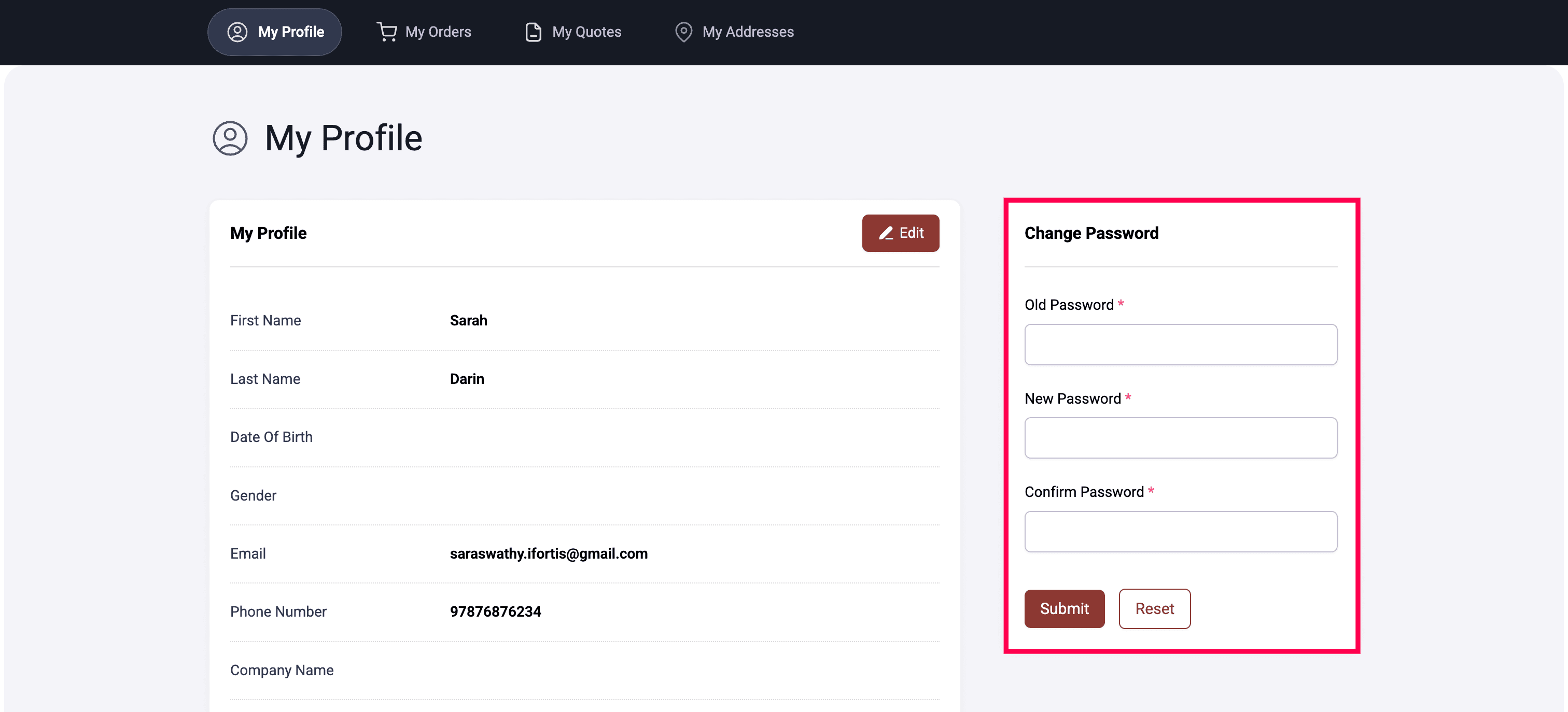
- In the Change Password section, enter the following details:
| Field | Description |
|---|---|
| Old Password | The password you currently use to sign in. |
| New Password | The new password you want to set. |
| Confirm Password | The new password entered again for confirmation. |
- Click Submit.
- Click Reset to clear the form without saving.
Insight: Use a strong password that combines uppercase letters, lowercase letters, numbers, and symbols. Avoid reusing a password from another website.
My Orders
The My Orders page lists every order you have placed in the store. You can view order details, cancel an eligible ongoing order, return a delivered order, or reorder items.
To view your orders:
- Click the Profile icon in the top-right corner.
- Select My Orders.
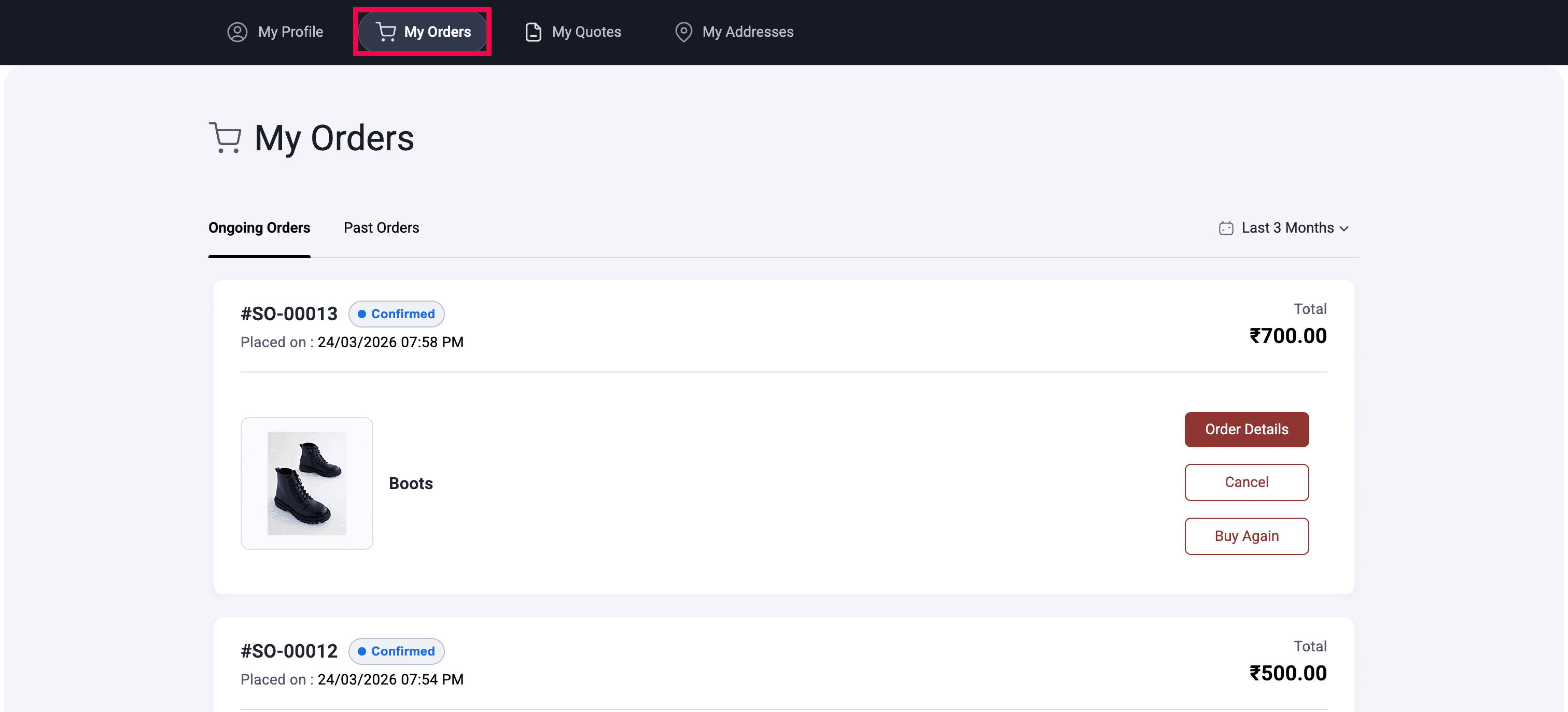
The page opens on the Ongoing Orders tab and lists orders that are still in progress, such as orders with the Confirmed status. Switch to Past Orders to view completed orders, such as orders with the Delivered status. Use the filter in the top-right corner to change the time range.
| Element | Description |
|---|---|
| Order Number | The order reference, such as #SO-00013. |
| Status | The current order status, such as Confirmed or Delivered. |
| Placed on | The date and time when you placed the order. |
| Delivered on | The delivery date. This appears on the Past Orders tab. |
| Total | The total amount paid for the order. |
| Tab | Available actions |
|---|---|
| Ongoing Orders | Order Details, Cancel, and Buy Again |
| Past Orders | Order Details, Return when eligible, and Buy Again |
The Return button appears only when the order is within the store’s return period and its items are eligible for return.
View Order Details
- In My Orders, locate the order you want to review.
- Click Order Details for the order.
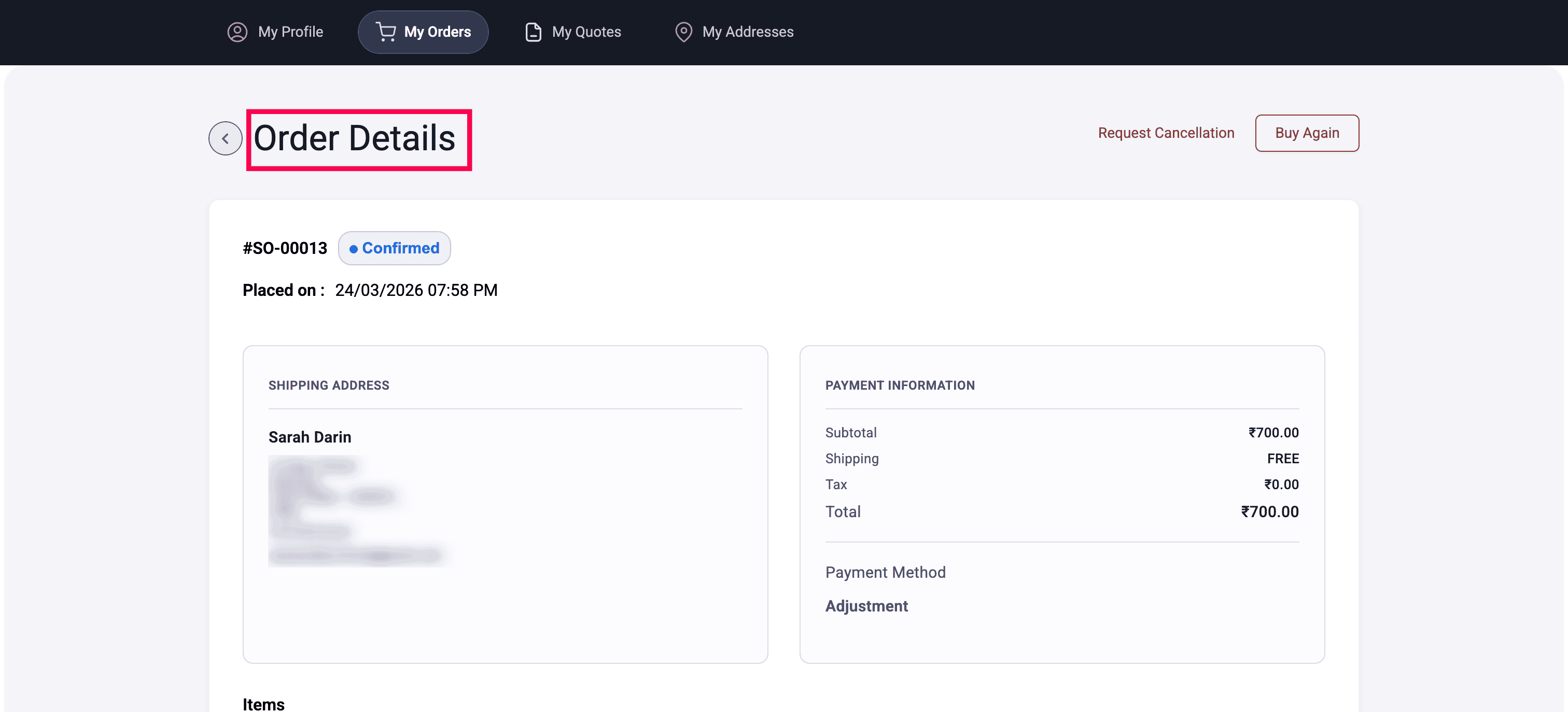
The order details page displays the items, quantities, prices, taxes, totals, and shipping address for the order.
Cancel an Order
You can cancel an order from Ongoing Orders when the order has not shipped.
- In My Orders, click the Ongoing Orders tab.
- Locate the order you want to cancel.
- Click Cancel for the order.
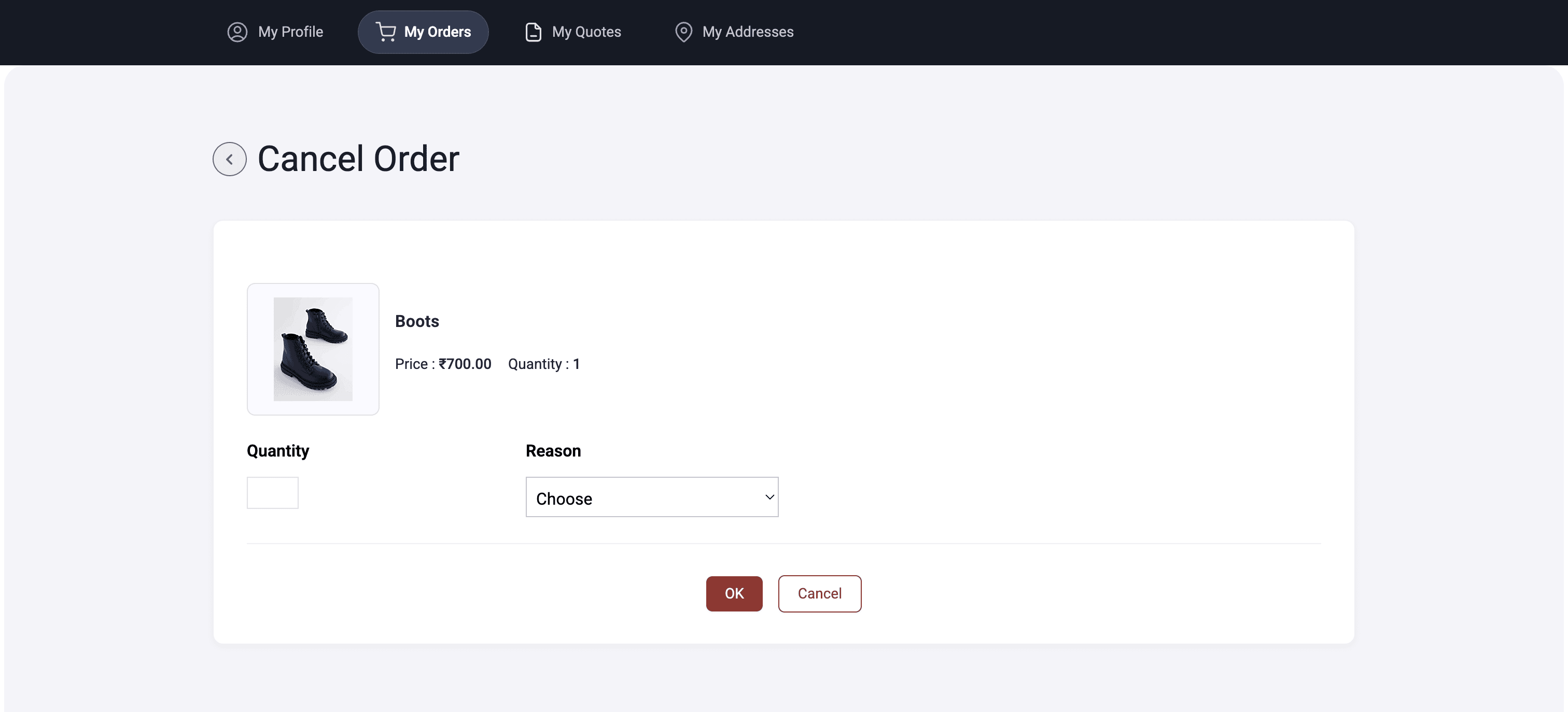
- Enter the Quantity and select the Reason for cancellation.
- Click OK to cancel the items.
Note: The Cancel button does not appear for orders on the Past Orders tab.
Warning: Order cancellation is irreversible. To purchase the same items again, place a new order or use Buy Again.
Return a Delivered Order
You can request a return for a delivered order from Past Orders when the admin allows returns and the order is within the return period.
- In My Orders, switch to the Past Orders tab.
- Locate the delivered order you want to return.
- Click Return against the order.
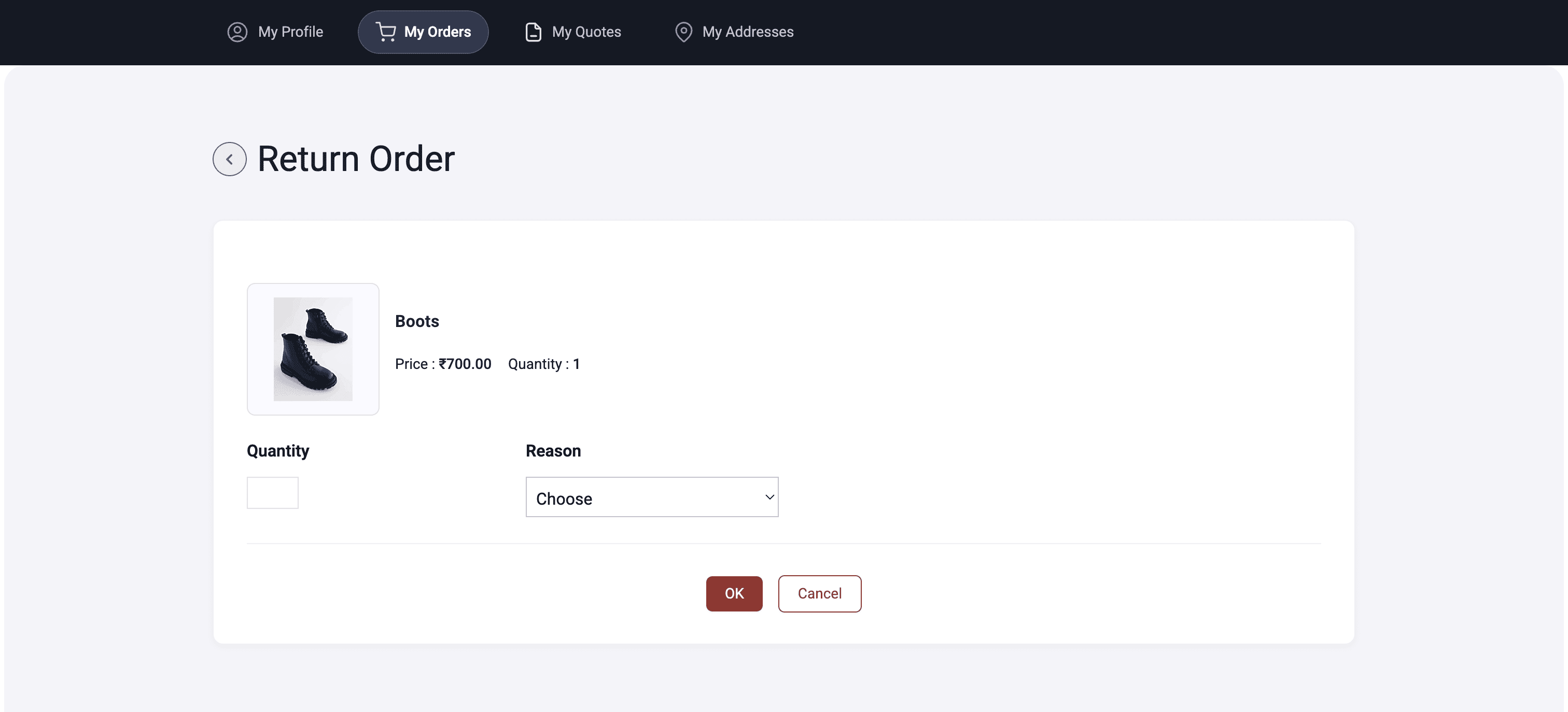
- On the Return Order page, enter the Quantity and select the Reason for the return.
- Click OK to submit the return request.
Note: The Return button appears only when the admin enables returns for the item and the order is within the configured return period. The admin reviews submitted requests and updates the order status.
Reorder With Buy Again
The Buy Again option lets you place a new order for items from a previous purchase. It is available on both the Ongoing Orders and Past Orders tabs.
- In My Orders, locate the order you want to repeat.
- Click Buy Again for the order.
- Review the items added to your cart.
- Check out as usual.
Insight: Buy Again is available only when the admin enables it in the customer portal settings. If an item from the original order is no longer available, it is not added to the cart.
My Quotes
The My Quotes page lists quote requests that the store has shared with you. You can review the items, pricing, comments, and current status of each quote.
- Click the Profile icon in the top-right corner.
- Select My Quotes.
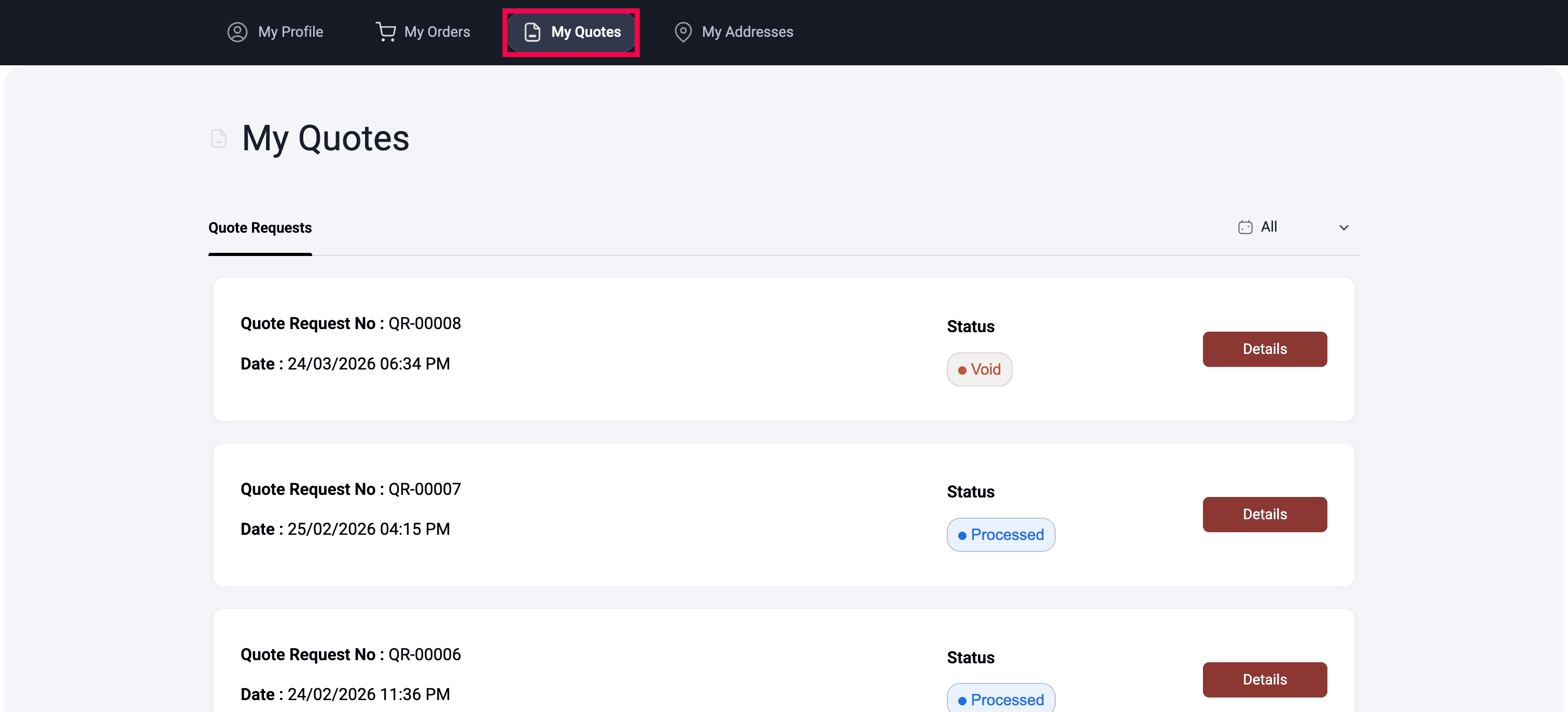
- In the Quote Request tab, use the status filter in the top-right corner to filter quotes by status, such as In Progress, Void, or Processed.
The default filter is All.
| Element | Description |
|---|---|
| Quote Request No | The quote reference, such as QR-00008. |
| Date | The date and time when the quote request was created. |
| Status | The current status, such as In Progress, Void, or Processed. |
To view quote details:
- Click Details for a quote.
- Review the item names, quantities, and shipping address on the Quote Request Details page.\
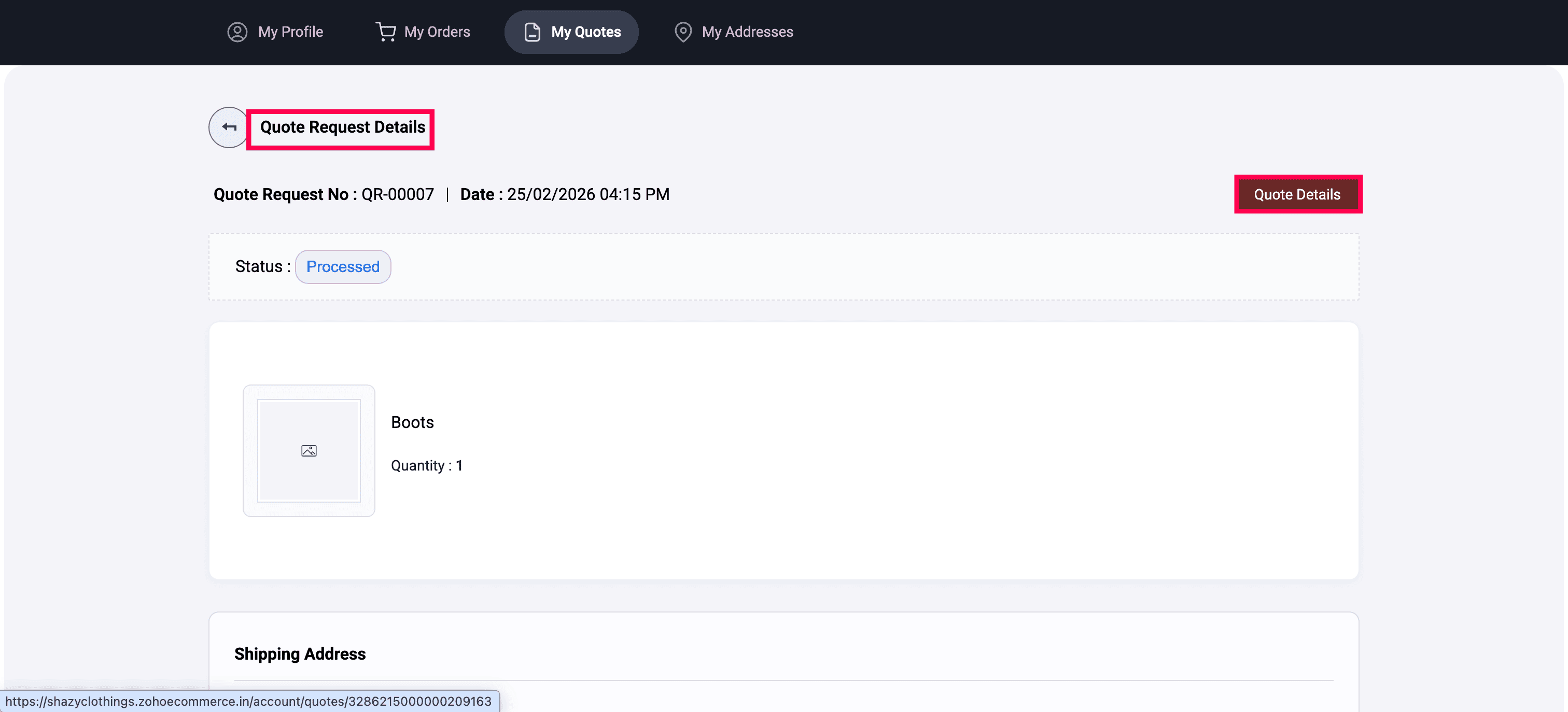
- If the quote request is Processed, click Quote Details.
- Review the quote number, status, admin comments, shipping address, estimated details, item quantities, and prices.
- Enter a comment in the Comments box.
- Click Save to send the comment to the admin.
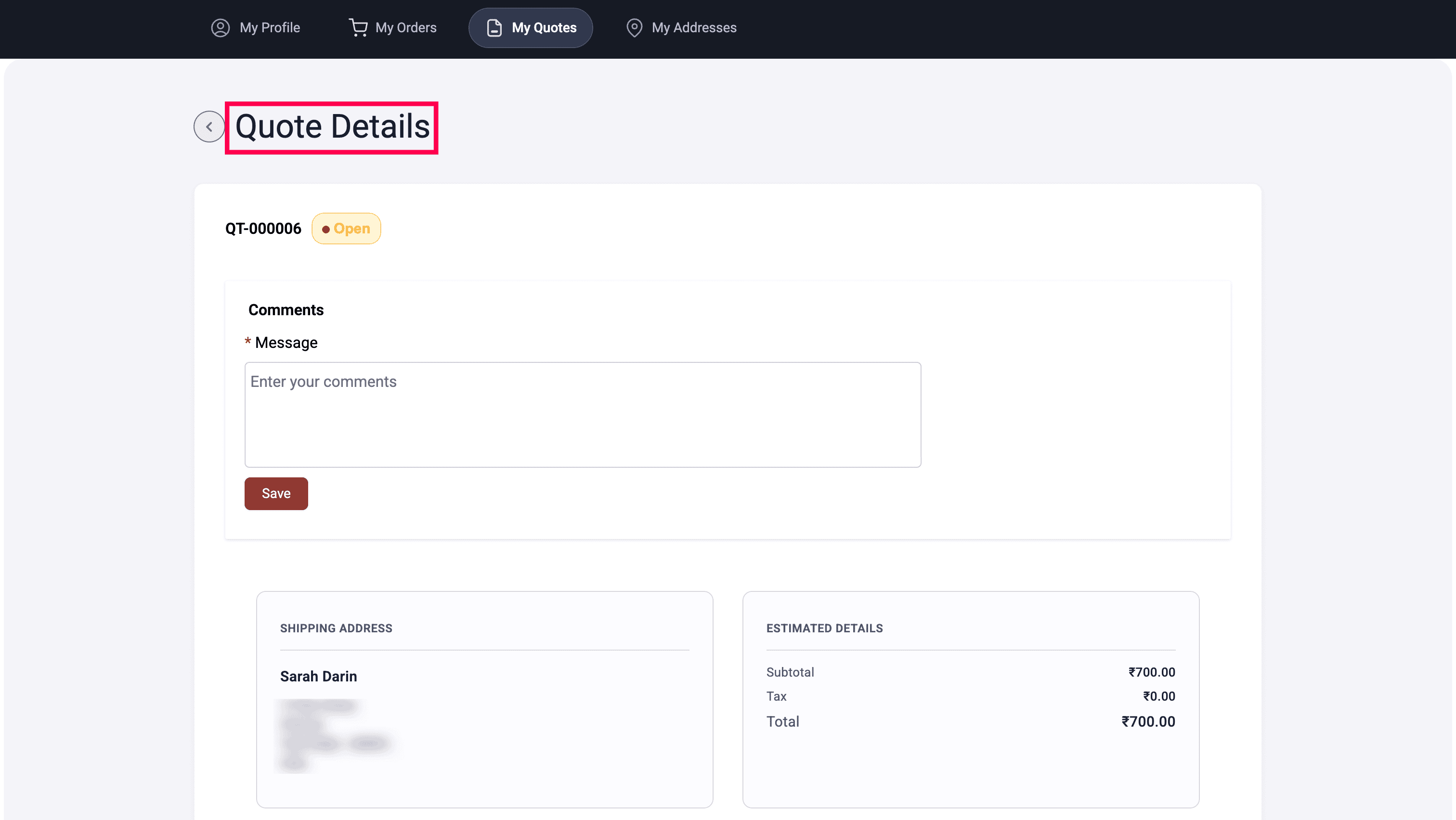
Insight: Admin comments appear only when the store enables Display in Portal while adding the comment. See Quotes for the admin-side workflow.
My Addresses
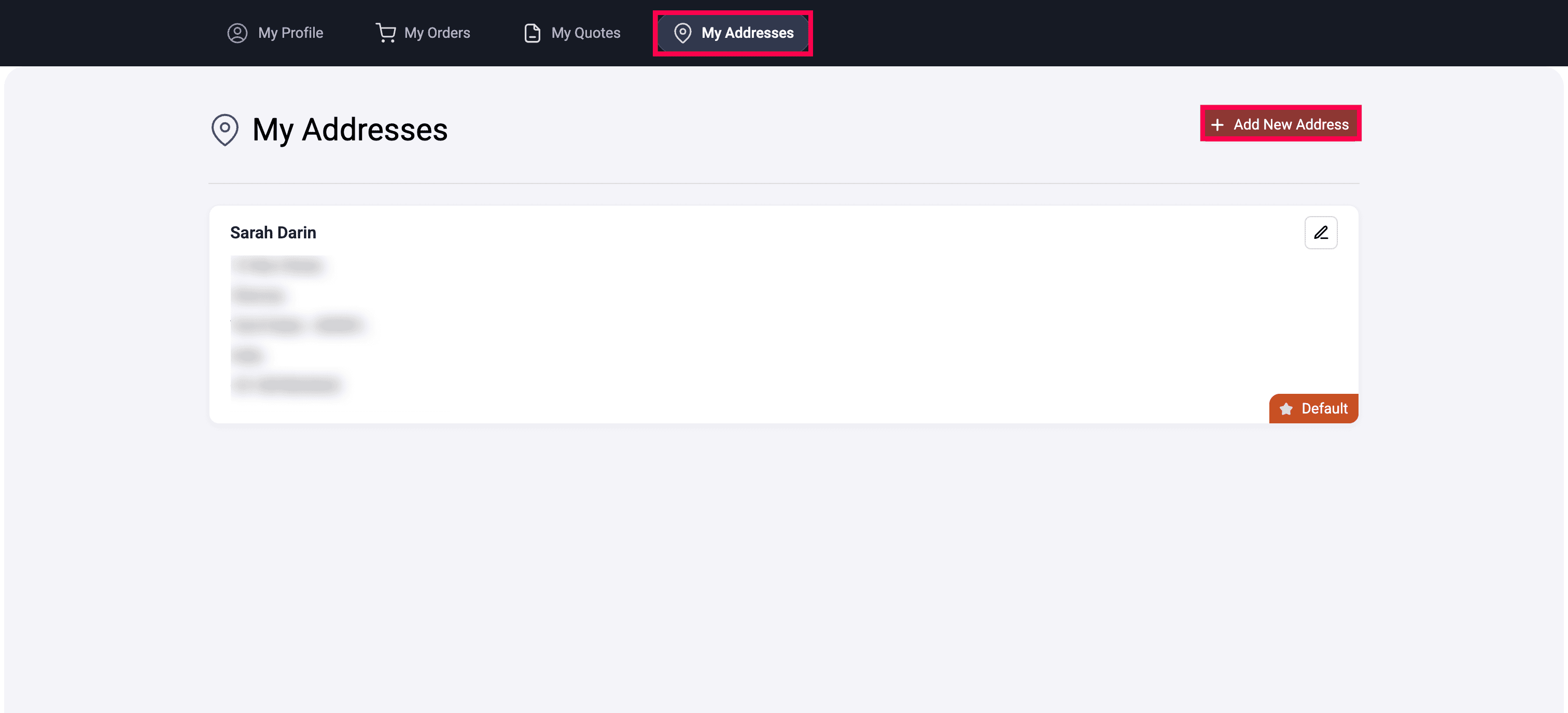
The My Addresses page lists the shipping addresses saved against your account. You can add new addresses, edit existing ones, and identify the default address used at checkout.
- Click the Profile icon in the top-right corner.
- Select My Addresses.
Each address shows the recipient name, full address, and phone number. The address marked Default is used as the default shipping address at checkout.
Add an Address
- In My Addresses, click + Add New Address in the top-right corner.
- Enter the recipient name, street address, city, state, postal code, country, and phone number.
- Click Save.
Edit an Address
- In My Addresses, locate the address you want to update.
- Click the Edit icon in the top-right corner of the address card.
- Update the required fields.
- Click Save.
Note: Saved addresses are available for selection on the checkout page, so you do not need to enter them each time you place an order.
My Wishlist
The Wishlist page lists the items you saved from the online store. You can search your saved items, add them to your cart, or remove them.
To open your wishlist:
- Click the Profile icon in the top-right corner.
- Select My Wishlist.
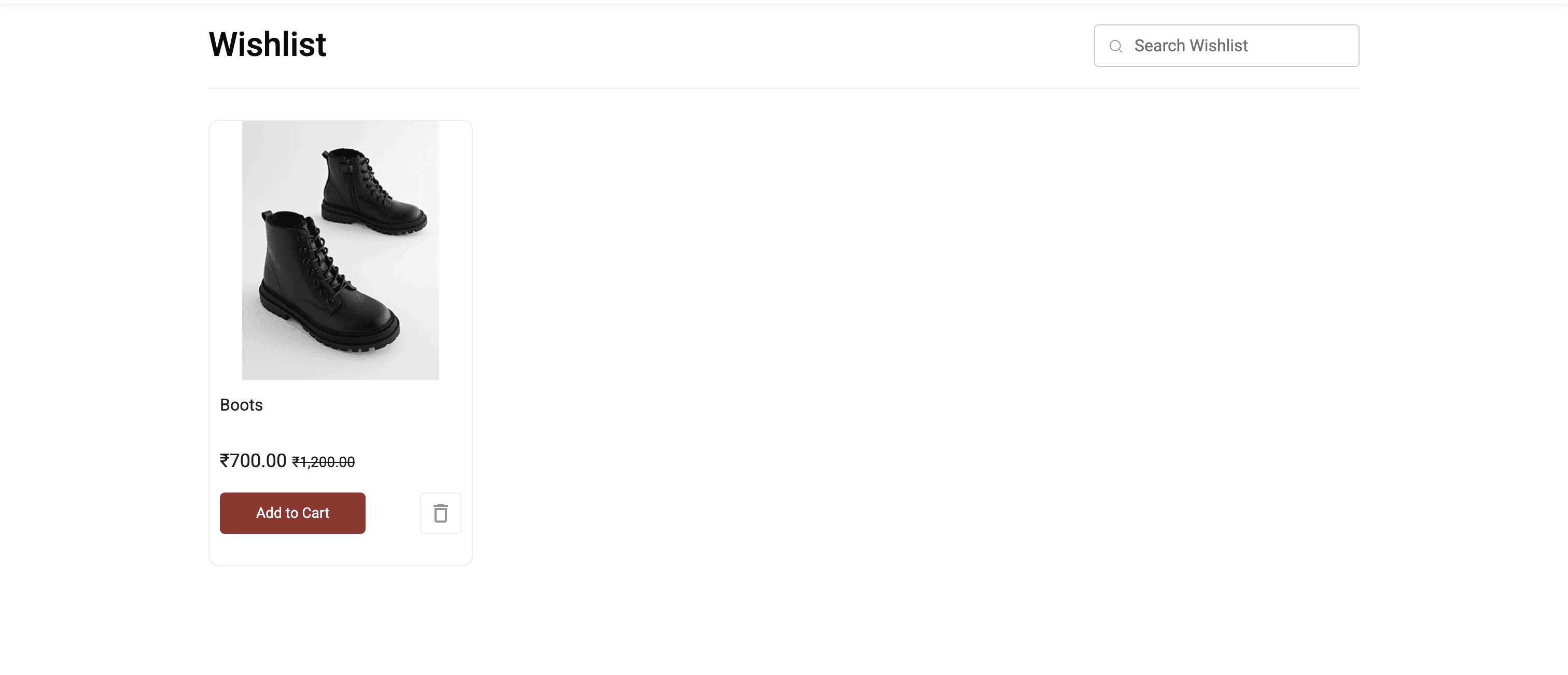
The Wishlist page displays each saved item’s image, name, and price. For a discounted item, the original price appears with strikethrough next to the current price.
Search Your Wishlist
- In the Search Wishlist box, enter the item name.
- Review the items that match your search.
Add a Wishlist Item to Your Cart
- Locate the item on the Wishlist page.
- Click Add to Cart for the item.
- Click the Cart icon in the top-right corner to review the item and check out.
Remove an Item From Your Wishlist
- Locate the item on the Wishlist page.
- Click the Delete icon for the item.
The item is removed from your wishlist.
Note: You must be signed in to save items to your wishlist. To add an item while browsing the store, click the Wishlist icon on the item.
Sign Out
Sign out of the customer portal when you finish, especially on a shared or public device.
- Click the Profile icon in the top-right corner.
- Select Sign Out from the dropdown.
You return to the online store as a guest. You can sign in again from the same sign-in page.