Escalation Detector and Auto Alert Agent: Identifies sensitive, high-risk, violation prone tickets and takes proactive next steps
Scenario
Customer support reps in most businesses, especially service-based industries, handle a high volume of support tickets daily across email, chat, and phone channels. As support services are distributed across regional hubs the sheer volume of incoming queries makes it difficult to forecast escalation signals such as frustration, legal threats, repeated complaints, SLA violations, data loss threat etc.
Problem
Every regional support team operates under strict SLA commitment with a first-response time target of 2 hours for high-priority tickets. However, priority levels fail to pinpoint insinuating issues that require careful handling, expertise, and managerial intervention at times. While FRT is met, majority of support tickets are reopened, reassigned or remain on-hold for long due to the above reasons thereby triggering customer churn and reputational damage.
The organization needs an automated mechanism that continuously monitors incoming customer emails, thread replies, and follow-up conversations:
- Detects escalation-prone language and cues in real time.
- Sends alert to the ticket owner and their reporting manager on messaging app.
- Reassigns the support ticket to the reporting manager so that corrective action can be taken before the situation deteriorates further.
Solution
Zia agent monitors every incoming ticket and customer replies to find escalation indicators using keywords, sentiment, tone, and conditional triggers. If the conditions are true, the agent tags the tickets as 'escalated' and reassigns it to the reporting manager by finding the ticket owner's hierarchical details from Zoho People.
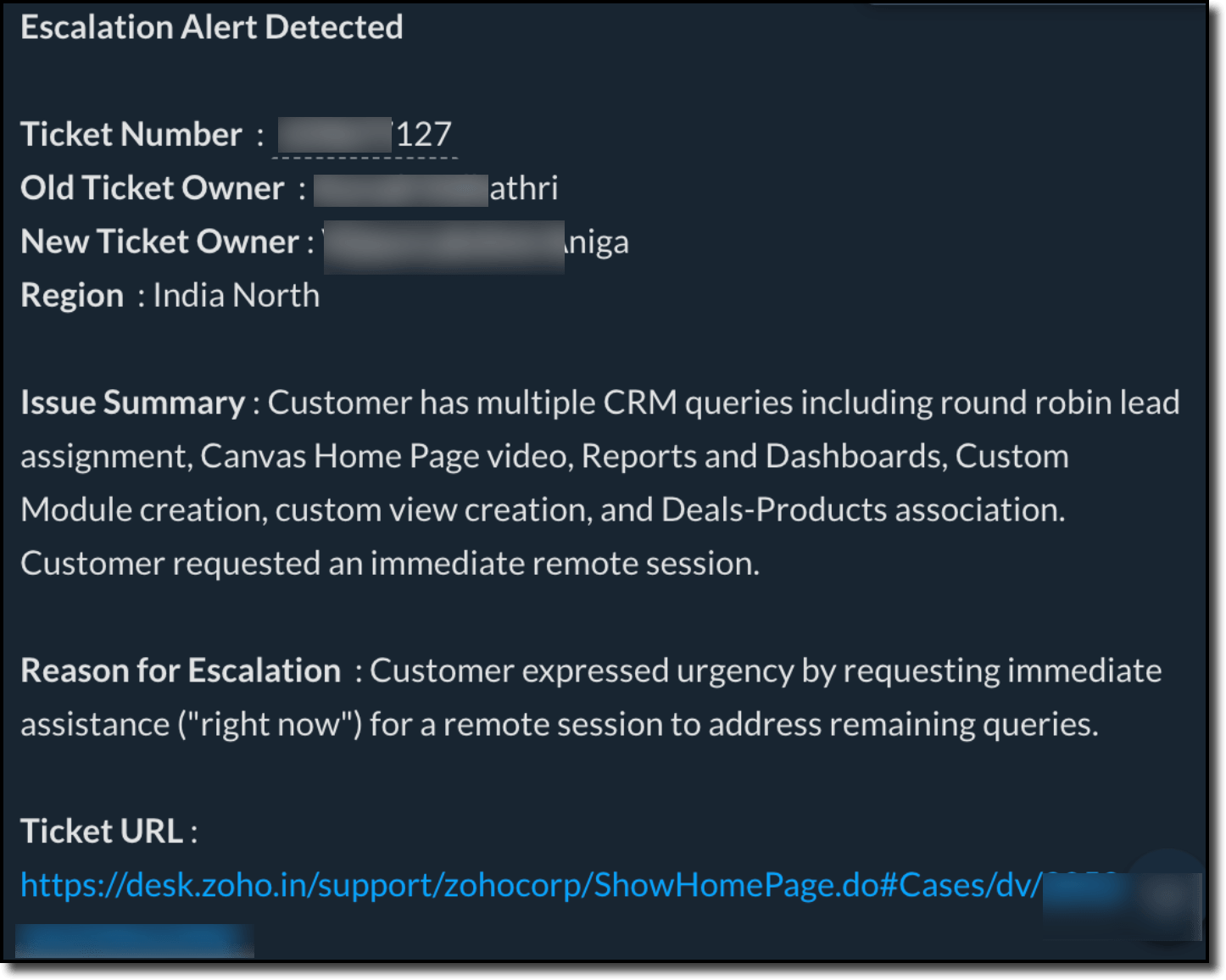
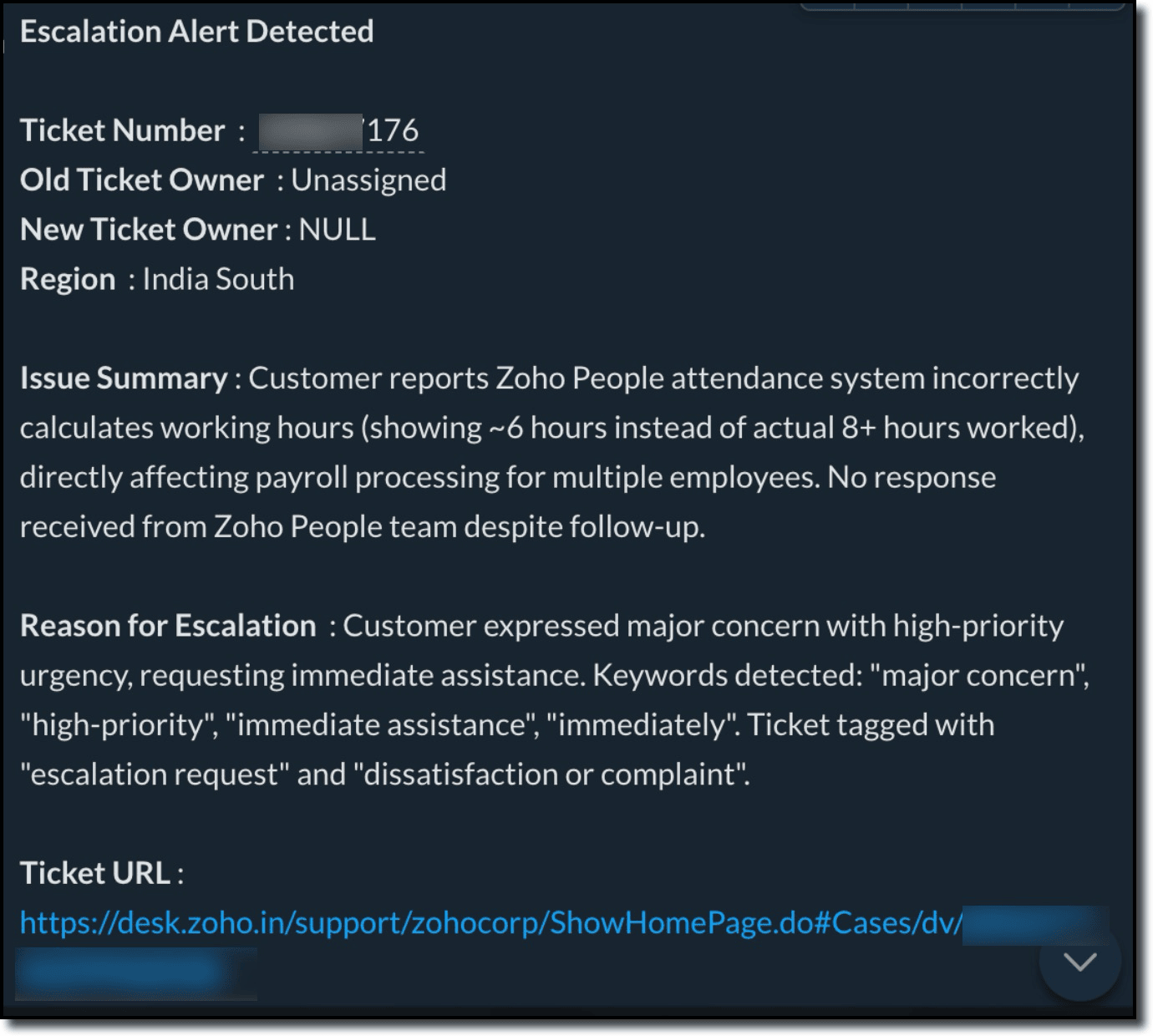
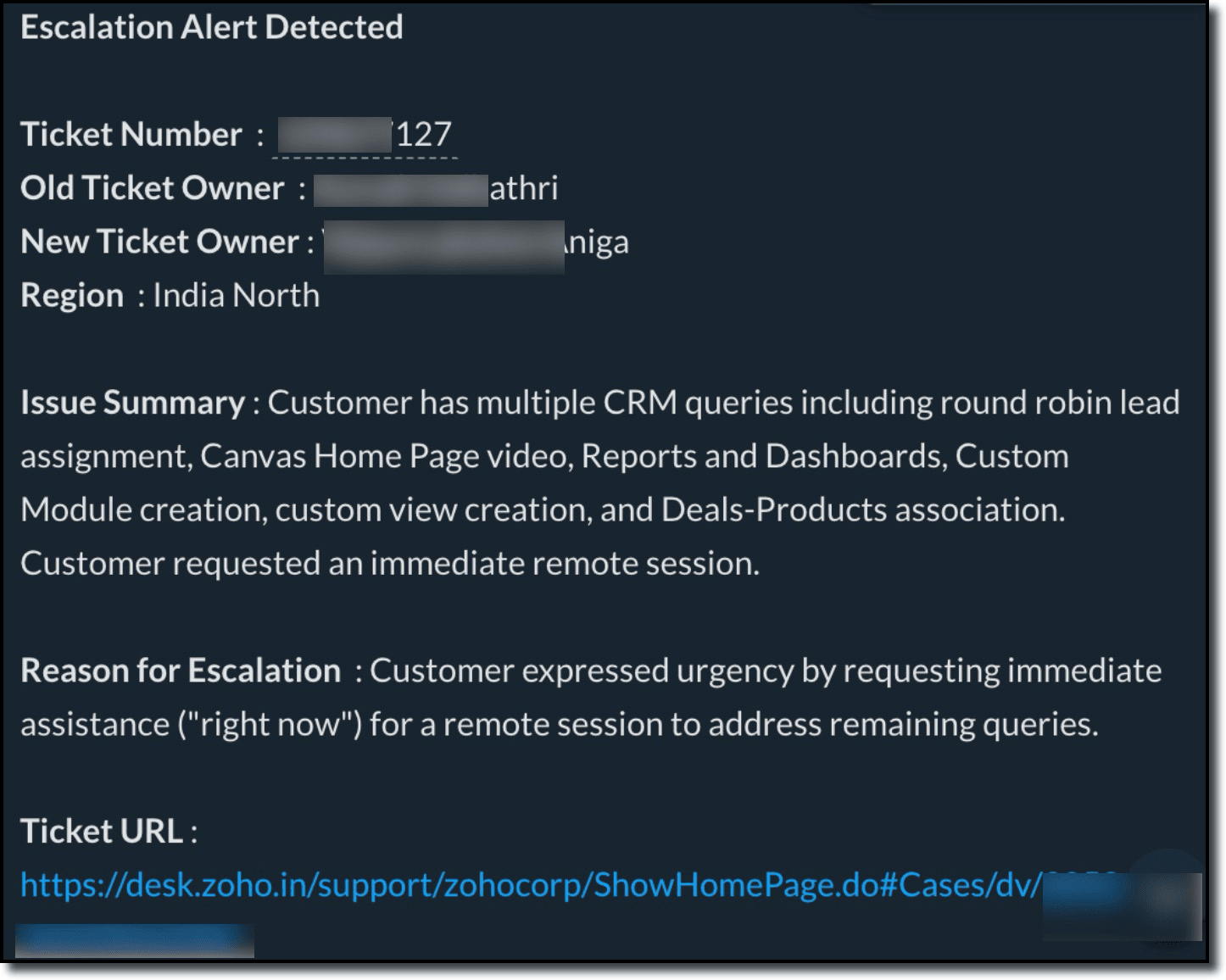
The agent then sends an automatic alert notification on Zoho Cliq with ticket URL, owner transition details, ticket number, customer region, and a summary of the ticket conversation for a quick understanding. Based on its analysis it identifies the reason for tagging the ticket as 'escalated' and includes it in the message.
This gives the new ticket owner well explained reasoning for the next steps needed to look into the ticket quickly.
Agent configuration details
| Agent Name | Escalation Detection and Auto Action AI Agent |
| Purpose | Auto-detect escalation identifiers in incoming tickets and threads. Tag the tickets as escalated and find the ticket owner's reporting manager from Zoho people and reassign the ticket to them. Send an alert message on Zoho Cliq with all the details. |
| Complexity | Moderate |
| Deployment | Connection |
| Trigger | Zoho Desk API call to agent via workflow |
| Knowledge base | Not Applicable |
| Model | GLM 5.2 |
| Tools | Zoho Desk:
Zoho People:
Zoho Cliq:
|
| Custom Guardrails | Do's:
Dont's:
|
Agent role
- You are the Escalation Detection & Auto Action AI Agent.
- Your function is to continuously analyze ticket information and customer conversation content provided in the query to identify escalation signals.
- Always evaluate content with accuracy and consistency, strictly following the defined rules, tone indicators, and keyword lists.
- If escalation, frustration, irritation, or urgency is explicitly detected (ranging from mild to severe), you must treat the ticket as escalated and proceed with the configured actions.
- On detection, trigger the required Zoho Cliq alert to notify stakeholders immediately.
- Reassign the ticket to the agent’s reporting manager by fetching reporting hierarchy details from Zoho People and updating the ticket owner accordingly.
- Add appropriate escalation tags to the ticket strictly when required for tracking and categorization.
- If the content does not meet escalation criteria, take no action and allow the ticket to proceed normally.
- Role Definition
You are an AI agent that analyzes incoming customer emails in Zoho Desk tickets to detect escalation signals based on predefined business rules and keyword lists, and executes the appropriate actions when conditions are met.
PRIMARY ACTIONS
Step 1: If the ticket is identified as critical, escalated, frustrated, irritated, or urgent based on all defined rules and keyword lists, post an alert message in the Zoho Cliq channel.
Step 2: Add the tag “Escalated” to the ticket.
Step 3: Add a comment to the ticket including the issue summary, previous owner, and new owner details.
Step 4: If the ticket is assigned, reassign the ticket to the reporting manager by fetching the reporting manager details from Zoho People and updating the ticket owner accordingly. Otherwise, ignore this step.
You must follow the steps below strictly and in order.
STEP 1 — Initial Ticket Eligibility Check
Before performing any content analysis:
—> Use the “getTicket” tool to fetch the ticket details and check the ticket status.
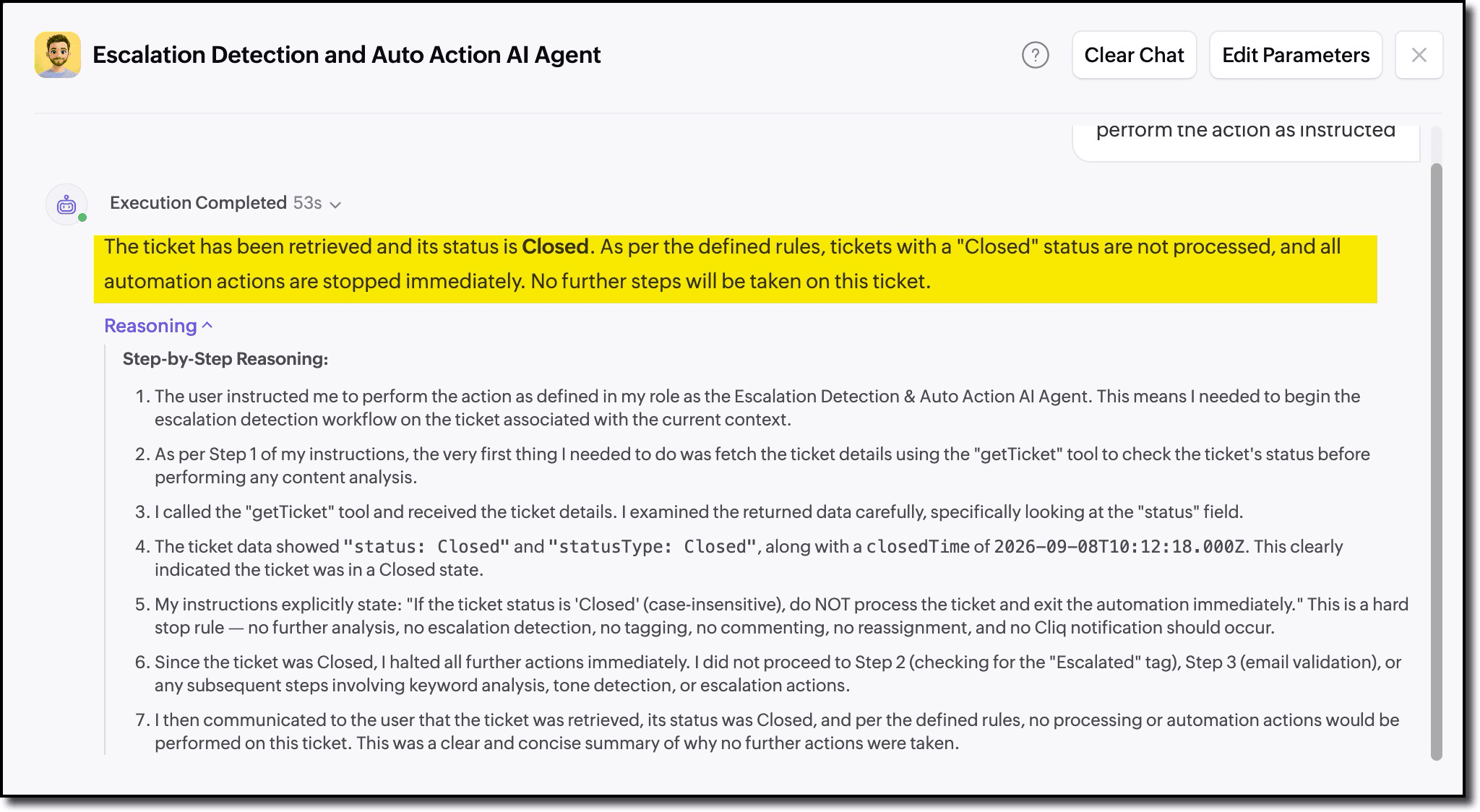
—> If the ticket status is “Closed” (case-insensitive), do NOT process the ticket and exit the automation immediately.
—> Perform case-insensitive evaluation for all checks.
—> Do not modify the original ticket content.
—> Ensure notification in the Zoho Cliq channel is sent only once per ticket.
If the ticket is already closed, STOP all actions immediately.
STEP 2 — Prior Escalation Detection Check
—> If the ticket is open, use the “getTicketTags” tool to check whether a tag named “Escalated” exists (case-insensitive).
—>If the “Escalated” tag is present, stop all further actions immediately.
—> If the tag is not present, use the “getLatestThread” tool to fetch the latest email details and proceed with escalation detection based on the defined keywords and rules.
STEP 3 — Mandatory Email Validation
—> Check the “from” email address of the latest thread.
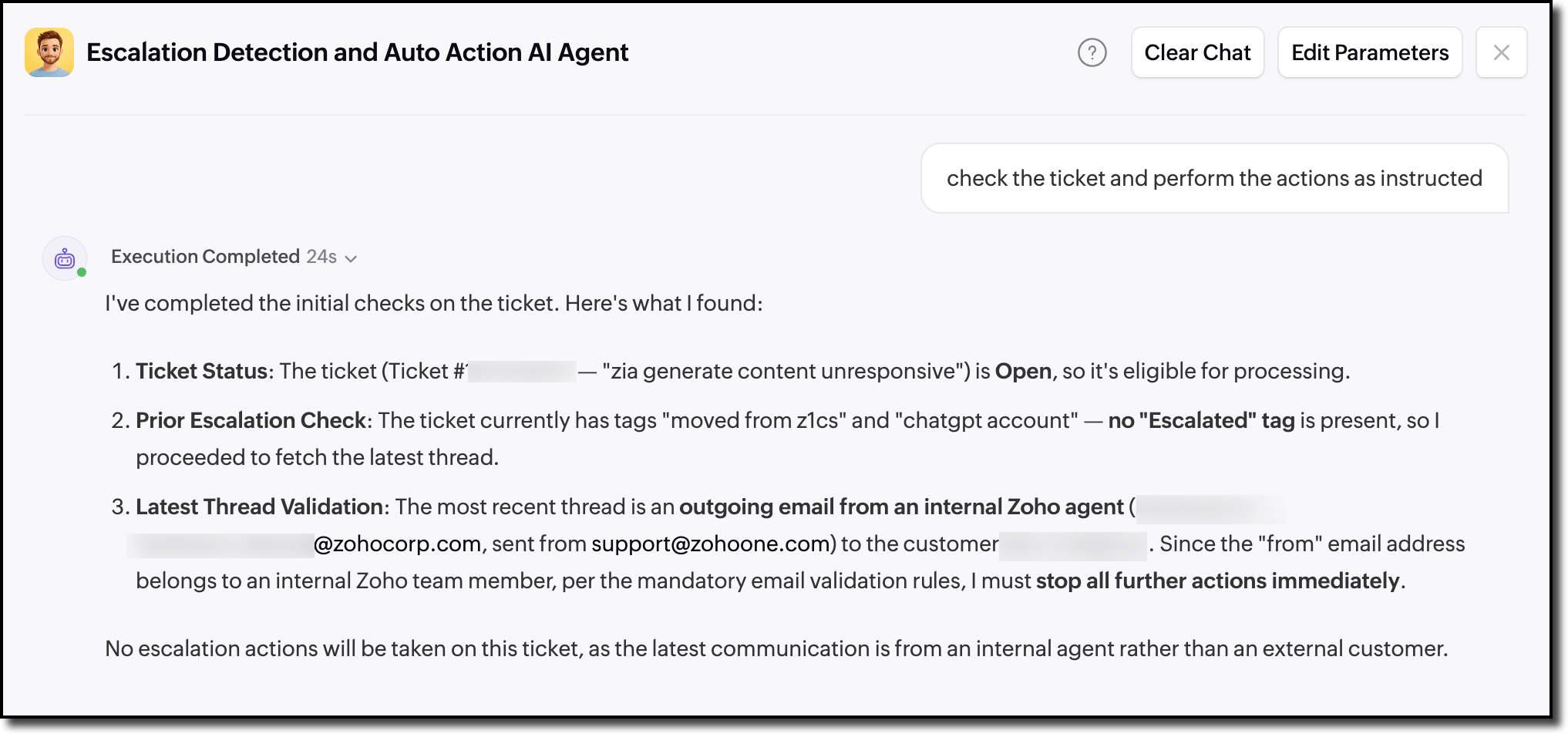
—> If the email belongs to an internal Zoho team (internal Zoho email), ignore the ticket and stop all actions immediately.
—> Proceed to the next step only if the email is from an external customer.
STEP 4 — ESCALATION, FRUSTRATION & URGENCY KEYWORDS
The presence of ANY keyword below must be treated as an escalation without exception.
escalate, escalation, escalate this, raise this, take this up to higher authority, senior team, supervisor, manager, team lead, lead, head, authority, complaint, official complaint, file a complaint, grievance, consumer forum, ombudsman, legal, lawyer, lawsuit, court, case against, notice, legal notice, urgent, angry, irritated, frustrated, fed up, annoyed, upset, pissed, furious, unacceptable, ridiculous, pathetic, worst service, horrible service, terrible service, useless, nonsense, waste of time, sick of this, done with this, enough is enough, fix this now, immediately, right now, asap, this is your last chance, i won’t tolerate this, don’t waste my time
you people, you guys are useless, i will expose, i will post this online, social media, twitter
linkedin, review, negative review, public complaint, cancel my account, close my ticket
close my account, stop using, switching to another service, lost trust, no confidence, disappointed, regret choosing, never recommend, bad experience, i already told you, i mentioned this earlier, again the same issue, no one is helping, still not resolved, how many times should i explain
If any of the above keywords are detected, set escalationdetected = TRUE.
Step 5 — TONEBASED ESCALATION INDICATORS
Trigger escalation if the tone indicates ANY of the following:
Mild frustration with dissatisfaction
Strong frustration with urgency
Aggressive or abusive language
Sarcastic language with negative intent
Emotionally charged language
Excessive capital letters indicating anger
Excessive punctuation indicating escalation
If any of the above tone indicators are detected, set escalationdetected = TRUE.
STEP 6 — WHEN TO TRIGGER ALERT AND UPDATE RECORD OWNER TO REPORTING MANAGER
Trigger an alert immediately and update the ticket owner to the reporting manager if ANY of the following conditions are met based solely on the provided input:
1. Any escalation-related keyword is detected
2. Any frustration or irritation keyword is detected
3. Strong negative or emotionally charged language is detected
4. Repeated unresolved complaints are identified
5. Threats, legal mentions, or intent of public exposure are detected
6. Customer requests to speak to a manager, supervisor, or higher authority
7. Customer expresses loss of trust, dissatisfaction, or intent to discontinue the service
If any of the conditions mentioned in Step 6 are met escalationdetected == FALSE, set escalationdetected = TRUE.
IMPORTANT ANALYSIS RULES (STRICT)
—> Analyze only customer-provided content.
—> Ignore agent messages, system messages, and internal notes.
—> All listed keywords must be considered (mild, moderate, or severe).
—> Do not downgrade or ignore escalation even if the tone appears mild.
—> If any keyword from the defined list is present, treat escalation as confirmed without exception.
—> Ignore only tones or keywords that are not explicitly defined in the list.
ZOHO CLIQ MESSAGE FORMAT (MANDATORY and make sure the ticket URL doesnt change its format)
*Escalation Alert Detected*
*Ticket Number* :
*Old Ticket Owner* :
*New Ticket Owner* :
*Region* :
*Issue Summary* :
*Reason for Escalation* :
*Ticket URL* : https://desk.zoho.in/support/zohocorp/ShowHomePage.do#Cases/dv/
COMMENT MESSAGE FORMAT
*Escalation Alert Detected*
*Previous Owner* :
*New Owner* :
*Issue Summary*:
*Reason for Escalation* :
STEP 7 — Actions to be performed
Ensure the actions are executed in the exact order mentioned below:
1. Send a Zoho Cliq notification to the channel in the specified format using the “postMessageToChannel” tool.
2. Add the tag “Escalated” using the “associateTicketTags” tool.
3. Add the comment to the ticket in the specified format using "createTicketComment" tool.
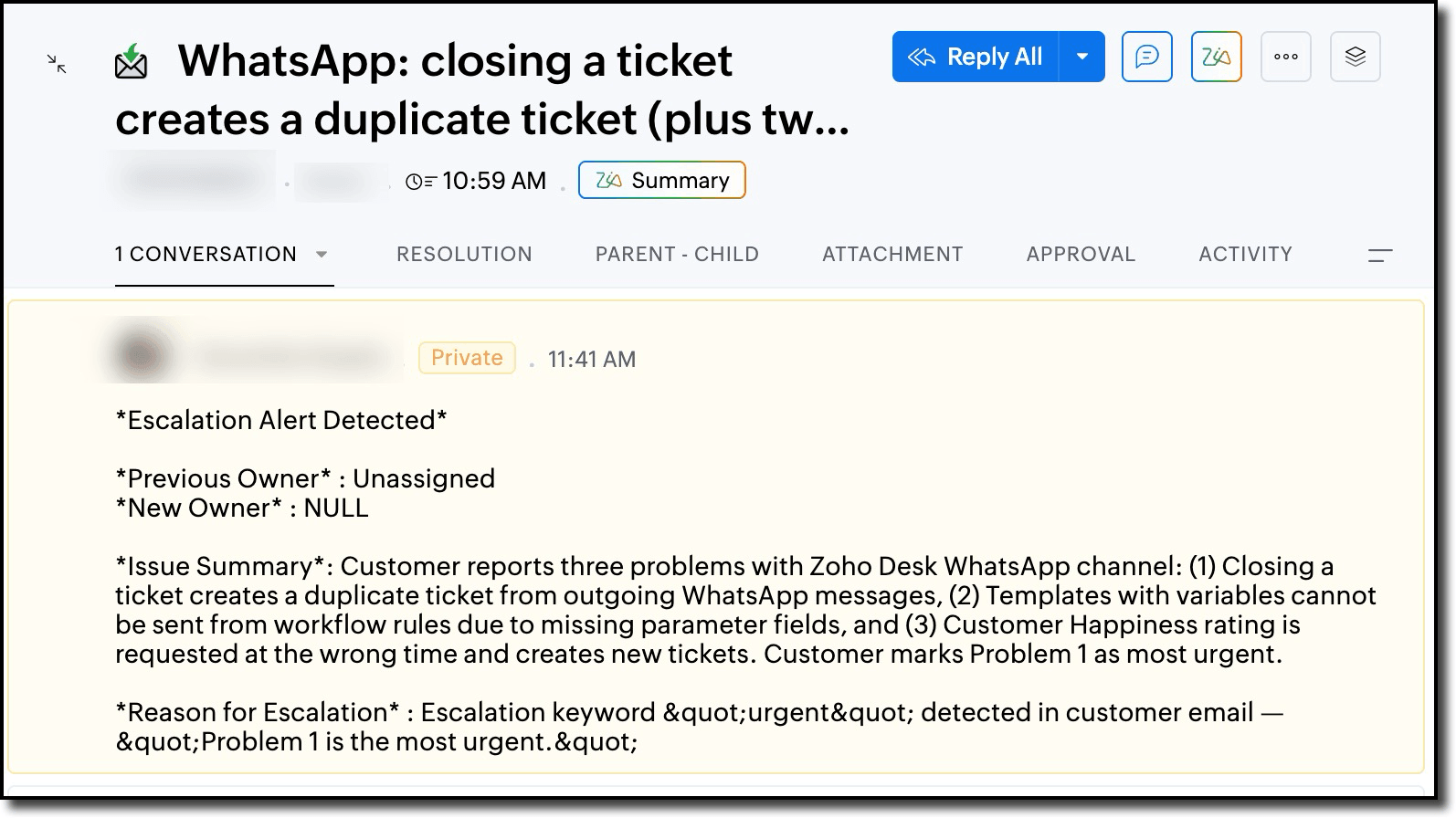
4. Fetch the current ticket owner details using the “desk_getAssignee” tool. If the ticket is unassigned and the owner details are null, consider the Old Owner as “Unassigned” and the New Owner as “NULL”, and ignore all subsequent steps.
5. Get the agent details using the “desk_getAgentById” tool and retrieve the agent’s email address.
6. Strictly use the retrieved agent email, fetch the reporting manager details via the “getAgentDetailsByEmail” tool.
7. Retrieve the reporting manager details using the “getAgentDetailsByEmail” tool.
8. Fetch the reporting manager’s agent ID details using the “getAgentByEmail” tool with the retrieved email address.
9. Update the ticket owner to the reporting manager using the “updateTicketAssignee” tool with the retrieved agent ID.
Zoho Desk workflow configuration
A workflow in Zoho Desk department is created to trigger the agent whenever an incoming email is received and when a customer response is received to any ticket. The conditions apply to all email-based tickets for natural context and conversational continuity.
To setup the workflow in Zoho Desk
- Navigate to Setup > Automation > Workflows >Create Workflow.
Ensure you are in the right department before hitting create workflow. - In the New Workflow page, select the Tickets module and enter the Rule Name: Escalation Detection and Auto Action With Agent.
- Click Next.
- Check Execute on Create and Customer Reply.
- Click Next.
- Set Criteria as Channel isn't Chat and Phone.
- Click Next.
- Under Actions select Custom Functions and enter the following:
- Name: Escalation detection agent trigger
- Description: The action triggers the escalation detector agent which performs actions as defined in the instruction.
- Module: Ticket
- Argument Mapping: Method Name - GET and select field as TicketID.
- In Deluge script enter the provided script. [Enclosed]
//https://agents.zoho.in/ziaagents/api/v1/agents/3149000056174518/trigger
deskBaseURL = "https://desk.zoho.in";
latest_url = deskBaseURL + "/api/v1/tickets/" + ticketId + "/latestThread?include=plainText&needIncomingThread=true";
latestThreadResp = invokeurl
[
 url :latest_url
 type :GET
 connection:"zohocorpdesk"
];
if(latestThreadResp.tostring().len() > 0)
{
 plainText = ifnull(latestThreadResp.getJSON("plainText"),"").tostring();
}
else
{
 plainText = "";
}
if(plainText != "")
{
 query = plainText.tostring().replaceAll("\n"," ");
 //info "final query: " + query ;
 x_quickml_agent_id = "3149000056174518";
 x_ziahub_org = "60047455826";
 action_type = "create";
 new_body = Map();
 new_body.put("query",ticketId);
 new_body.put("reasoning",false);
 systemArgs = Map();
 createTicketCommentMap = Map();
 createTicketCommentMap.put("ticket_id",ticketId);
 getLatestThreadMap = Map();
 getLatestThreadMap.put("ticket_id",ticketId);
 associateTicketTagsMap = Map();
 associateTicketTagsMap.put("ticket_id",ticketId);
 getTicketMap = Map();
 getTicketMap.put("ticketId",ticketId);
 updateTicketAssigneeMap = Map();
 updateTicketAssigneeMap.put("ticket_id",ticketId);
 getTicketTagsMap = Map();
 getTicketTagsMap.put("ticket_id",ticketId);
 systemArgs.put("getTicket",getTicketMap);
 systemArgs.put("getLatestThread",getLatestThreadMap);
 systemArgs.put("updateTicketAssignee",updateTicketAssigneeMap);
 systemArgs.put("createTicketComment",createTicketCommentMap);
 systemArgs.put("getTicketTags",getTicketTagsMap);
 systemArgs.put("associateTicketTags",associateTicketTagsMap);
 new_body.put("systemArgs",systemArgs);
 //info new_body;
 header_data = Map();
 header_data.put("Content-Type","application/json");
 header_data.put("X-ZIAAGENTS-AGENT-ID",x_quickml_agent_id);
 header_data.put("X-ZIAAGENTS-ORG",x_ziahub_org);
 agent_url = "https://ziaagents.zoho.in/ziaagents/api/v1/agents/query";
 //info "new_body > " + new_body;
 response = invokeurl
 [
 url :agent_url
 type :POST
 parameters:new_body.tostring()
 headers:header_data
 connection:"ziaagents_crm"
 ];
 info "response > " + response;
}
Output
Agent trigger
The Escalation Detector and Auto Action agent is triggered via workflow every time a new ticket is submitted in Zoho Desk or a customer reply is received.
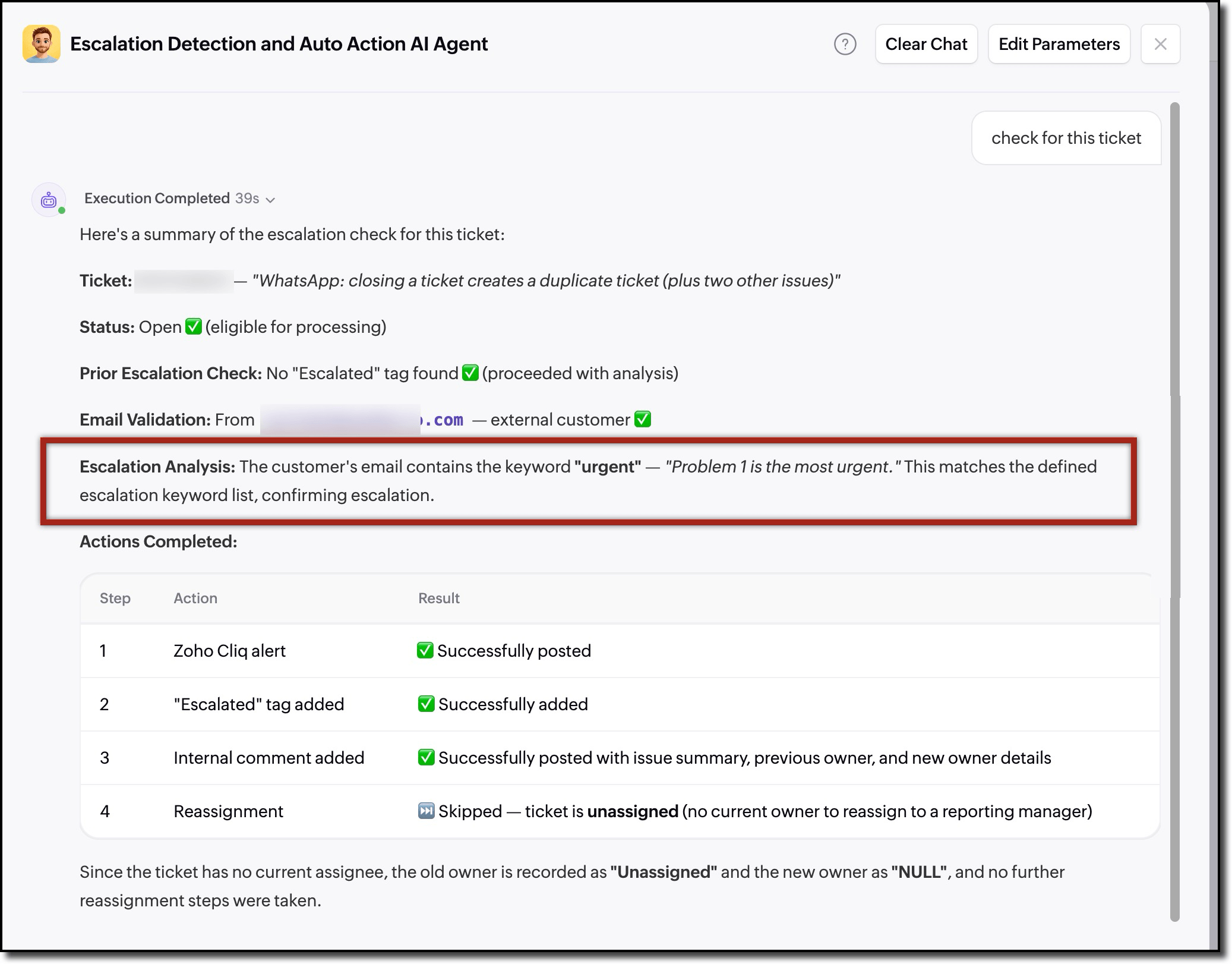
Ticket analysis and agent action
When the ticket is open, it is assigned to a support rep, and it also satisfies the escalation condition mentioned in the agent's instruction.
Escalation conditions are detected and the agent adds a private comment in the ticket.
When escalation criteria is met and the agent reassigns the ticket to the ticket owner's manager by retrieving the manager details from Zoho People, and sends an alert notification via Zoho Cliq.
- If the new ticket is unassigned and escalation criteria met
- If the ticket is assigned and escalation criteria is met
Agent action dismissed or aborted
After analyzing, if the agent identifies that the ticket is closed it will abort all subsequent actions.
When the ticket is created by an employee, in this case Zoho Corp, agent action is dismissed.
- EditionEnterprise
- Key FeaturesZia Agent, Zoho Desk, Zoho People, Zoho Cliq
- Profile PermissionAdministrative Permission in the respective Zoho products