Zoho CRM Sync
The Zoho CRM application is a business suite that helps tap the right customers and engage them, maximize sales, increase conversions, and much more that is required to upscale a business. Zoho CRM consists of a set of in-built features that are standard for business which also includes the CRM calendar. Using the CRM calendar, you can manage your business schedule by setting up calls and meetings.
Zoho Calendar provides you with an option to sync your Zoho CRM calendar. Using this two-way sync feature, you can schedule meetings/ events in the Zoho CRM calendar from the calendar grid of the Zoho Calendar.
For example, Zylker, a software company, uses Zoho CRM to manage its sales pipeline and customer meetings. To streamline scheduling, the sales manager enables the Zoho Calendar and Zoho CRM integration for the entire sales team, allowing each sales executive to activate it for their account.
Once enabled, any meeting a sales executive creates in Zoho CRM (through the Meetings module) is automatically synced to their Zoho Calendar, helping them view all upcoming meetings in one place and receive timely reminders.
A few weeks later, an executive wishes to schedule meetings directly via Zoho Calendar. Since the CRM Calendar is already integrated, any meeting created from the CRM calendar inside Zoho Calendar is automatically pushed to Zoho CRM, ensuring the client’s activity timeline stays updated without any manual effort.
Setting up Zoho CRM sync
The two-way sync between Zoho Calendar and Zoho CRM uses a secure authentication token to communicate between the applications when the sync begins. If you are looking to sync your Zoho CRM calendar with Zoho Calendar, you need to make sure your CRM org admin has initiated the Calendar-CRM sync from his/her end. Once the admin has initiated the sync, you will be able to sync your Zoho CRM calendar with your Zoho Calendar.
Steps to sync your Zoho CRM calendar with your Zoho Calendar
- Log in to Zoho Calendar.
- Go to Settings > App Calendars.
- Click on Zoho CRM Calendar. (Make sure your account is verified and the Events module is enabled in CRM).
- Choose the organization from the Select an Org drop-down.
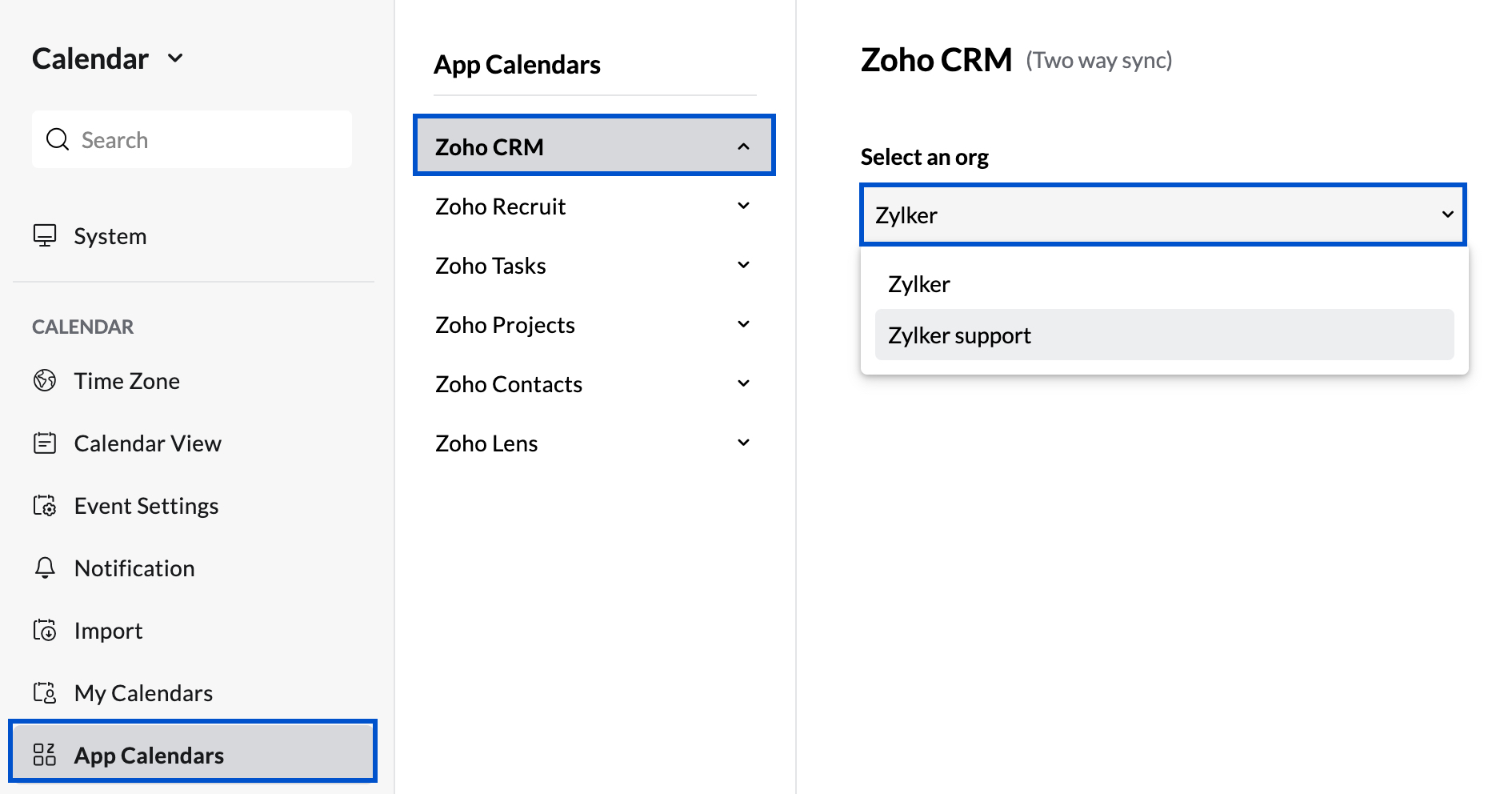
- Click the Sync now button to start the synchronization between both calendars.
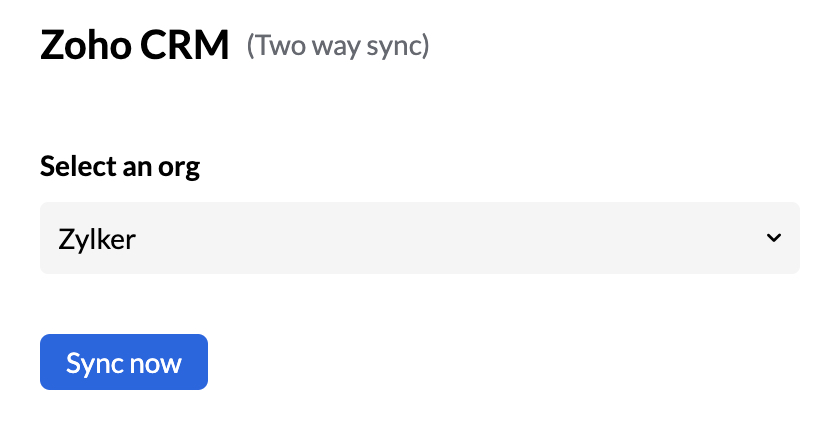
- The sync will be initiated when Initiating Zoho CRM sync appears.
- After the synchronization is done, the Turn off sync button will appear.
- The CRM calendar events will be available for you in your Zoho Calendar grid.
The Zoho CRM calendar will be available under App calendars in Zoho Calendars. Every time a CRM event is added or edited in Zoho Calendar, the changes will be updated in the Zoho CRM calendar upon refreshing it. All updates that are made in the CRM calendar under the Meeting module will also be simultaneously updated in Zoho Calendar.
Note
- Your Zoho CRM account should be configured and the Events module in CRM should be enabled to sync it with Zoho Calendar.
- If you are not the administrator and your Events module in CRM isn't enabled, you need to contact your admin to activate it.
Note
- The tasks created and call scheduled using the Tasks and Call modules in Zoho CRM will not be updated in your Zoho Calendar grid.
- Only the events created using the Meeting module in Zoho CRM will be synced with your Zoho Calendar.
- Recurring events created in Zoho CRM Calendar are displayed in the Zoho Calendar grid in read-only mode. These events cannot be created, edited, or deleted from Zoho Calendar.
- If you want to associate an event with the Zoho CRM tasks.
Steps to add an event in Zoho CRM using Zoho Calendar
- Log in to Zoho Calendar.
- Click on the New Event button on the top of the left pane.
- Provide the event title, date, and time of the event in the respective fields.
- Select the Zoho CRM Calendar from the calendar field drop-down.
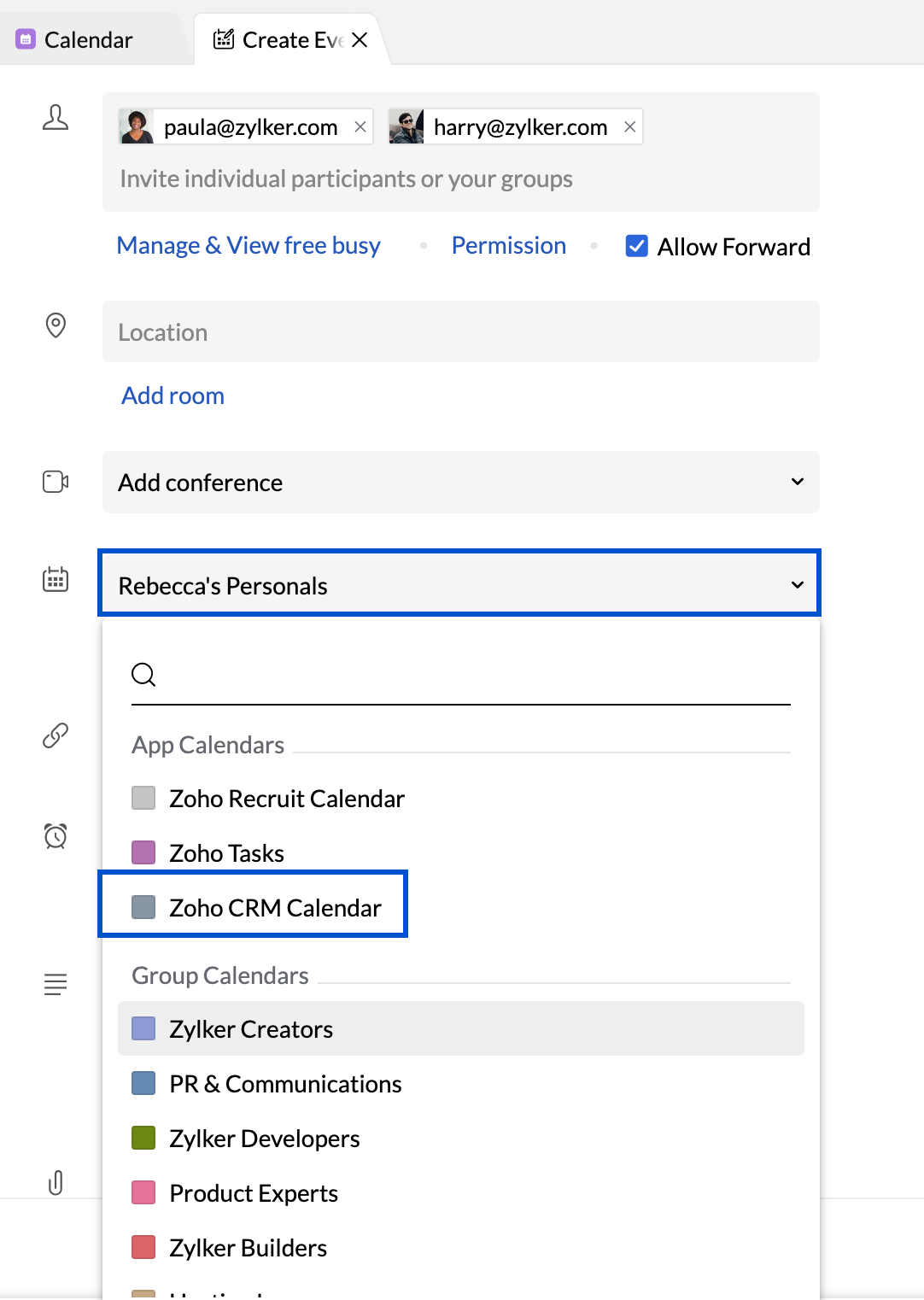
- Provide other details like Location, Provider, Last Activity Time, Related To and Description.
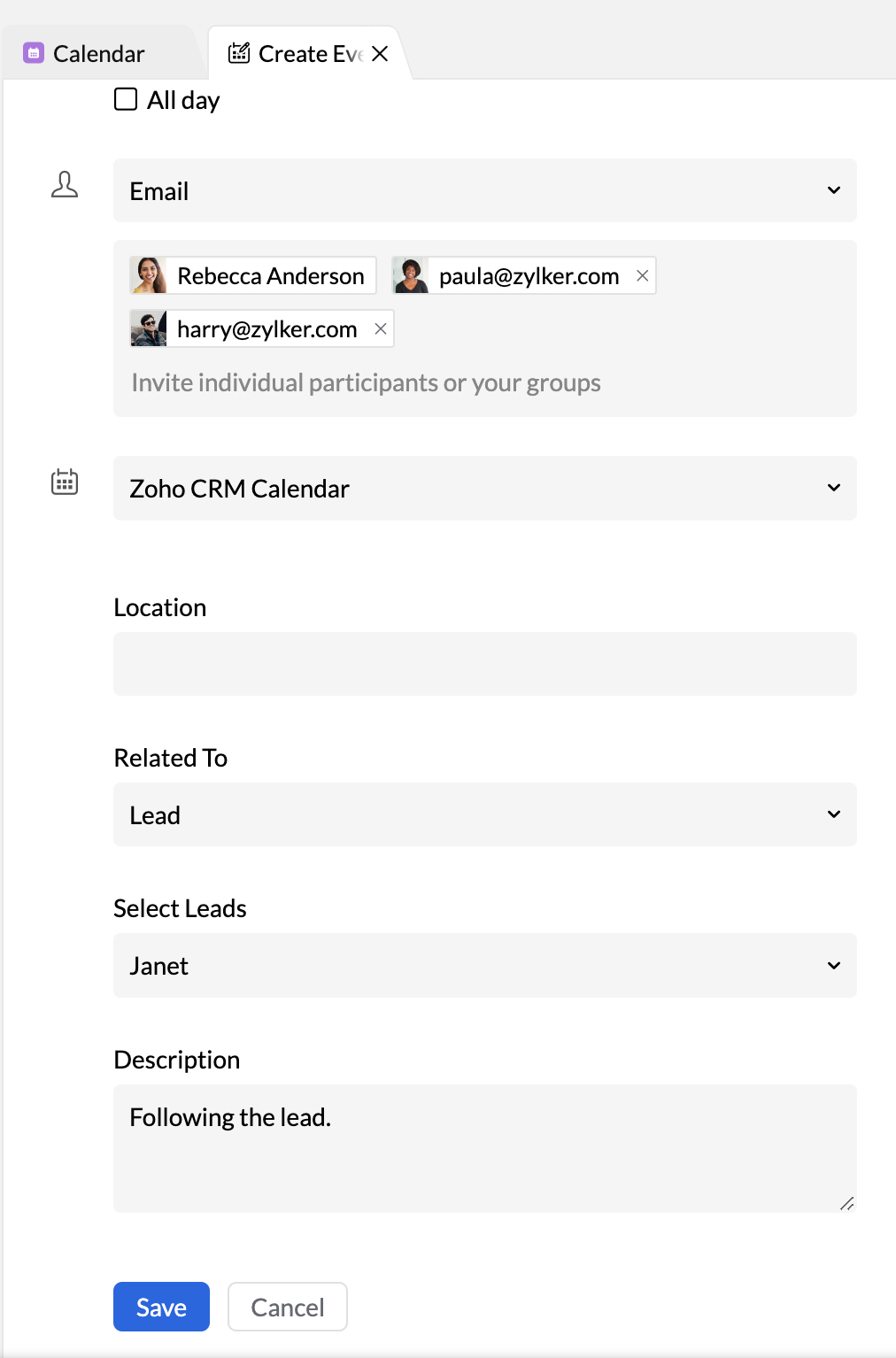
- Click Save.
The event will be created and added to your Zoho Calendar. You can view, edit, or delete the event by clicking its title in the calendar. You can also share the event details with participants via email. To view the event in Zoho CRM, click the View in CRM option.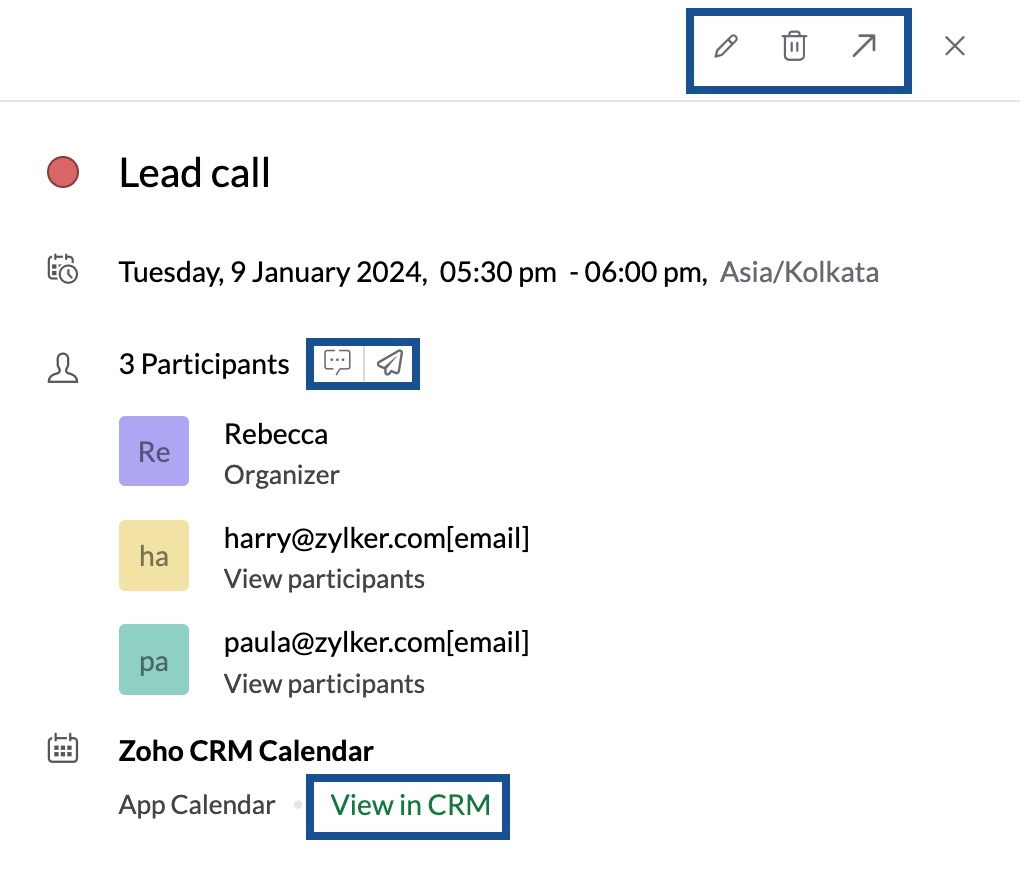
Since Zoho Calendar provides two-way sync with Zoho CRM calendar, the created event will be reflected in the Activities section of Zoho CRM.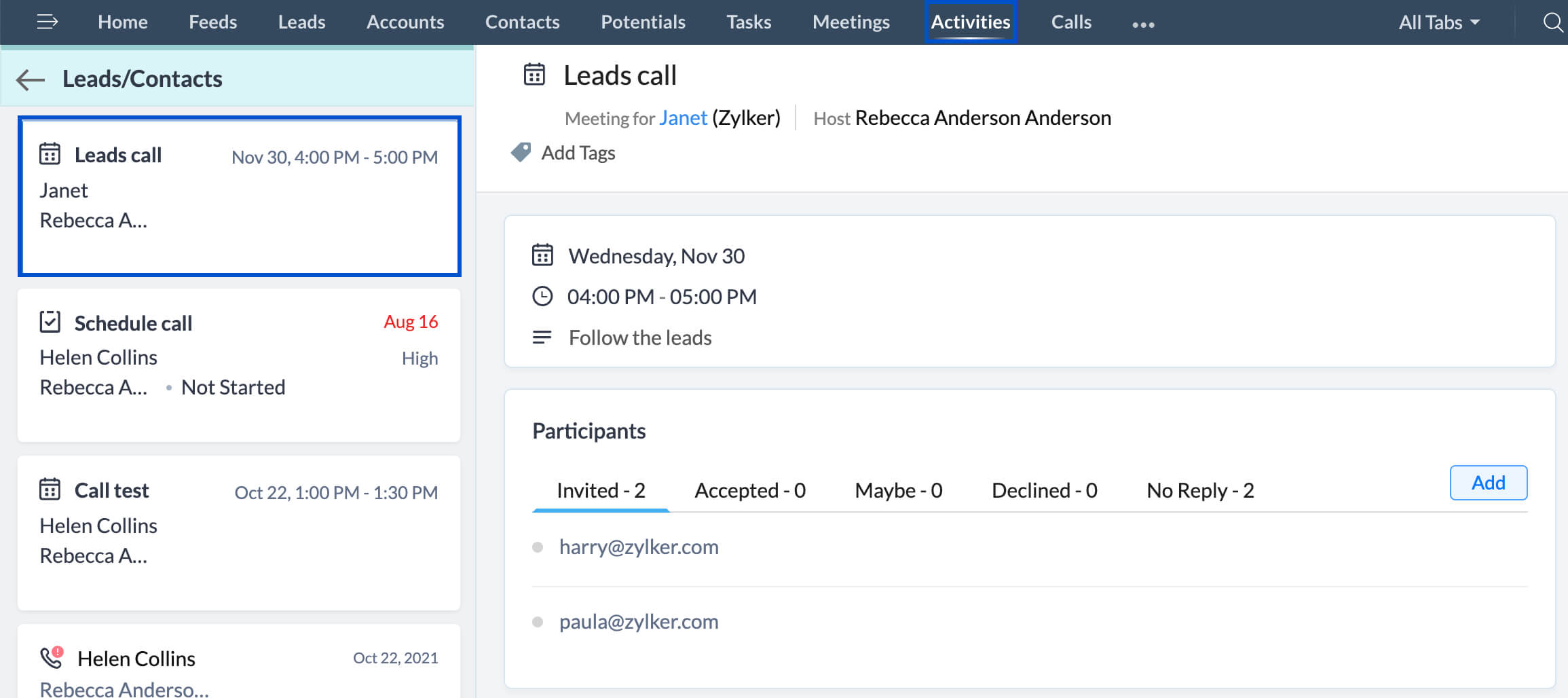
Note
- Likewise, when you schedule a call or meeting in Zoho CRM by providing a date and time, an event will be added to the Zoho Calendar grid for the respective date and time in the CRM calendar.
- The changes you make to a CRM event either from Zoho Calendar or Zoho CRM will be reflected in both calendars.
Steps to stop synchronization of Zoho CRM Calendar
- Log in to Zoho Calendar
- Go to Settings > App Calendars
- Click on Zoho CRM calendar
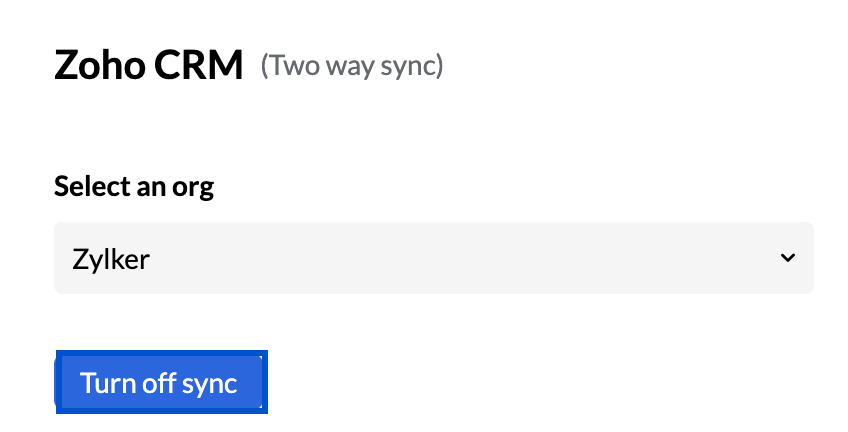
- Click the Turn off sync button.
The CRM calendar will be removed from the list of App Calendars in the settings and the left menu.
Apart from syncing the Zoho CRM calendar, you can Associate an event with Zoho CRM, when you create an event in a calendar under the My Calendars section.