Calendar System settings
Zoho Calendar provides you with a wide range of options to change the appearance of your Calendar and apply them to make your calendar more user-friendly.
Calendar Views
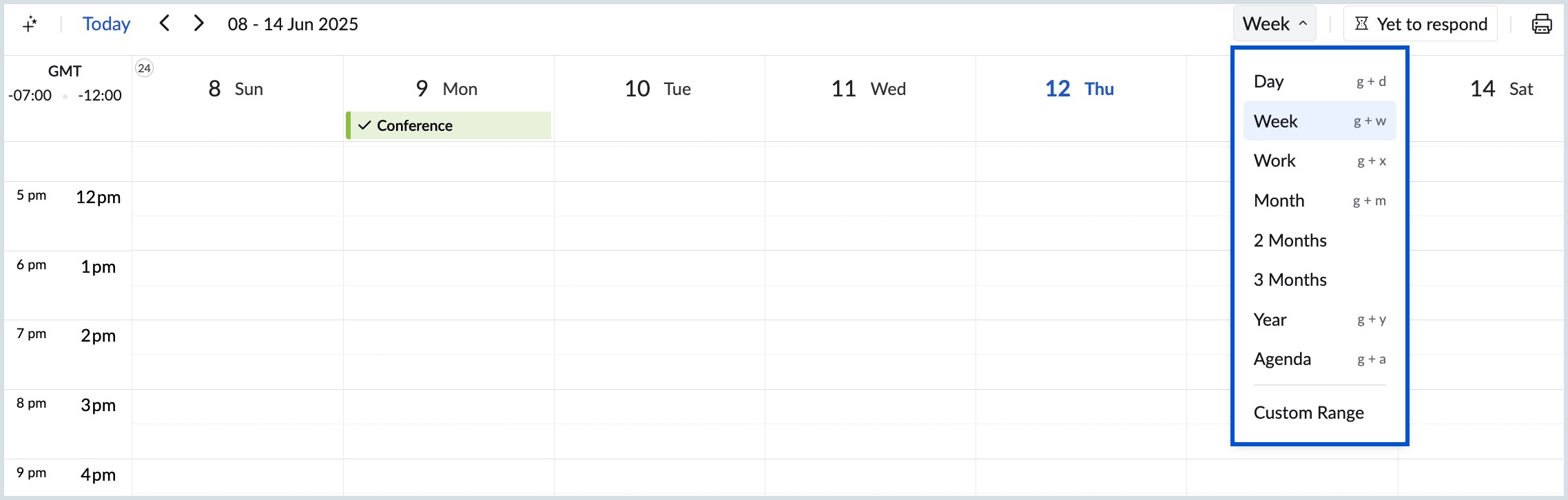
You can customize the way you want to view your Calendar using the distinct set of views provided by default in Zoho Calendar. The different views available in Zoho Calendar are Day, Week, Work, Month, 2 Months, 3 Months, Year, Agenda and Custom Range.
- Day view - This represents the 24-hour grid for the selected day.
- Week view - This represents the 24-hour grid for the selected week.
- Work view - This represents the 24-hour grid for the selected work week.
- Month view - Displays the number of days in the month you have chosen.
- 2 Month view - Displays all the days with the event count for the upcoming 2 months.
- 3 Month view - Displays all the days with the event count for the upcoming 3 months.
- Year view - Displays all the months with days in the current year of the calendar
- Agenda view - Shows all the events that are happening for the upcoming 3-month period.
- Custom Range - Allows users to set custom start and end date range.
Steps to Change the Calendar View
- Log in to Zoho Calendar.
- On the top right corner of the calendar grid, you will have a drop-down that lists the calendar views - Day, Week, Work, Month, 2 Months, 3 Months, Year, Agenda and Custom Range. Pick a preferred view.
View Customization
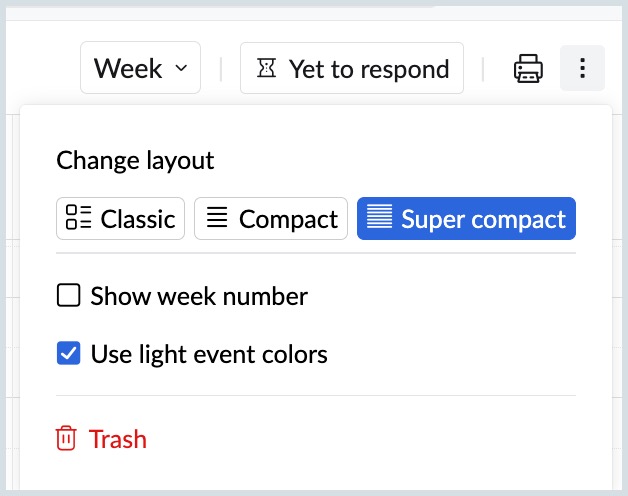
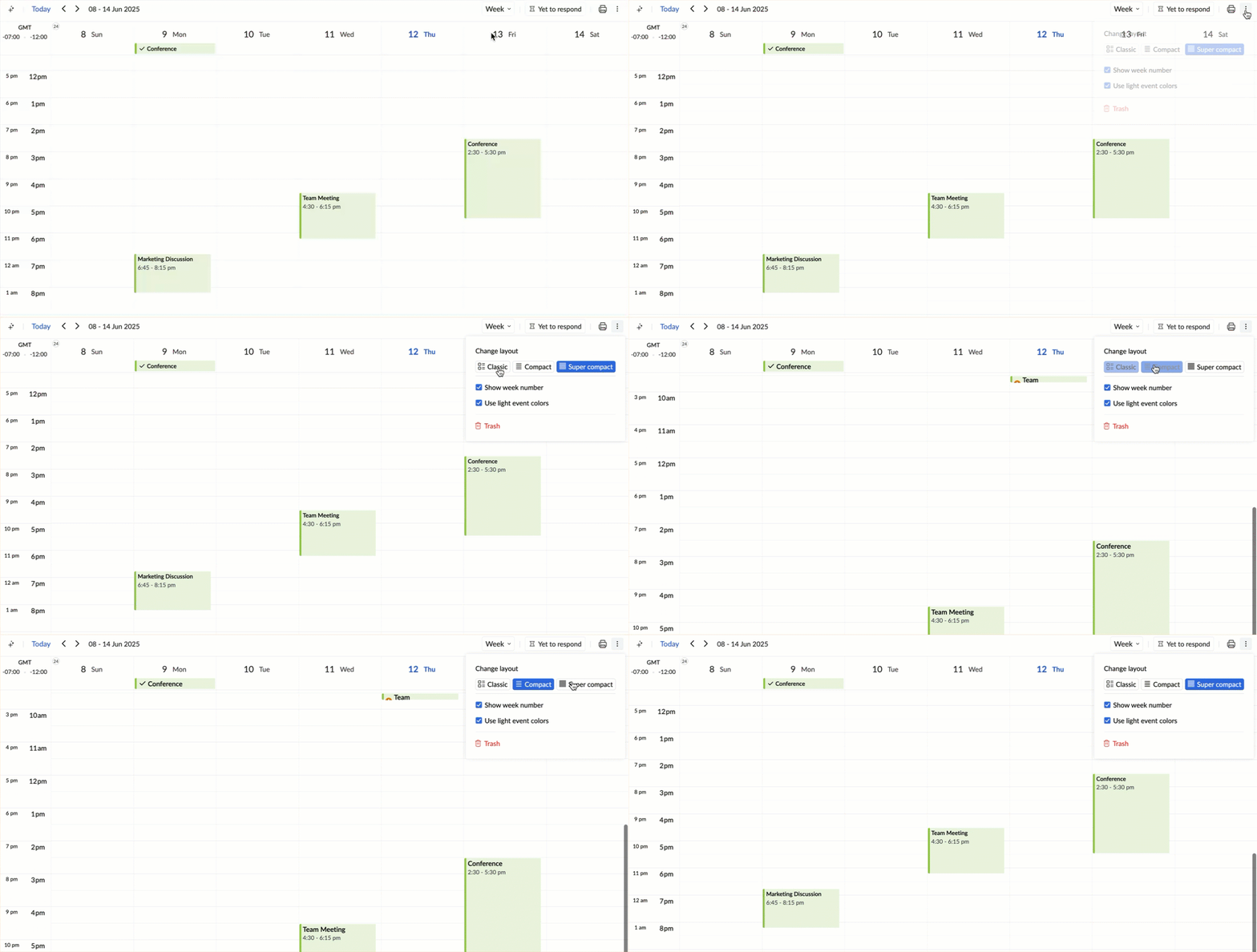
You can customize the view of your calendar grid display using the More options icon on the right corner of your calendar grid. You can choose to view week numbers or change the layout while choosing the Day, Week and Work views. You can also choose to display light or bold colors for the events in the calendar grid while choosing the Day, Week and Work views.
Steps to Enable/ Disable Week Number in your Calendar Grid
- Log in to Zoho Calendar.
- Click the More Options ( 3-dots) icon in the top-right corner of your calendar grid.
- Click on the checkbox - 'Show week number' to display the week number on the calendar grid.
Note:
Week Number cannot be seen when you choose the Year and Agenda views in calendar views.
Steps to Switch between Light and Bold Colors for Events in Calendar Grid
- Log in to Zoho Calendar.
- Click the More Options ( 3-dots) icon in the top-right corner of your calendar grid.
- Select the check box - 'Use light event colors' to change the event colors light on the calendar grid.
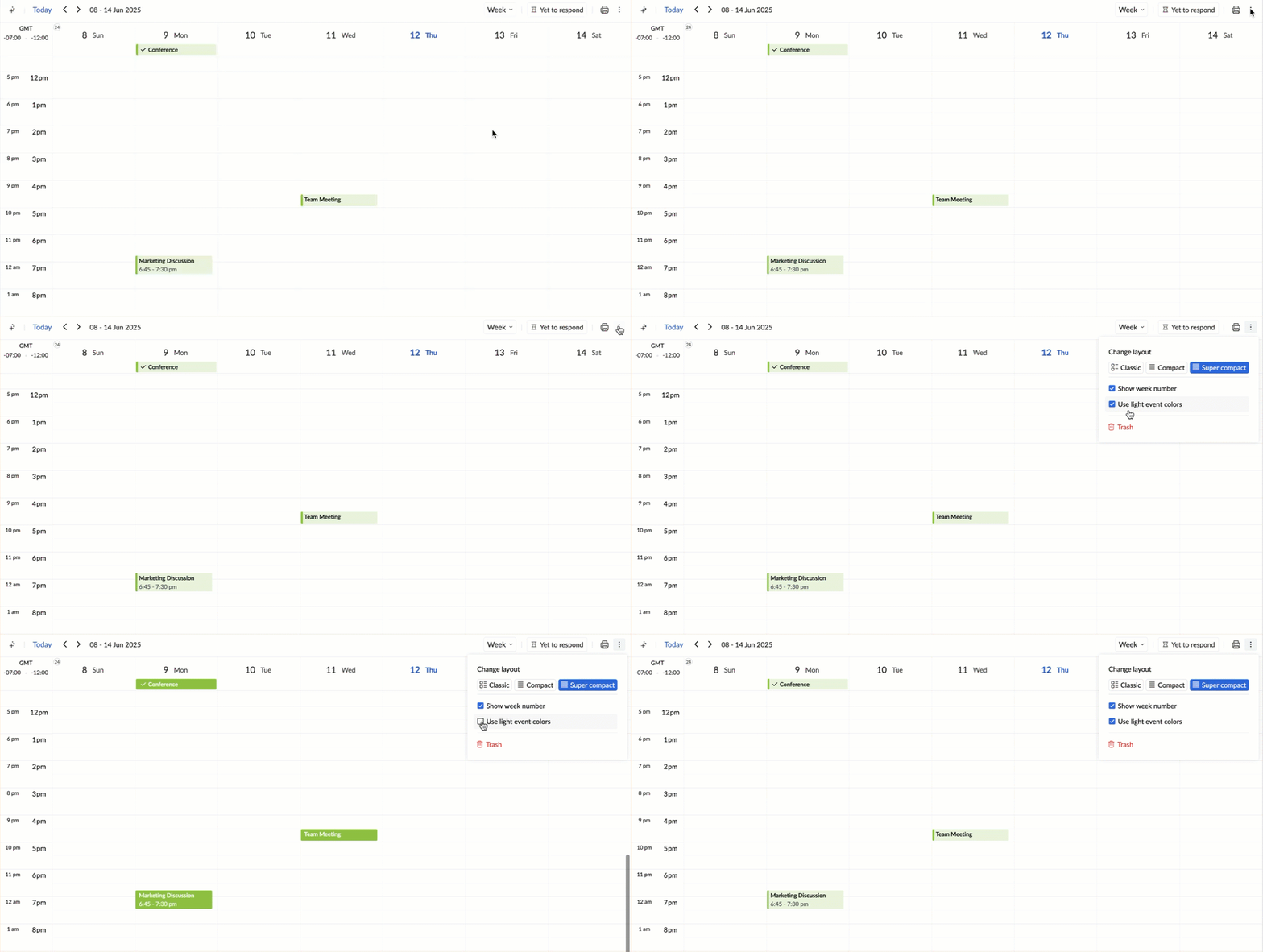
- Unselect the check box - 'Use light event colors' to change the event colors bold on the calendar grid.
Note:
These changes will be visible only when you choose the Day, Week and Work views in the calendar views.
Steps to Change the Calendar Layout
- Log in to Zoho Calendar.
- Click the More Options ( 3-dots) icon in the top-right corner of your calendar grid.
- Choose the preferred layout (Classic, Compact and Super Compact) using the Change layout options.
Note:
The Change layout option is available only when you choose the Day, Week and Work views in the calendar views.
Other Customization Options
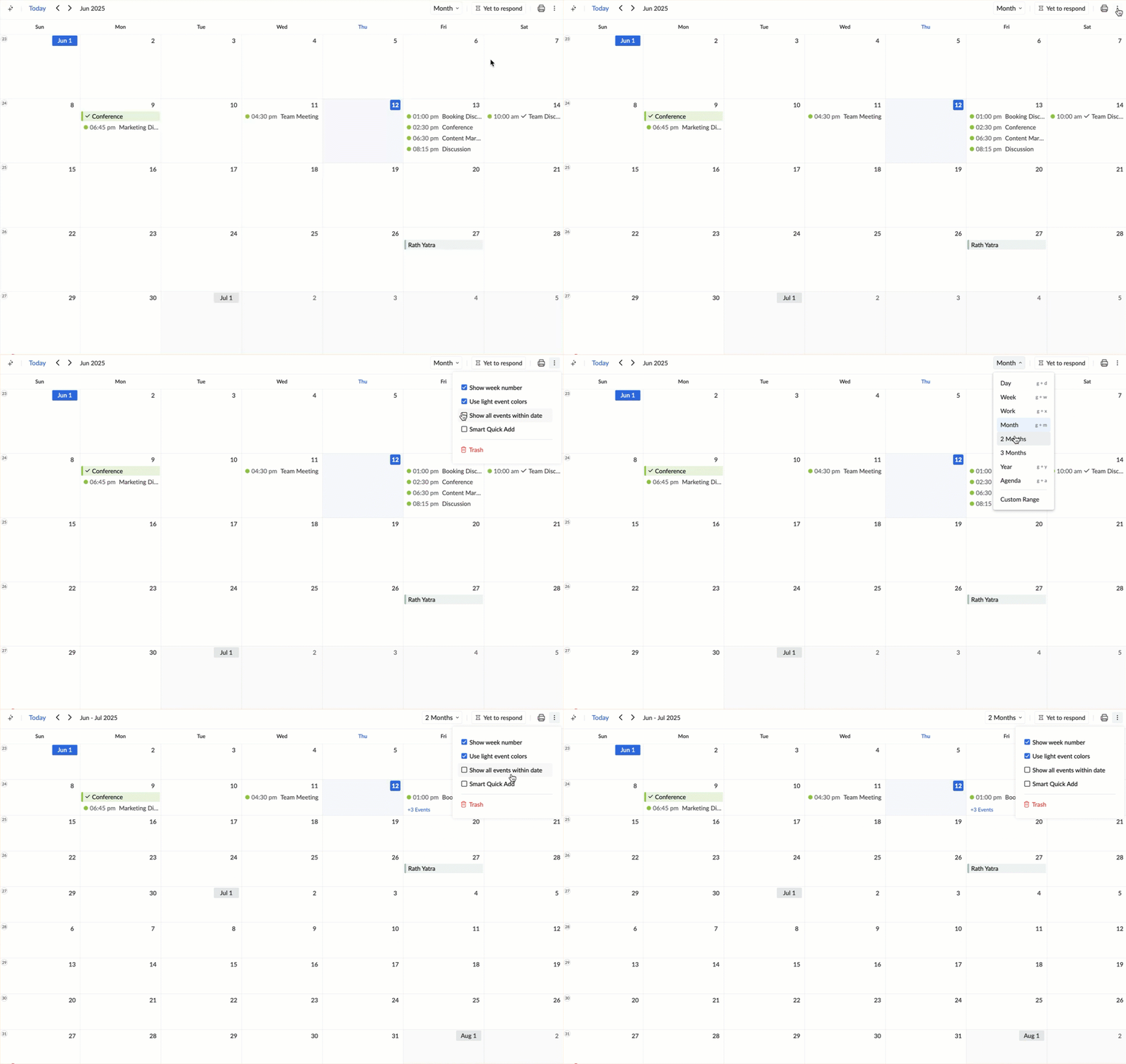
- When more events are being added to a particular date, the date grid in the Month, 2 Months and 3 Months views will display all the events for that particular day. You can choose to enable/ disable the display of all the events on a particular day in the date grid by selecting the Show all events within date option.
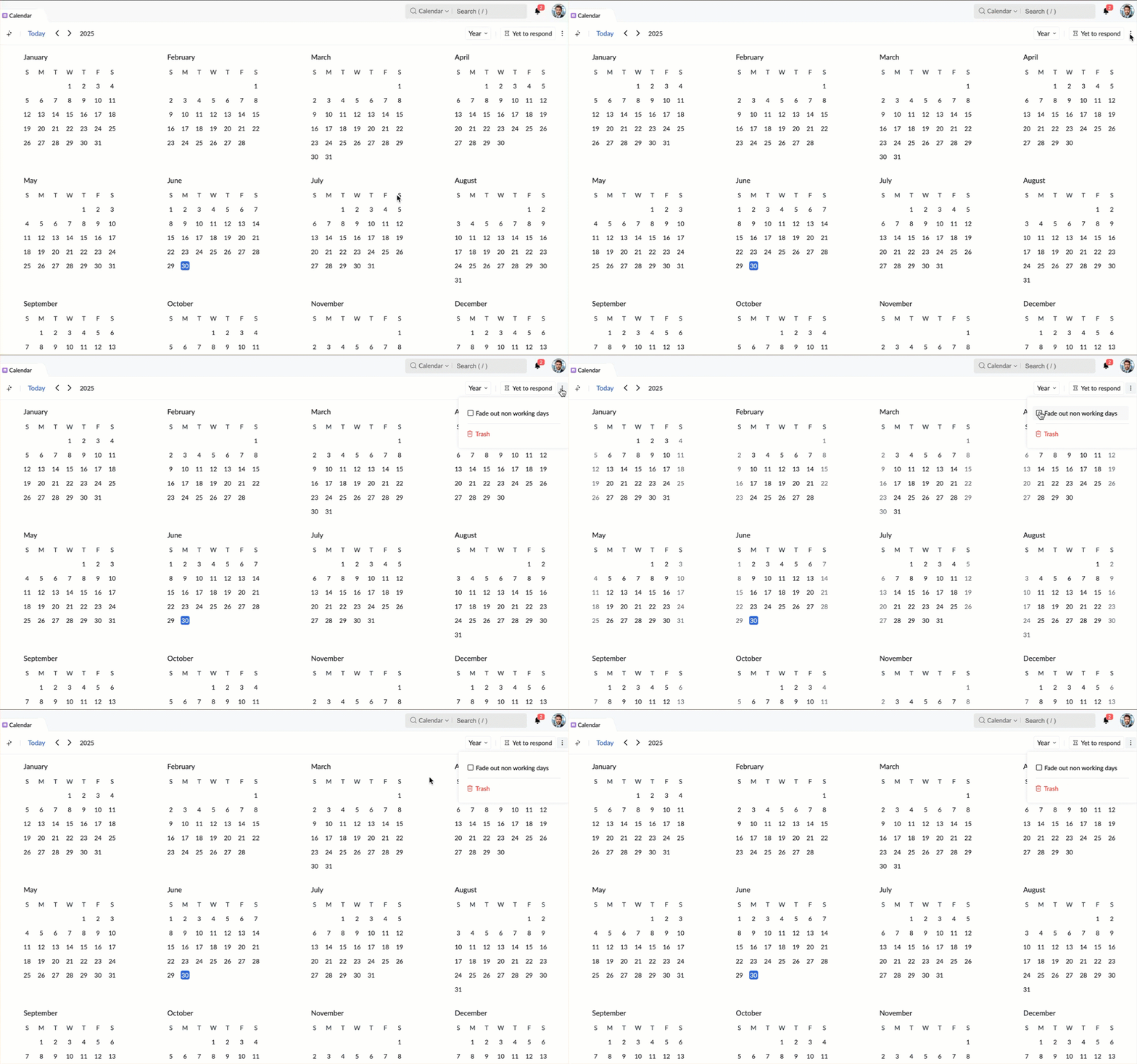
- In the Year view, you can choose to Fade out the non-working days.
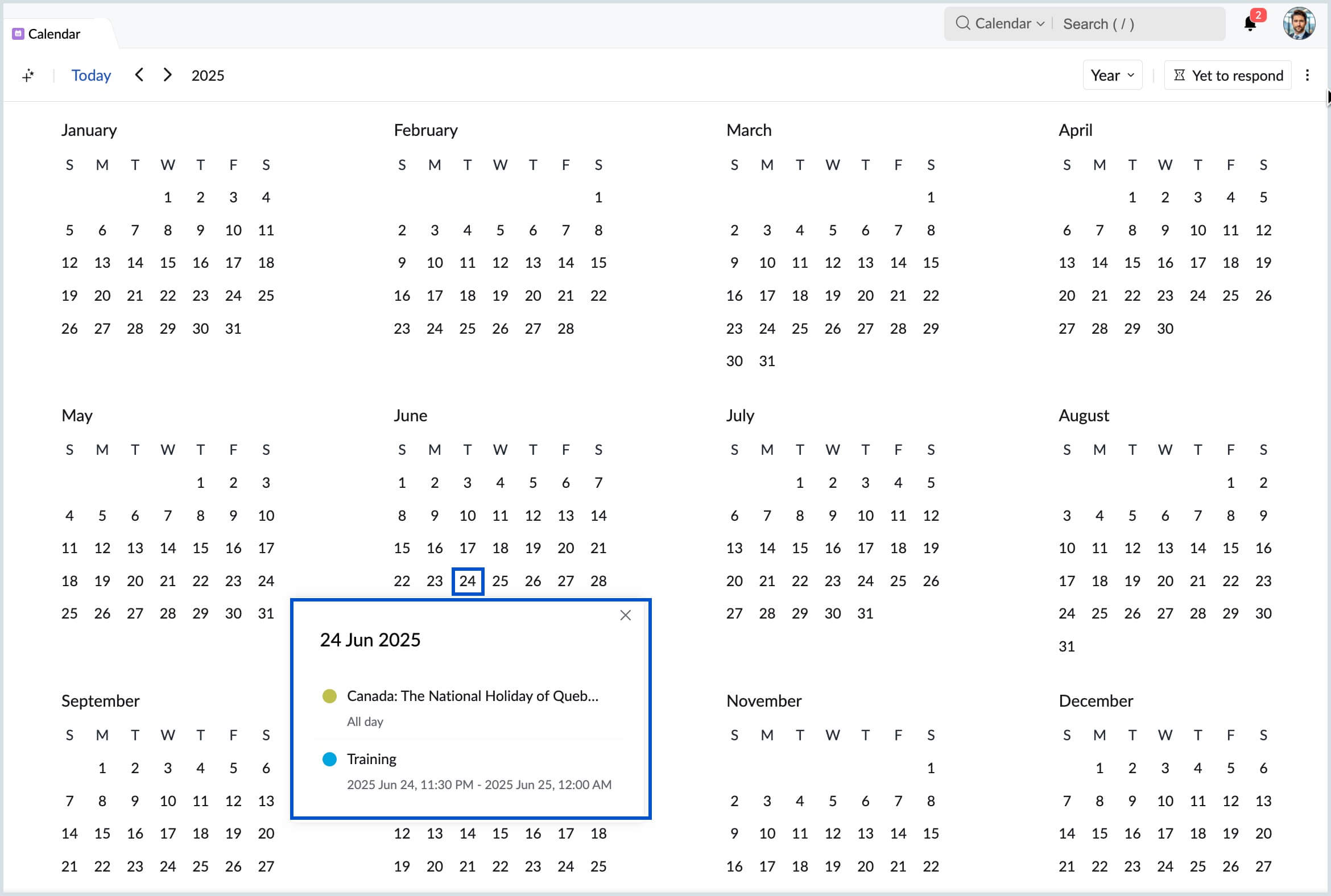
- To view the list of events in an Year view, select a particular date and the corresponding date's events will be listed.
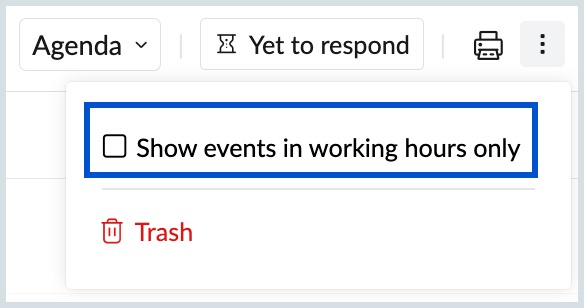
- When you choose the Agenda view, you can choose to show/ hide the events that occur during your non-working hours.
Display Language
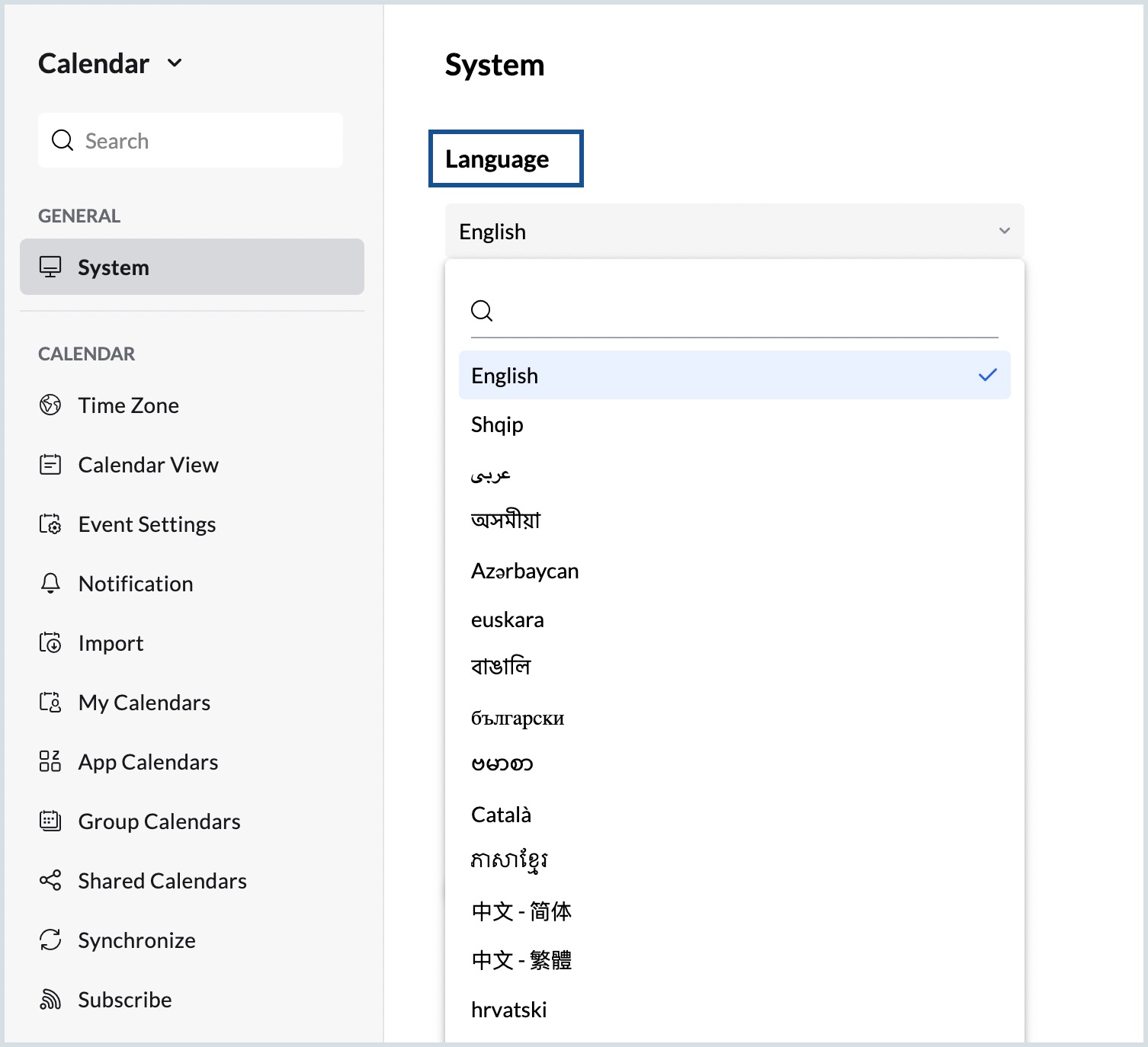
You can pick a display language for your calendar from the set of 60 language options that are supported by the Zoho Calendar.
Steps to Choose the Display Language
- Log in to Zoho Calendar.
- Go to Settings > General > System.
- Choose the preferred display language for your calendar from the list of languages available under the Language drop-down.
Font Family and Font Size
Zoho Calendar allows you to personalize the appearance of your calendar by selecting a Font Family and adjusting the Font Size. Choose your preferred Font Family and select a Font Size ranging from Very Small to Very Large, or use the Default browser font size.
Steps to Choose the Font Size
- Log in to Zoho Calendar.
- Go to Settings > General > System.
- Choose your preferred Font Size from the Font Size drop-down menu.
- Select your preferred Font Family from the Font Family drop-down menu.
Themes
You can customize your Zoho Calendar using the various themes available in the Calendar Settings. The options available are Cobalt blue, Fern Green, Tangerine Yellow, Cardinal Red, Obsidian Black and Vintage White.
Steps to Choose a Theme
- Log in to Zoho Calendar.
- Go to Settings > General > System.
- Choose the preferred Theme color for your calendar along with dark, light or white mode for your left pan.
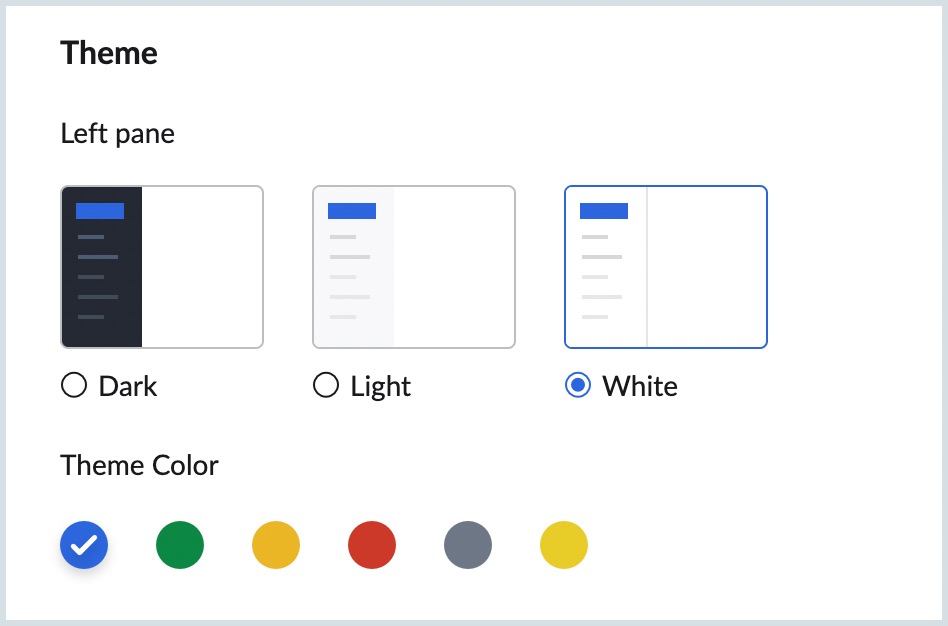
- The Theme colors that are available currently are - Blue, Green, Yellow, Red, Grey and Vintage.
- Select the desired theme for your left pane and it will get applied to your Calendar.
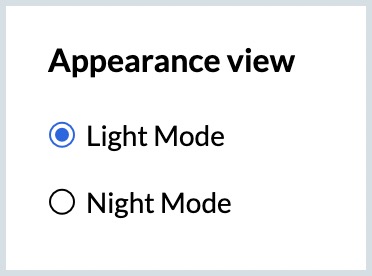
- You can also choose the appearance of your calendar from the following option.
- Light mode
- Night mode
Note:
You can also use the Night mode toggle switch in the right pane of your calendar to choose your appearance setting.
Date Format
Zoho Calendar allows you to choose how dates are displayed across the calendar interface.
Steps to change the Date Format
- Log in to Zoho Calendar.
- Go to Settings > General > System.
- Under Date Format, select the preferred format:
- Mar 10 2026
- 10 Mar 2026
- 2026/03/10
- 2026-03-10
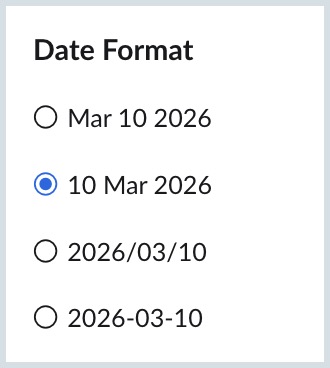
The selected format will be applied across the calendar interface.
Desktop Notification
Desktop notifications help you stay updated with alerts even when you are working in another browser tab.
Steps to enable Desktop Notification
- Log in to Zoho Calendar.
- Go to Settings > General > System.
- Select Allow desktop notification.
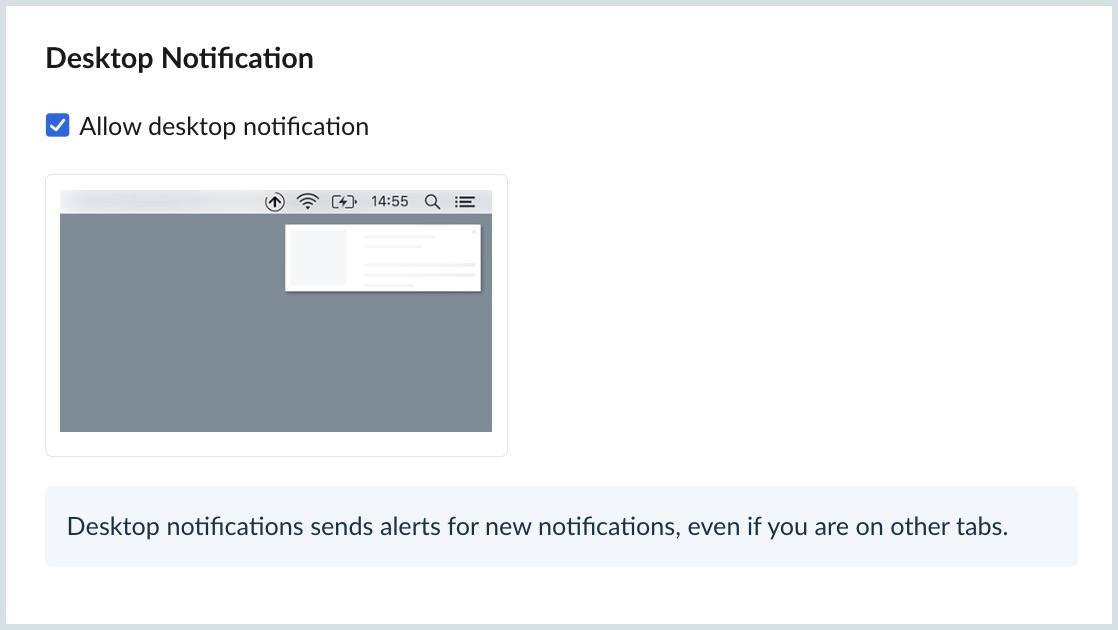
Desktop notifications will display alerts for calendar updates and reminders even when Zoho Calendar is not the active tab.
Notification display preferences
You can choose how notifications open when an alert is triggered.
Steps to set notification preferences
- Log in to Zoho Calendar.
- Go to Settings > General > System.
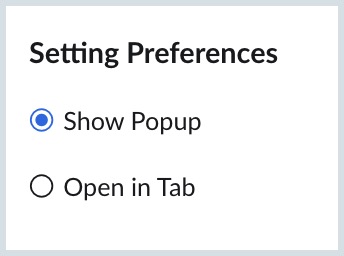
- Under Setting Preferences, select one of the following:
- Show Popup – Displays the notification as a popup alert.
- Open in Tab – Opens the notification in a new browser tab.